Superwhisper Linux Alternative: AppImage for Wayland & X11

Superwhisper's platform list is macOS, Windows, iOS and Android. Linux is not on it: its first Linux builds, published on GitHub in October 2026, are aimed at Omarchy and other Arch-based desktops, and its docs still mark Linux as coming soon (Superwhisper, roadmap request). That holds whether you searched for Superwhisper Linux, super whisper Linux, Superwhisper Ubuntu, or OpenSuperWhisper Linux.
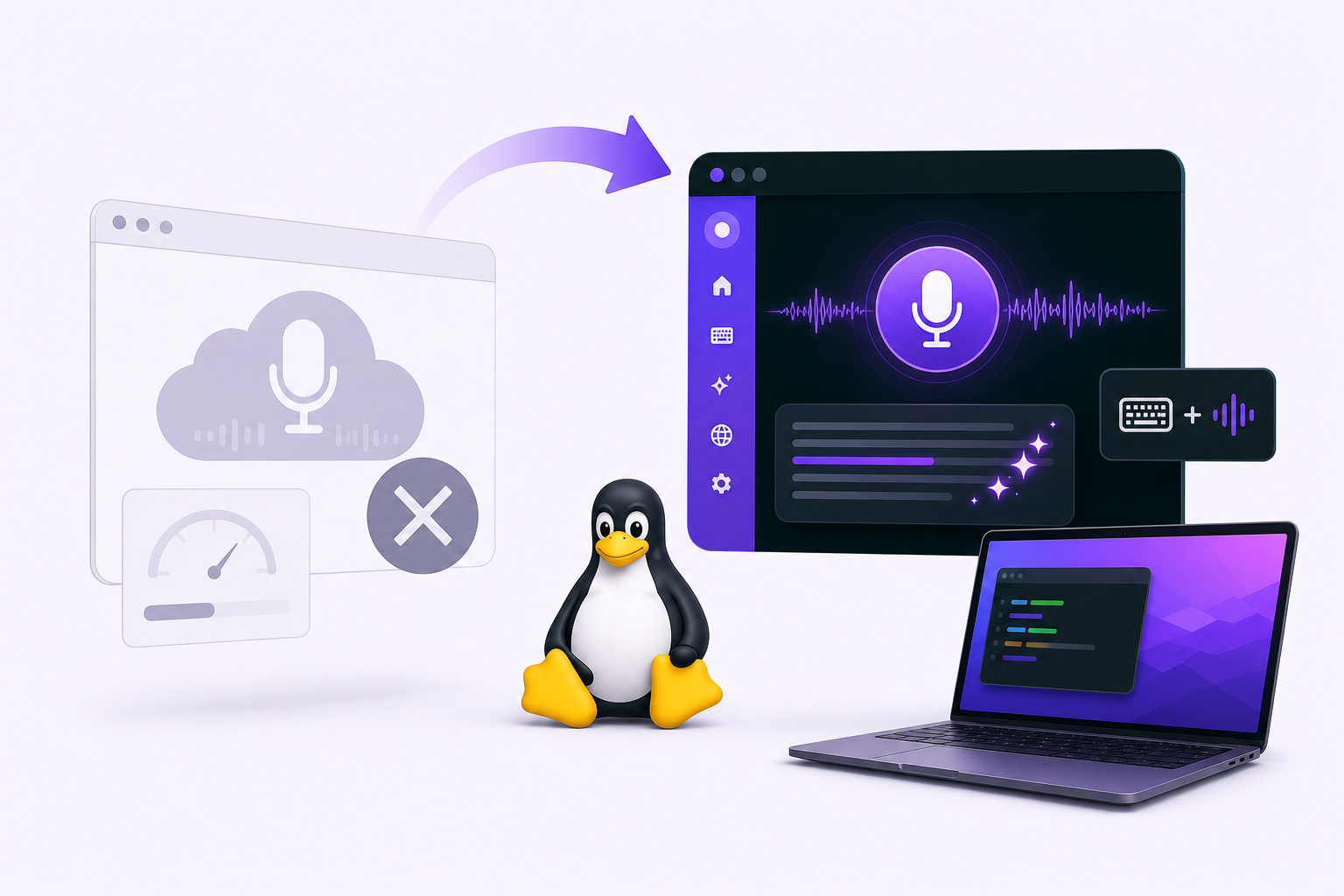
So here is the thing a search result cannot hand you: Vibe Typer, a voice typing app you can install on Linux today. One portable AppImage for modern 64-bit distributions, Ubuntu, Fedora, Debian, Arch and Linux Mint among them, running natively under both Wayland and X11. Your words land wherever your cursor is: terminals, editors, browsers, chat.
One caveat before the comparison, because it is the real difference between these two tools and not a footnote. Superwhisper transcribes offline. Vibe Typer does not. If offline is your hard requirement, skip to the offline section; the recommendation there is not Vibe Typer.
Does Superwhisper work on Linux?
Not on most distros. Superwhisper's own site advertises "AI Voice to Text for macOS, Windows, iOS & Android," and its docs still list Linux as coming soon. Since 9 October 2026 it has published Linux builds on GitHub, packaged for Omarchy and other Arch-based desktops, with KDE Plasma and GNOME support in the release notes. There is no AppImage, deb, rpm or Flatpak. The community request for Ubuntu and Linux support remains pending, with comments from Ubuntu, Linux Mint and developer-workstation users going back well over a year.
That leaves four options: wait for a port with no date attached, use browser-only dictation and give up on your terminal and editor, build your own setup from open-source parts, or use a desktop app that already ships for Linux.
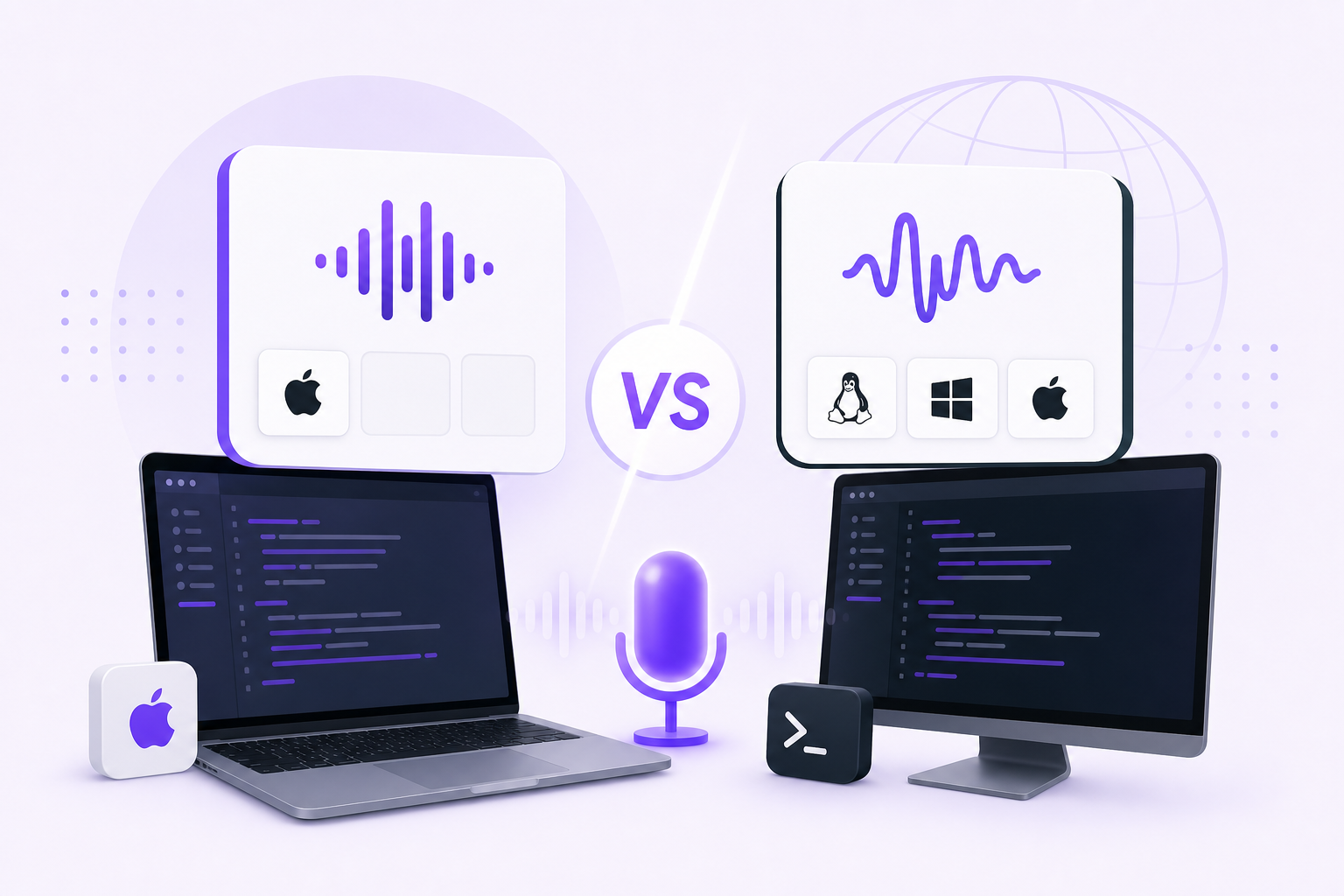
Superwhisper vs Vibe Typer on Linux
| Superwhisper | Vibe Typer | |
|---|---|---|
| Linux download | Early builds for Arch-based desktops | Yes, portable AppImage |
| Ubuntu / Fedora / Debian / Arch / Mint | Arch-based only | Yes, one build for all |
| Wayland | On its Arch-based builds | Yes, native |
| X11 | Not stated in its release notes | Yes, native |
| macOS | Yes | Yes |
| Windows | Yes | Yes |
| iOS | Yes | Yes |
| Offline transcription | Yes, on Apple Silicon | No, cloud only |
| System-wide dictation | Yes | Yes |
| AI rewrite / reply | Yes | Yes |
| Free plan | Yes | Yes, 2,000 words/mo |
If you are on macOS or Windows, compare them directly. Superwhisper is a good product and its offline models are a real advantage. On Linux the comparison barely happens: unless you run an Arch-based desktop, only one of the two installs.
If offline is non-negotiable
Superwhisper's core pitch is that it runs Whisper locally, so your audio never leaves the machine. Vibe Typer does not do that. Transcription runs in the cloud, and there is no local model option today.
If that rules Vibe Typer out for you, then it rules it out, and the right answer is an offline-first Linux tool rather than us:
- nerd-dictation: the default answer in most Linux dictation threads. Python, VOSK-backed, entirely local, X11-first with a Wayland path that takes work.
- Handy: press a shortcut, speak, text appears. Local Whisper with GPU acceleration, and the friendliest of the offline options to set up.
- Speech Note: Flatpak, offline, good multilingual coverage, more of a transcription workspace than a system-wide typing tool.
We cover all of them in the full Linux roundup.
What Vibe Typer gives you in exchange for being cloud-based: transcription accuracy that does not depend on your GPU, 99 languages with no per-language model downloads, and Magic Formatter cleaning up the ums and false starts before the text lands. On privacy, audio is processed in memory and discarded, the backend keeps no server-side transcript cache, and nothing is used for training. That is a different promise from "it never leaves your machine," and you should pick based on which one you need.
Superwhisper for Ubuntu
superwhisper ubuntu is one of the more common ways people arrive here, and the answer is the same: there is no Ubuntu build, no PPA, no snap, no Flatpak.
Vibe Typer runs on Ubuntu 24.04 and later without adding a repository:
chmod +x VibeTyper.AppImage
./VibeTyper.AppImage
On GNOME Wayland, Ubuntu's default since 22.04, text insertion goes through the portal rather than X11 key injection, which is why tools built around xdotool fall over there and Vibe Typer does not. If a specific terminal handles inserted text oddly, the text insertion and paste preferences doc covers the per-app settings.
OpenSuperWhisper and Linux
Worth separating, because people search these interchangeably. OpenSuperWhisper is a different project, an open-source, macOS-only Whisper front-end unaffiliated with Superwhisper. It has no Linux build either.
If you found it while looking for an open-source dictation tool you can run on Linux, the Linux-native equivalents are nerd-dictation, Handy and Whispering, all covered in the roundup.
Wayland, X11, and why Linux dictation is hard
Most dictation tools that "support Linux" support X11, because X11 lets any process synthesise keystrokes into any window. Wayland deliberately does not, which was the point of its security model, so tools built on xdotool or XTestFakeKeyEvent silently stop working the moment a distro switches its default session.
That is the single biggest reason Linux dictation looks the way it does, and it is worth understanding before you pick anything. See why most voice typing tools break on Wayland.
Vibe Typer ships both paths and picks the right one for your session. Switching from X11 to Wayland migrates your settings across automatically.
Installing Vibe Typer on Linux
- Download the AppImage from the downloads page.
chmod +x VibeTyper.AppImage- Run it, and grant microphone access when prompted.
- Set a global hotkey.
- Click into any app where you can type, press the hotkey, and talk.
No repository to add, no dependencies to chase. The same file works on Ubuntu, Fedora, Debian, Arch and Mint.
For Linux developers
Dictation on a developer machine is rarely one app. It is a terminal prompt, then a GitHub issue, then Slack, then a Markdown note, then a comment in your editor. A system-wide hotkey is the whole point; otherwise you are switching tools to switch contexts.
Places it tends to earn its keep first:
- coding-assistant and terminal prompts: see Claude Code, Cursor and OpenCode
- GitHub issues and pull request reviews
- Jira, Linear and other trackers
- Slack, Discord and email replies
- Markdown notes and documentation
Working on a remote box? Dictation runs locally and the text lands in the SSH session; voice dictation over SSH and in dev containers covers the setup.
Verdict
Superwhisper is a good tool that, apart from early builds for Arch-based desktops, does not run on Linux yet, and its roadmap gives no date for other distros. If you want a polished desktop dictation workflow on Linux today, Vibe Typer is the practical answer: one AppImage, native Wayland and X11, system-wide, free for 2,000 words a month.
If offline transcription is a requirement rather than a preference, take nerd-dictation or Handy instead. Better that than installing something that cannot do the one thing you needed.
Also worth reading: voice typing for Linux for the full picture of what runs where.
FAQ
Does Superwhisper support Linux?
Not on most distros. Superwhisper's site lists macOS, Windows, iOS and Android. Since October 2026 it has published early Linux builds aimed at Omarchy and other Arch-based desktops, with no package yet for Ubuntu, Fedora, Debian or Mint.
Is there a Superwhisper alternative for Linux?
Yes. Vibe Typer ships a Linux AppImage that runs on Wayland and X11, works system-wide, and includes AI rewrite and reply. For an offline-only alternative, use nerd-dictation or Handy.
Does Superwhisper work on Ubuntu?
No: no Ubuntu build, PPA, snap or Flatpak exists. Vibe Typer's AppImage runs on Ubuntu 24.04 and later, including GNOME Wayland sessions.
Does Vibe Typer transcribe offline like Superwhisper?
No. Vibe Typer is cloud-based; Superwhisper runs Whisper locally on Apple Silicon. Vibe Typer processes audio in memory, stores no recordings or transcripts, and never trains on your voice. But if you need transcription with no network at all, choose an offline tool.
What is OpenSuperWhisper, and does it run on Linux?
OpenSuperWhisper is a separate open-source macOS Whisper front-end, unaffiliated with Superwhisper. It has no Linux build. The Linux-native open-source equivalents are nerd-dictation, Handy and Whispering.
Is Vibe Typer free?
Yes. The free plan is 2,000 words and 20 AI operations a month, no card. Pro removes the limits at $8/month billed annually, or $10/month month-to-month.
Try Vibe Typer free
Voice typing that works in every app on Linux, Windows, and macOS. Free to download: 2,000 words a month, no card.
Download free