Voice Dictation Over SSH and in Dev Containers

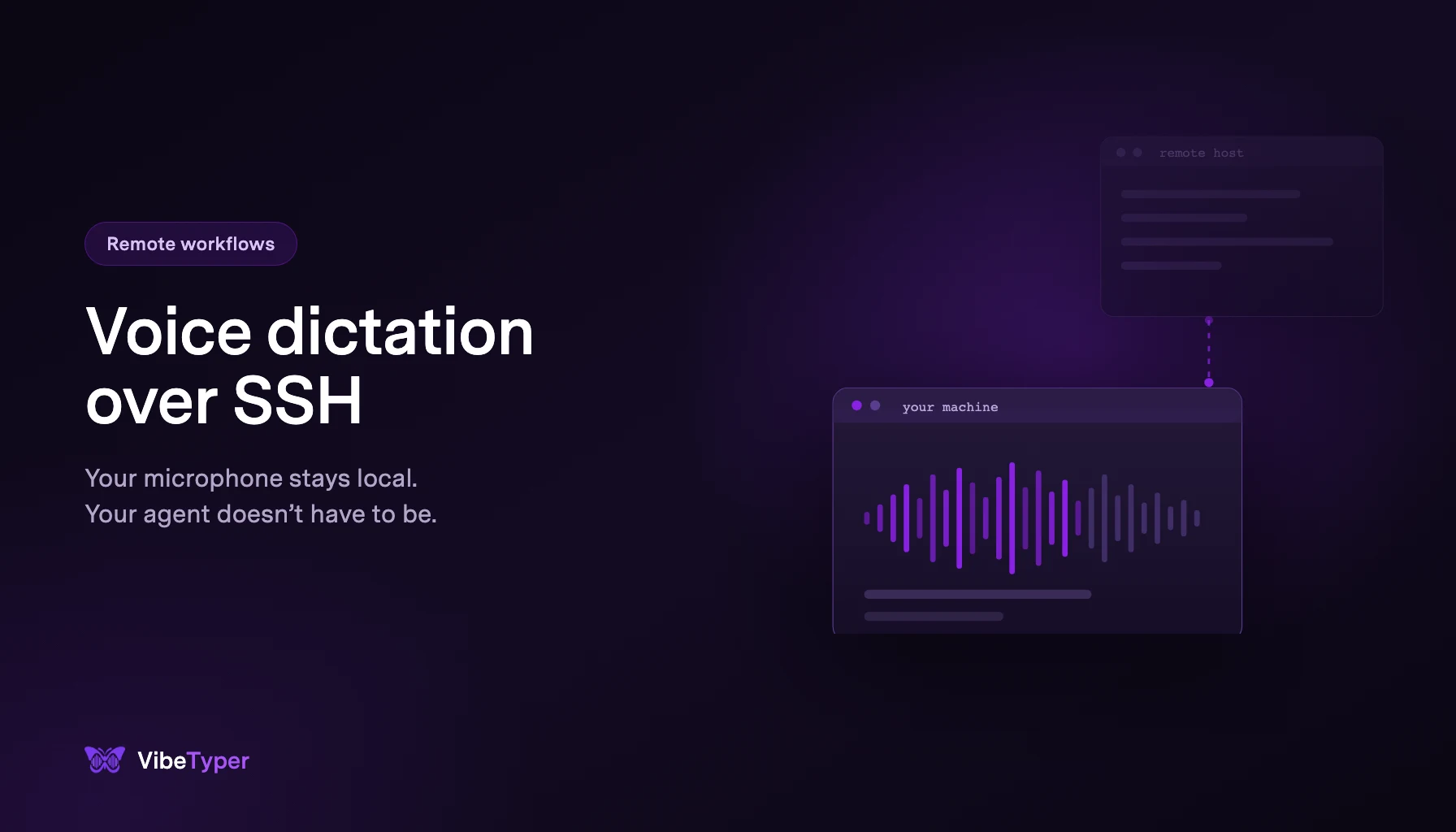
Your microphone is plugged into the machine on your desk. Your agent is not.
That one sentence explains every "why does voice dictation not work over SSH" thread you will find. It is not a missing feature and it is not a bug you can file. It is a consequence of where the audio hardware is, and it hits every tool that puts voice input inside the process you are talking to.
It also has a clean fix that most people never try, because it looks too simple to be the answer.
The error messages that bring people here
If you are here after hitting one of these, you are in the right place.
Claude Code's voice dictation documentation lists a local microphone as a hard requirement, and says dictation "does not work in remote environments such as Claude Code on the web or SSH sessions". On a headless host you get:
Voice mode requires a microphone, but SoX could not open an audio capture device
And if it keeps failing:
Voice input is failing repeatedly and has been paused
In the VS Code extension the reason is spelled out even more directly. Voice dictation "is not available in VS Code Remote sessions, including SSH, Dev Containers, and Codespaces, because the microphone is on your local machine and the extension runs on the remote host."
That last clause is the whole article. Hold onto it.
Why forwarding the audio is the wrong instinct
The first idea everybody has is to move the sound. Tunnel PulseAudio or PipeWire over the SSH connection, or forward the USB device, so the remote process can open a capture device.
It can be made to work. It is rarely worth it:
- The remote host needs a working audio stack. Servers and containers ship without one, which is exactly why the capture device is missing in the first place.
- You are streaming raw microphone audio across the network continuously, then the remote process streams it out again to a transcription service. Two network hops for something that needed zero.
- It adds latency to the one interaction where latency is most noticeable.
- It breaks on reconnect, and remote sessions reconnect constantly.
- You now maintain an audio tunnel as part of your development environment.
You are doing all of that to move your voice to the machine, so the machine can turn it into text, so the text can come back. The text was always going to end up on your screen anyway.
The fix: every remote workflow still has a local window
Here is the part that gets missed.
You are not typing into the remote machine. You are typing into a local application, which sends bytes over a connection. Your terminal emulator is a program running on your laptop. So is your VS Code window. So is your browser. The remote host receives keystrokes, and it has no idea whether a human or a dictation tool produced them.
So put the dictation where the microphone already is. A system-wide dictation tool running on your laptop inserts text into the focused local window, and that window forwards it exactly as it forwards everything else you type. Nothing is tunnelled. Nothing is configured on the server.
| Environment | Agent's built-in voice mode | Local system-wide dictation |
|---|---|---|
| SSH in a terminal emulator | Not available | Works. The emulator is local |
| tmux or screen over SSH | Not available | Works. Still a local emulator |
| mosh | Not available | Works |
| VS Code Remote SSH | Not available in the extension | Works. The VS Code window is a local Electron app; only the extension host is remote |
| Dev Containers | Not available in the extension | Works, same reason |
| GitHub Codespaces in the browser | Not available | Works. The browser is local |
| Codespaces in desktop VS Code | Not available in the extension | Works |
| JetBrains Gateway | Same constraint: the IDE backend runs on the remote host | Works. The thin client is local |
docker exec in a local terminal |
No capture device in the container | Works |
| Agent running on the web | Not available | Works. Dictate into the browser |
| Headless build box over SSH | No capture device | Works |
The pattern is the same in every row. Built-in voice needs the microphone to be attached to the process. Local dictation needs the window to be on your desk, and it always is, otherwise you could not see it.
Making it reliable in a remote TUI
Typing into a remote shell works out of the box. Typing a paragraph into a full-screen terminal application over a laggy connection has some sharp edges. These are the ones that matter.
Prefer paste over simulated typing for multi-line text
Terminals support bracketed paste: when you paste, the emulator wraps the text in escape sequences so the application on the other end knows it was pasted rather than typed. Agent TUIs use this to accept a multi-line prompt as one block instead of submitting at the first newline.
Simulated keystrokes get no such wrapper. Each character arrives as a keypress, so a newline in the middle of your dictated prompt is indistinguishable from you pressing enter, and the TUI submits half a prompt.
Practical rule: for multi-paragraph prompts into a remote TUI, use a paste-based insertion mode. Vibe Typer's default Automatic mode is paste-based, so this is already the behaviour unless you have changed it. Keep Always Type for the fields where paste shortcuts misbehave, and expect to keep dictation to a single paragraph there.
Your terminal emulator, tmux and mosh all pass bracketed paste through to the remote application. What decides the behaviour is whether the remote TUI turns it on.
Get the paste shortcut right for your terminal
This is where most dictation tools quietly fail, because Ctrl + V is not a paste in a terminal.
Vibe Typer's Automatic mode already sends the right one per application: Ctrl + Shift + V in known Linux terminals, Shift + Insert for Konsole and Yakuake, and Shift + Insert for VS Code and Cursor, whose Electron shells often read Ctrl + V in the integrated terminal as an image paste. If your terminal is unusual, set a rule for it in text insertion and paste preferences.
Latency is a display problem, not an insertion problem
Over a high-latency link, characters you type do not appear until the remote shell echoes them back. That is normal, and it is a good reason to prefer paste: one write of 300 characters costs one round trip, while 300 simulated keystrokes cost 300 echoes, so the display crawls even though the bytes arrive in order.
If a long dictated prompt appears to arrive slowly or in pieces, that is the connection catching up, not the text being mangled. Give it a second before you retype anything.
Read it before you press enter
Truer here than anywhere else. You are about to hand a command or a prompt to a process running on a machine you are not sitting at, and in a lot of cases to an agent with write access to a repository. A misheard word in a chat message is a typo. A misheard path in an agent prompt is a diff on a remote branch.
What about the files, logs, and everything else?
Voice over SSH is about more than prompting agents. Once dictation is at the OS layer, it covers the rest of remote work too:
- Commit messages written on the remote box.
- Long
git commit --amendbodies and pull request descriptions. - Comments and docstrings while editing in Vim or Neovim over SSH.
- Config files, YAML, systemd units and the comments that explain them.
- The incident notes you write while reading logs.
- The Slack message explaining what you just found, which is not on the remote machine at all.
That last one is the tell. Remote work is never only remote. You are constantly moving between a remote terminal, a local browser, a chat window and an issue tracker. A dictation layer that lives inside one agent covers a fraction of that. A layer at the operating system covers all of it with one key.
Setting it up
Vibe Typer runs on your own machine and types into whatever has focus. It ships as a single portable AppImage for modern 64-bit distributions plus Windows and macOS builds, and runs on both Wayland and X11. Free for 2,000 words and 20 AI operations a month, with no card. Pro is $10/month, or $8/month billed annually.
- Download it for the machine you sit at. Not the server. The server does not need anything.
- On Linux, make the AppImage executable and launch it. On a Wayland session, run the guided first-launch setup, which installs the helpers it needs and configures device permissions so the global hotkey works system-wide, then asks for a restart.
- Pick a hotkey your terminal does not already use.
- Focus your SSH session, press the key, speak, release, read, then send.
- If your terminal or editor inserts text oddly, add a per-app rule in paste preferences.
Two settings are worth the two minutes they take:
The custom dictionary. Host names, container names, repository names, branch names and CLI flags are exactly the words a general speech model mangles, and exactly the words that have to be correct when the target is a shell. Add them once as replacements.
Magic Formatter. It strips false starts and mid-sentence corrections, so a spoken prompt arrives as an instruction rather than a transcript of you thinking. On a remote agent prompt, that is the difference between one round trip and three.
Which agents this applies to
- Claude Code documents the limitation directly and it is the clearest case. See where
/voicestops working. - OpenCode has no built-in voice at all. The main request was closed as not planned in June 2026. See OpenCode voice input.
- Cursor runs its own window locally, but its microphone only fills the agent panel, not the integrated terminal where your remote session lives. See Cursor voice input.
- OpenClaw is frequently deployed to a Raspberry Pi, a VPS or a container precisely so it stays online, which puts it on the wrong side of the same boundary. See OpenClaw voice typing.
If you are on Linux, check your display server before evaluating any dictation tool: several are X11-only or need manual setup on Wayland, and a default Ubuntu, Fedora or Plasma session in 2026 is Wayland. See voice typing on Wayland.
The short version
Do not move your microphone to the server. Move the transcription to where the microphone already is, and let the resulting keystrokes take the trip they were always going to take.
Download Vibe Typer and dictate into your next SSH session.
FAQ
Why does Claude Code say voice dictation does not work over SSH?
Because /voice records audio on the machine running Claude Code, and over SSH that machine is the remote host, which usually has no microphone or audio stack. The docs list a local microphone as a requirement and name SSH sessions and Claude Code on the web as unsupported environments.
Can I dictate into a remote terminal at all?
Yes, and it needs nothing on the server. Your terminal emulator is a local application. A system-wide dictation tool inserts text into it, and the emulator sends those bytes over the connection like any other input.
Does voice input work in VS Code Remote SSH or Dev Containers?
The Claude Code extension's microphone does not, because the extension host runs on the remote machine. The VS Code window is a local Electron application, so a local dictation tool types into its editor, chat and integrated terminal normally.
What about GitHub Codespaces?
Same answer. The Codespace is remote, but you are looking at it through a local browser or a local VS Code window, and dictation inserts into that.
Can I forward my microphone over SSH instead?
You can tunnel PulseAudio or PipeWire, or forward a USB device. It requires an audio stack on the remote host, adds latency, streams raw audio across the network, and breaks on reconnect. Dictating locally achieves the same result with none of that.
Why does my dictated prompt submit halfway through in a TUI?
Simulated keystrokes are not bracketed, so a newline inside your text reads as you pressing enter. Use a paste-based insertion mode for multi-line prompts, which wraps the text so the application treats it as one block.
Does this work with tmux and mosh?
Yes. Both sit between a local terminal emulator and a remote shell, and both pass bracketed paste through to the application, so insertion behaves as it does in a plain SSH session.
Do I need to install anything on the server?
No. Vibe Typer runs on the machine you are sitting at. See voice typing for Linux for what that local setup involves.
Try Vibe Typer free
Voice typing that works in every app on Linux, Windows, and macOS. Free to download: 2,000 words a month, no card.
Download free