OpenCode Voice Input: Dictate Prompts Into the TUI

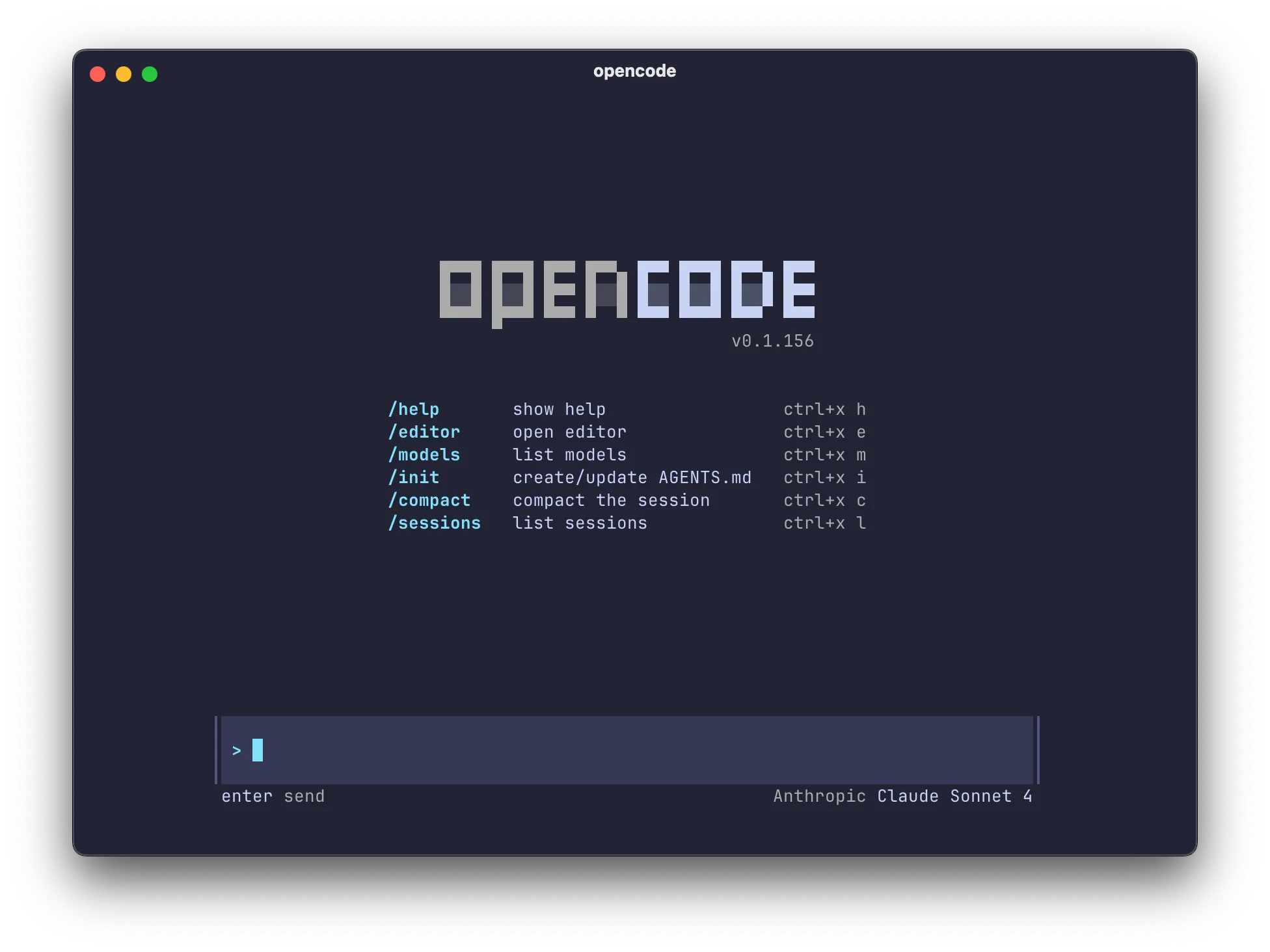
If you searched for "OpenCode voice", "OpenCode voice input", "OpenCode voice mode", "OpenCode speech to text", or "opencode-voice", here is the short version, checked against the tracker in July 2026.
OpenCode has no built-in voice input. The most-supported request for it, issue #4695, was closed as not planned on 4 June 2026 after collecting 201 reactions and 37 comments since November 2025. There is no voice, dictation, or microphone page in the OpenCode docs, and no voice binding in the keybinds reference. The repository now lives at anomalyco/opencode.
So this is not a "coming soon" situation you can wait out. The working answer is to put dictation one layer below OpenCode, at the operating system, where it types into the TUI the same way your keyboard does.
Vibe Typer does that. It ships as a single portable AppImage for modern 64-bit distributions, plus Windows and macOS builds, and it runs under both Wayland and X11. There is also an iPhone keyboard on the App Store, so the same dictation works on your phone. Press a global hotkey, speak the prompt, and the text lands in whatever has focus: the OpenCode TUI, the web UI, your editor, a GitHub comment, Linear, Slack.
Below is what OpenCode actually decided and when, why a plugin cannot fix it cleanly, and how to set it up.
Does OpenCode have voice input? The record
People keep asking, and the answer has changed enough times that it is worth writing down with dates.
| Item | What it is | Status as of July 2026 |
|---|---|---|
| Issue #4695 | "Speech-to-Text Voice Input for Lazy People in OpenCode", a working prototype with FFmpeg recording, Groq/OpenAI/whisper.cpp providers and a keybind | Closed not planned, 4 June 2026. 201 reactions, 37 comments |
| PR #11345 | "feat: add first-party voice transcription with local Whisper" | Open and unmerged since 30 January 2026 |
| Issue #26940 | Voice input and output support | Closed not planned, 11 May 2026 |
| Issue #17425 | Plugin extensibility gaps that block dictation plugins | Open since 13 March 2026 |
| Issue #35219 | Hold-spacebar push-to-talk, like Claude Code | Open since 3 July 2026 |
| OpenCode docs | Voice, audio, dictation or speech-to-text page | Does not exist |
Read together, that is a project that has repeatedly been offered voice input, including a merge-ready implementation, and has repeatedly said no. Fine, it is their roadmap. But it means the thing to stop doing is waiting.
What "opencode-voice" actually is
A lot of people search the literal string opencode-voice, because it is a repository name. There are two, and they do different things.
anomalyco/opencode-voiceis the one under the official org. It is a text-to-speech plugin using ElevenLabs, so it reads responses out loud. It does not do speech to text, it is archived, and it was last pushed on 31 January 2026.renjfk/opencode-voiceis a community plugin that does both directions: speech to text for input and Piper text to speech for output. It is actively maintained.
If what you want is to speak your prompts, the official repo is not it, and has not been for months. The community plugin is a genuine option if you want everything local and you do not mind wiring up Whisper yourself. What neither gives you is dictation in the other twenty places you type during the same task.
Why a plugin cannot cleanly fix this
This is the interesting part, and it explains why the workarounds people share in those threads all look the same.
Issue #17425 lays out three missing extension points that block dictation as a plugin:
- No active session awareness. A plugin cannot ask which session is focused, and is not told when you switch.
- No input injection or plugin keybinds. A plugin can send a message, but it cannot stage text in your input box for you to read and edit before sending, and the TUI keybind schema is strict, so it cannot register a push-to-talk key.
- No shutdown hook. Nothing runs before exit, so a dictation plugin leaves its audio recording process running.
The issue's own summary of the consequence is blunt: "every voice implementation either forks core ... or lives entirely outside OpenCode ... workarounds with Raycast, Handy, etc."
That second category, living entirely outside OpenCode, is not a workaround at all once you look at it properly. It is the correct architecture. Dictation is a keyboard concern, and a keyboard is not an OpenCode feature.
OpenCode with system-wide dictation
| If you want... | OpenCode alone | OpenCode with Vibe Typer |
|---|---|---|
| Voice input for long prompts | Type it, or fork core | Hold a hotkey and speak into the TUI |
| Push-to-talk | Requested, not planned | Global hotkey, works in every app |
| Dictation in the web UI and IDE too | Separate problem per surface | Same hotkey, all three surfaces |
| Cleanup of spoken false starts | Manual editing | Magic Formatter runs before insertion |
| Correct spelling of your repo and tool names | Manual editing | Custom dictionary replacements |
| Linux support | N/A | AppImage, Wayland and X11 |
Nothing here changes your OpenCode config, so nothing here breaks when OpenCode updates.
How to set it up
- Download Vibe Typer from the downloads page. On Linux, mark the AppImage executable and launch it.
- On a Wayland session, run the guided setup on first launch. It installs the clipboard and window helpers it needs and configures device permissions so the global hotkey works everywhere, then asks for a restart.
- Set a global recording hotkey. Pick something your terminal does not already use.
- Open OpenCode, focus the prompt, press the hotkey, and speak.
- Read the inserted text before you press enter. This matters more with an agent than with a chat box, because the agent is going to act.
Getting insertion right in a terminal
Terminals do not accept text the way a browser does, and this is where most dictation tools fall over. Vibe Typer's Automatic insertion mode already knows the common cases: it uses Ctrl + Shift + V in known Linux terminals rather than Ctrl + V, and Shift + Insert for Konsole and Yakuake, and for the integrated terminals in VS Code and Cursor, whose Electron shells often treat Ctrl + V as an image paste.
If your terminal is unusual, set a per-app rule in text insertion and paste preferences. Always Type simulates real keystrokes and avoids the clipboard entirely, which is the reliable fallback for TUIs that mishandle bracketed paste.
Dictating prompts an agent can act on
Speaking to a coding agent is not the same as speaking to a chat app. A few things make a large difference.
Teach it your nouns. Repository names, internal service names, CLI flags and library names are exactly the words a general speech model gets wrong, and they are exactly the words the agent needs to be right. Add them once in the custom dictionary as replacements and stop correcting them.
Say the constraint out loud. The prompts worth speaking are the ones too long to type: what changed, what failed, what you already tried, which files matter, what the fix must not break. This is where the time is actually won, and it is why dictation and agentic coding fit together at all.
Let the formatter absorb the mess. Magic Formatter removes the "um", the restarts and the mid-sentence corrections, so what lands in the prompt is what you meant rather than a transcript of you thinking.
Review, then send. Do not enable any auto-submit behaviour for agent prompts. A misheard file path in a chat message is a typo. A misheard file path in an agent prompt is a diff.
Examples
Dictate a debugging prompt
"I'm debugging the checkout flow. The payment succeeds but the entitlement is not created. Look at the webhook handler and the Supabase usage update. First explain the likely failure paths, then suggest a minimal fix with tests."
Dictate a refactor request
"Refactor this component so the billing state is loaded in one hook. Keep the UI behavior the same, do not change the pricing copy, and add a test for the loading state."
Dictate the commit message afterwards
The work does not end when the agent finishes. Speak a rough summary of what changed and why, let Magic Formatter tidy it, and paste it into git or the pull request body.
Use the same hotkey everywhere else
The same key works in Claude Code, Cursor, Codex, your browser, GitHub and Linear. One habit rather than one plugin per tool.
If OpenCode runs on another machine
Plenty of people run OpenCode on a dev box, a container, or a server they reach over SSH. Voice modes built into an agent cannot help there, because the microphone is attached to your laptop and the agent process is not. System-wide dictation is unaffected, because your terminal emulator is a local application and the keystrokes travel over the connection like any others.
That case has enough detail to deserve its own page: see voice dictation over SSH and in dev containers.
If you are on Linux
Check your display server before you judge any dictation tool. Most of them are X11-only or need manual help on Wayland, and a default Ubuntu, Fedora or Plasma session in 2026 is Wayland. Voice typing on Wayland explains what breaks, why, and what has to be true for a tool to type into your terminal at all.
Stop waiting on the tracker
OpenCode is not going to ship voice input on a schedule you control. Putting dictation at the OS layer is not a compromise while you wait. It is the version that also works in your browser, your editor, your issue tracker and your terminal, and it keeps working when OpenCode changes.
Start on the free plan, 2,000 words and 20 AI operations a month, no card. Download Vibe Typer and try it on your next OpenCode prompt.
FAQ
Does OpenCode have built-in voice input?
No. The main request, issue #4695, was closed as not planned on 4 June 2026 after 201 reactions, a second request was closed as not planned in May, and a first-party voice transcription pull request has been open and unmerged since January 2026. There is no voice page in the docs and no voice keybind.
Is there an OpenCode voice mode keybind?
Not in OpenCode. Issue #35219 asks for hold-spacebar push-to-talk like Claude Code and is still open. A system-wide dictation hotkey gives you the same push-to-talk behaviour today, and it works in the web UI and IDE surfaces too.
What about the opencode-voice plugin?
anomalyco/opencode-voice is text-to-speech only and is archived. renjfk/opencode-voice is an actively maintained community plugin that does both speech to text and text to speech. Neither dictates anywhere except OpenCode.
Can I dictate code directly into OpenCode?
You can, but prompts are the better use. Punctuation, symbols and indentation are where dictation is weakest and where an agent is strongest, so it is usually faster to describe the change than to speak the code.
Does this work with OpenCode on Linux?
Yes. Vibe Typer ships an AppImage for modern 64-bit distributions and runs on Wayland and X11. Set your terminal's insertion mode in paste preferences if the default shortcut is not right for it.
How much does Vibe Typer cost?
Free for 2,000 words and 20 AI operations a month, with no card. Pro is $10/month, or $8/month billed annually.
Try Vibe Typer free
Voice typing that works in every app on Linux, Windows, and macOS. Free to download: 2,000 words a month, no card.
Download free