OpenClaw Voice Typing: Dictate Into Any Chat Channel


OpenClaw is a self-hosted personal AI assistant that you reach through the chat apps you already use. It runs on your own hardware, keeps its state there, and connects to 29 or more channels including Telegram, WhatsApp, Discord, Slack, Signal and iMessage.
Which means the interface to your agent is, most of the time, a text box in a messaging app. And a text box is a typing problem.
OpenClaw does have voice. It is not this.
Worth being precise, because the two get confused.
OpenClaw ships Talk mode, a continuous listen, think, speak loop. Per the Talk mode documentation, it needs a TTS provider configured (ElevenLabs, MLX, or system), an STT provider, and API keys for the external ones. It runs in OpenClaw's own clients: the native macOS, iOS and Android apps, and the browser over WebRTC. Replies are written to WebChat exactly as if you had typed them, so voice and text turns share one history.
That is a voice conversation with your agent, inside OpenClaw's own surfaces, after you have configured two providers and their keys.
What it is not is dictation into Telegram on your laptop. If you talk to OpenClaw through Discord because that is where your team is, or Signal because that is what you already have open, Talk mode is not in that window. Nor is it in the terminal where you check the logs, or the GitHub issue you write afterwards.
Those two things are complementary, not competing. Configure Talk mode if you want a hands-free conversation. Add system-wide dictation if what you actually want is to stop typing.
The simpler layer: dictate into the chat app
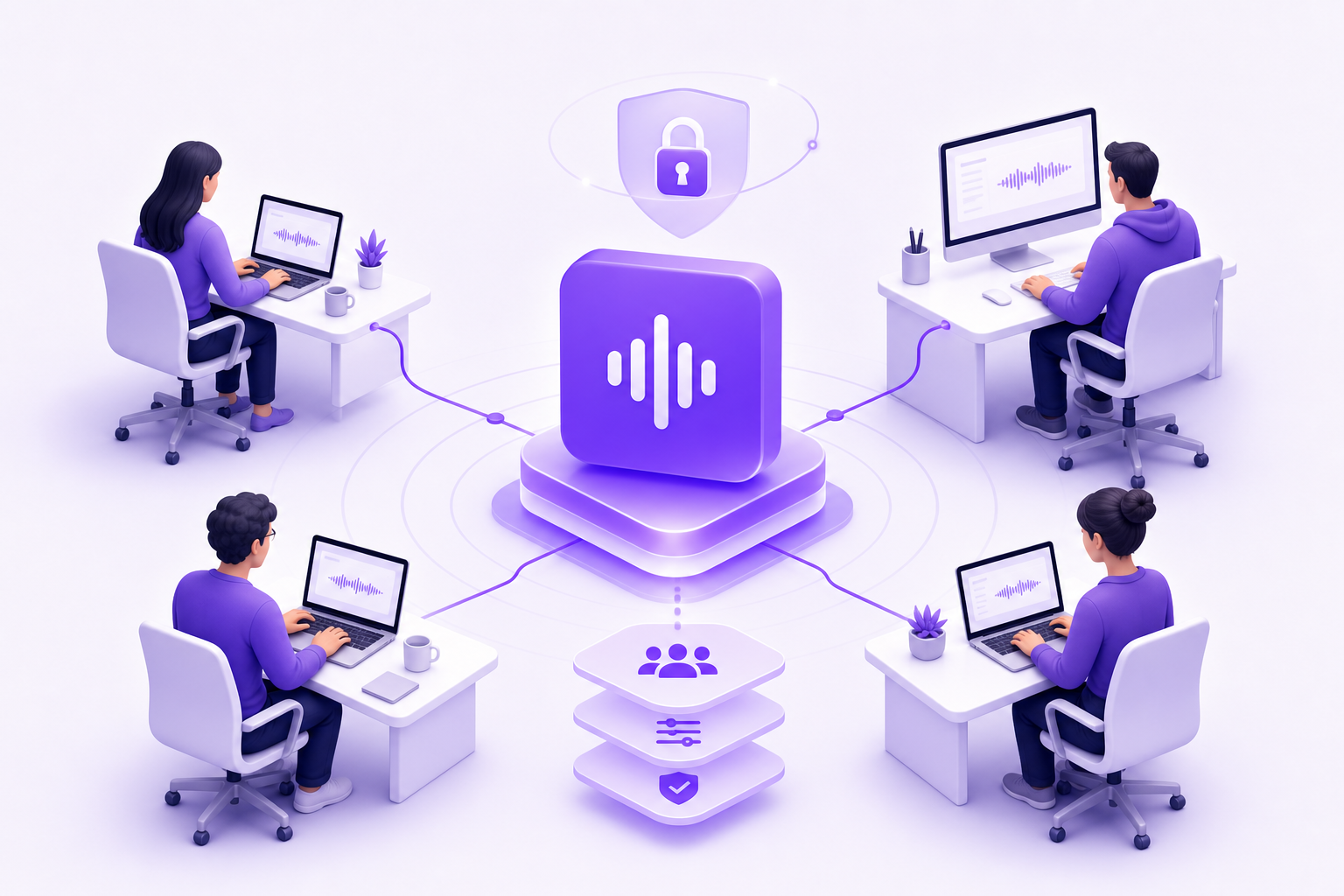
Vibe Typer runs on your own machine and types into whatever window has focus. Nothing about OpenClaw changes.
- Open your OpenClaw chat: Telegram, Discord, Slack, Signal, WhatsApp Web, or the WebChat UI.
- Press the Vibe Typer hotkey.
- Speak your message.
- The text appears in the message box.
- Read it, then send.
It ships as a single portable AppImage for modern 64-bit distributions, plus Windows and macOS builds, and runs on both Wayland and X11. Free for 2,000 words and 20 AI operations a month, no card. Pro is $10/month, or $8/month billed annually.
The advantages are boring and that is the point:
- No OpenClaw configuration. No providers, no API keys, no config file to get wrong, nothing that breaks on the next update.
- Every channel at once. The same key works in all 29 of them, because it works in all applications.
- It follows you out of the chat. The terminal, the browser, the issue tracker, the commit message.
Your OpenClaw probably is not on this machine
This is the part that catches people out.
OpenClaw is designed to be always on, so a lot of installations live on a Raspberry Pi, a VPS, or a Docker container rather than the laptop in front of you. That is the whole appeal: your assistant does not go offline when you close the lid.
But it means the machine running your agent has no microphone, and the machine with your microphone is not running your agent. Any voice feature that lives inside the agent process has nothing to listen to. This is not specific to OpenClaw. It is the same reason Claude Code's /voice explicitly does not work over SSH.
Dictating on your laptop sidesteps it entirely, because the chat client, the browser and the terminal emulator are all local applications. Your voice never has to reach the server. Only the resulting keystrokes do.
If you administer your OpenClaw host over SSH, the same logic applies to editing config files and reading logs. See voice dictation over SSH and in dev containers for how to make that reliable.
Speak first, then send
An agent that can run shell commands, touch your filesystem and send messages on your behalf deserves a moment's review before you hit enter. Two habits matter.
Never auto-send. Most chat apps send on Enter, so let the text land in the box and read it. A misheard word in a message to a friend is a typo. A misheard word in an instruction to an agent with shell access is an action you did not ask for.
Teach it your nouns. Skill names, host names, container names, project names and file paths are exactly the words a general speech model gets wrong and exactly the words your agent needs right. Add them once as replacements in the custom dictionary and stop correcting them.
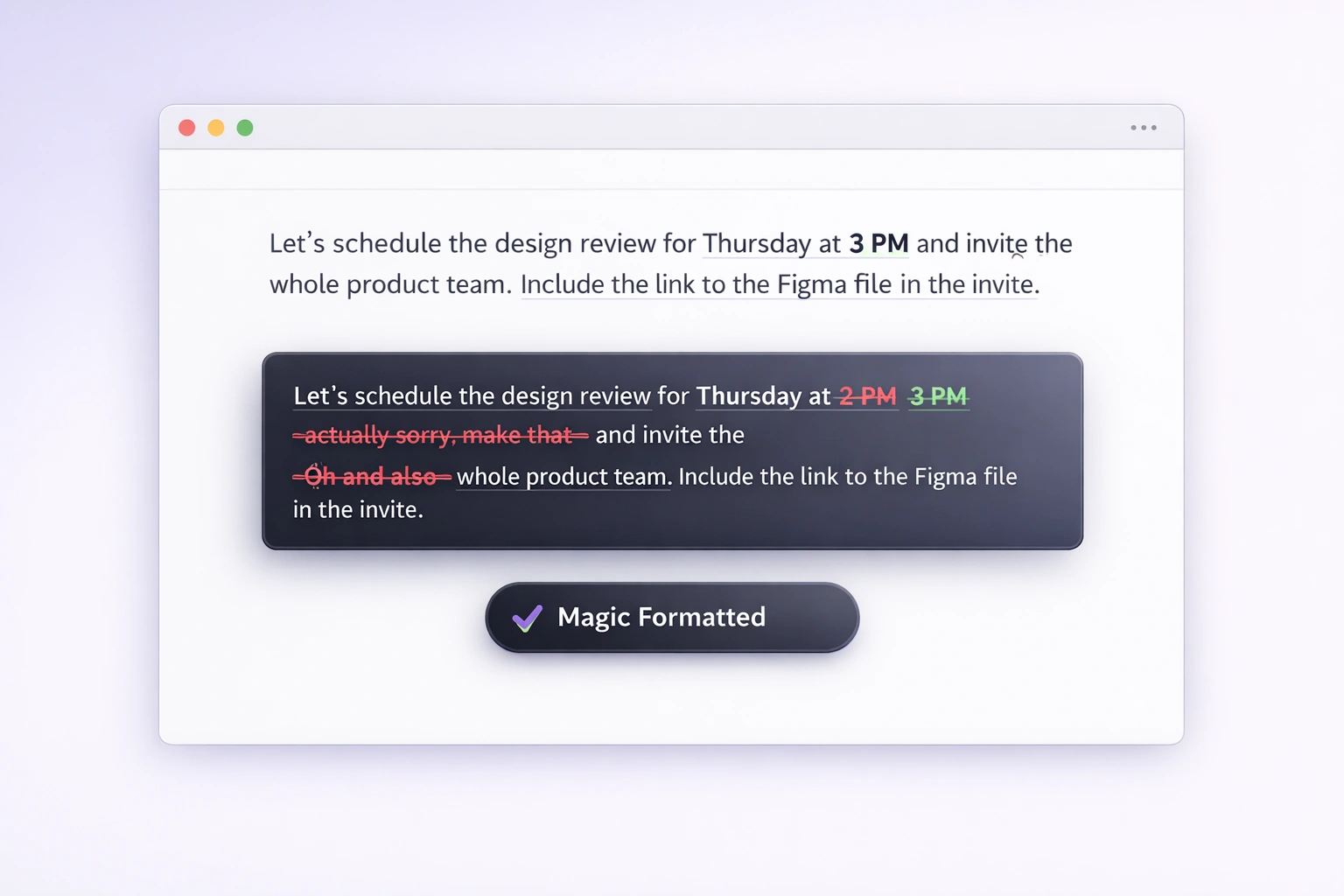
Magic Formatter handles the rest: the false starts, the restarts, the "actually, no, do the other one". What lands in the box is the instruction rather than a transcript of you deciding.
Where this pays off
Long instructions
Short requests are easy to type. The valuable ones are not:
"Go through my inbox from the last three days, find anything from the accountant or about the tax return, summarise what each one is asking for, and draft replies for the two that need a response this week. Do not send anything, just leave the drafts."
That is fifteen seconds of speaking and about ninety seconds of typing. This gap is the entire case for voice, and it widens the more context you include.
Debugging your own agent
Self-hosted means self-supported. When a skill misbehaves you end up describing the failure, pasting logs, and explaining what you already tried. Speaking that description is faster, and you tend to include the detail you would have skipped.
Capturing a thought while it is intact
The reason to run an always-on assistant is to hand it things the moment you think of them. Voice makes the handoff take seconds, which is the difference between capturing the thought and losing it.
Everything around the agent
Notes, tickets, commit messages, replies to the people who ask what you built. None of these are OpenClaw surfaces. All of them are dictation surfaces.
From your phone
A lot of OpenClaw use happens away from the desk. That is the point of an assistant that never goes offline. You message it from Telegram while you are out and it works on your machine. Vibe Typer for iOS is a dictation keyboard plus a companion app, on the App Store, and it needs iOS 17 or later. Switch to it in any app that takes a keyboard, including your OpenClaw chat, and dictate there the same way you would on the desktop. It requires Allow Full Access for the keyboard in iOS Settings and the microphone permission in the app. Full Access is what lets the keyboard read your sign-in from the companion app; the keyboard itself makes no network requests. And iOS never lets a keyboard reach the microphone at all, which is why the app does the recording and the keyboard only inserts the text. Details and the App Store link are on the downloads page.
On Linux
Most OpenClaw hosts run Linux, and plenty of the people running them use Linux on the desktop too. If you do, check your display server before evaluating any dictation tool. Several popular ones are X11-only or need manual setup on Wayland, and a default Ubuntu, Fedora or Plasma session in 2026 is Wayland.
Voice typing on Wayland covers what breaks and why. Vibe Typer runs on both, with a guided first-launch setup on Wayland.
Related reading
The same system-wide approach applies to coding agents: OpenCode, Claude Code and Cursor.
Try it
Download Vibe Typer, then dictate your next instruction into whichever chat app you already have open.
Frequently asked questions
Does OpenClaw have voice input?
Yes, in the form of Talk mode, which needs a TTS provider and an STT provider configured plus API keys for external ones, and which runs in OpenClaw's own native and browser clients. It does not dictate into third-party chat apps like Telegram or Discord on your desktop, which is what system-wide dictation adds.
Does this work with all OpenClaw channels?
Vibe Typer types into any application that accepts text, so it works with every channel that has a desktop or web client: Telegram, Discord, Slack, WhatsApp, Teams, Signal, iMessage and the WebChat UI.
Do I need to configure anything in OpenClaw?
No. Vibe Typer runs independently. There are no config file edits and no API keys to add on the OpenClaw side.
Will this conflict with Talk mode?
No. They operate at different layers, and you can use both. Talk mode is a conversation loop inside OpenClaw's clients; Vibe Typer is a keyboard replacement for every window on your desktop.
My OpenClaw runs on a server. Does that matter?
Only in your favour. Dictation happens on the machine you are sitting at, so it works regardless of where the agent runs. Voice features inside the agent process are the ones that need a microphone attached to the host.
What languages are supported?
99, plus automatic language detection. See the full list.
How should I check privacy?
Review the Vibe Typer privacy policy and local history and privacy, alongside the privacy terms of the chat platform and the model provider your OpenClaw instance uses.
Can I use this on Linux?
Yes. Vibe Typer ships a portable AppImage for modern 64-bit distributions and runs on Wayland and X11.
Try Vibe Typer free
Voice typing that works in every app on Linux, Windows, and macOS. Free to download: 2,000 words a month, no card.
Download free