Introducing Magic Formatter in Vibe Typer: Cleaner Voice Dictation Without the Cleanup

Voice dictation is already good at one thing: speed. If you can think out loud faster than you can type, speaking is often the quickest way to get an idea into Google Docs, Gmail, Slack, Notion, VS Code, a CRM, or a terminal window.
Raw transcription often includes all the things that make sense in speech but feel rough in writing: filler words, false starts, spoken corrections, loose punctuation, and sentences that wander because you were thinking as you talked. That is the part that usually turns voice into a draft tool instead of a true everyday input method.
Magic Formatter closes that gap.
It is a new feature in Vibe Typer that cleans up every transcription before it lands in your app. You do not have to click a button or send text to a separate editor. You speak naturally, and Vibe Typer handles the cleanup in the background.
The problem with raw dictation
Literal transcription is useful, but it is not always usable.
If you are brainstorming in a notes app, a rough transcript may be fine. If you are writing an email to a customer, posting a Slack update for your team, or dropping a quick code comment into a pull request, it is a different story. You want the speed of voice input, but you also want text that reads cleanly enough to use right away.
That is where the friction usually shows up:
- You correct yourself out loud, and both versions appear in the final text.
- Filler words like "um," "like," "well," or "okay" stay in the sentence.
- Spoken phrasing turns into run-on writing.
- The punctuation and capitalization are technically present, but they still need cleanup before the text feels finished.
For voice typing to become the default way you write, that cleanup cost has to drop.
What Magic Formatter actually does
Magic Formatter is an AI post-processing step built into Vibe Typer. Its job is to keep the meaning of what you said and improve the final text.
1. It handles spoken self-corrections
People rarely speak in one clean pass. We revise in real time.
You might say:
"Let's schedule for 2 PM, actually sorry, make that 3 PM."
A literal transcript preserves both times. Magic Formatter follows the correction and outputs the version you intended.
2. It removes filler words and verbal noise
Spoken communication includes bridges and hedges that help conversation flow but do not improve the written version. Phrases like "um," "like," "oh and also," "well," and "okay" are normal in speech, but rarely helpful once the text is on the page.
Magic Formatter strips that noise so the result reads cleaner without sounding robotic.
3. It fixes punctuation, capitalization, and structure
Speech and writing are different formats. Something that sounds perfectly natural when spoken can still read as a run-on sentence or an unfinished thought.
Magic Formatter tightens the structure, fixes punctuation, and improves capitalization so the final version looks like text you meant to send, not a transcript you still need to edit.
4. It shows you exactly what changed
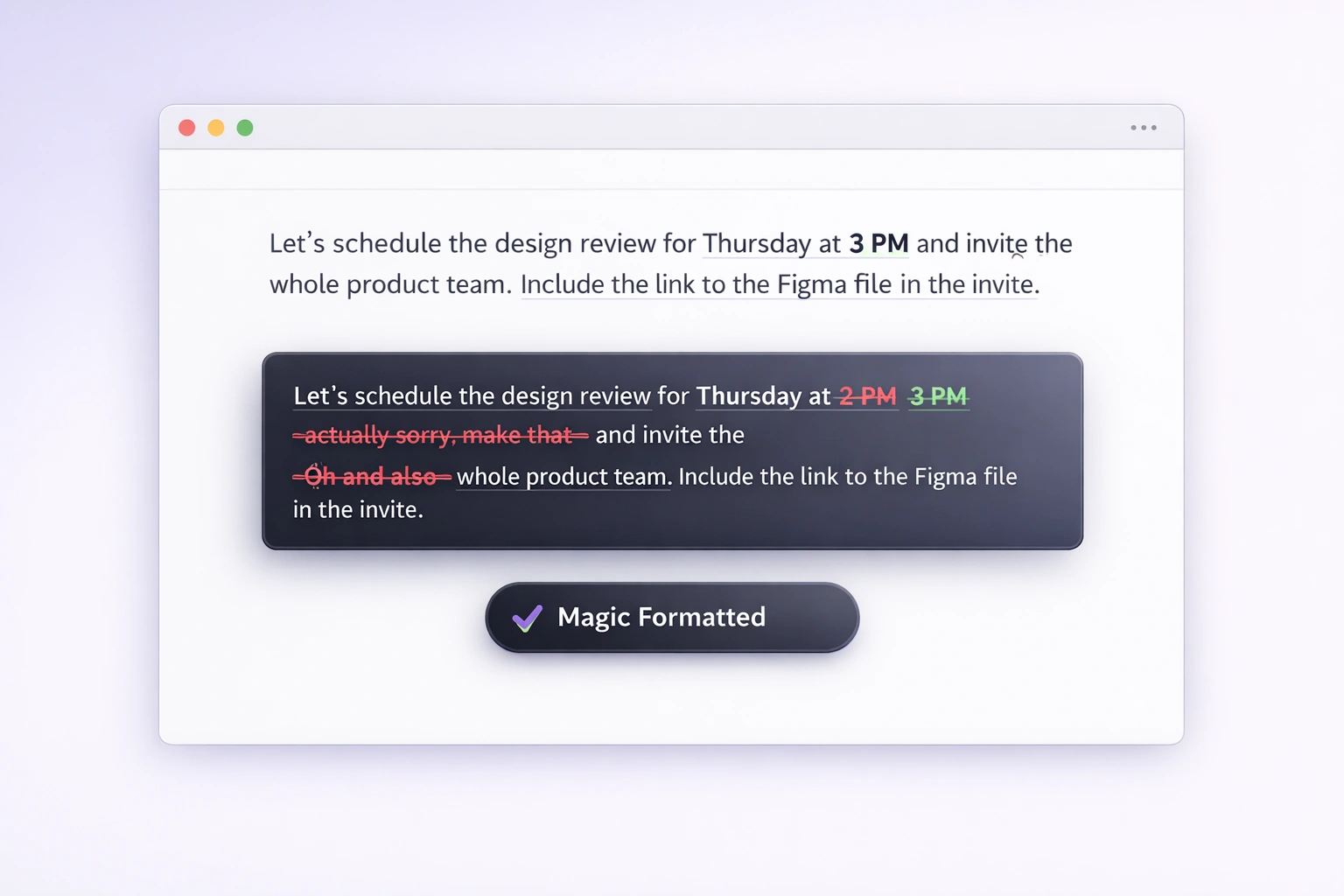
After formatting, Vibe Typer shows a word-level diff view so you can see what changed at a glance. Removed words appear in red. Added or changed words appear in green. You are never left wondering whether the system quietly changed your meaning. Checking takes a couple of seconds.
A concrete before and after example
Here is the kind of transformation Magic Formatter is built for.
Before (raw transcription):
"Let's schedule the design review for Thursday at 2 PM, actually sorry, make that 3 PM, and invite the whole product team. Oh and also make sure to include the link to the Figma file in the invite."
After (Magic Formatted):
"Let's schedule the design review for Thursday at 3 PM and invite the whole product team. Include the link to the Figma file in the invite."
The intent is the same, and the written version is ready to use. The wrong time is gone, the filler is gone, and the sentences are tighter.
What it will not change
Magic Formatter is not trying to rewrite what you said.
It will not change your tone, restructure your argument, or make your message more concise on your behalf. That is not what it is for. Since August 2026 there is one exception. Custom instructions let you set a standing style that Magic Formatter applies to every dictation, with the same fact guardrails. What it does otherwise is cleanup. It resolves the spoken corrections you already made, removes the filler words you did not intend to keep, and tidies the punctuation so the text reads as naturally as you spoke it. The meaning and the voice stay yours.
If you do want to rewrite something, change the tone, tighten the structure, or generate a reply from scratch, Vibe Typer has Rewrite mode and Reply mode for that. Magic Formatter is different. It runs on every dictation and makes the output usable without changing what you actually said.
The diff view is there to make that visible. Every adjustment Magic Formatter makes appears in a word-level view before the text lands in your app, removed words in red, changes in green. You can see at a glance whether the cleanup looks right and whether your meaning survived it.
Where Magic Formatter helps most
It is not tied to a single app or one narrow use case. Vibe Typer works across Linux, Windows, and macOS, and it can type into nearly any desktop application. Magic Formatter improves the output in all of them.
Email and client communication
If you already draft emails by voice, you know how easy it is to get a strong first pass out quickly. You also know how often the transcript still needs a cleanup sweep before it is ready to send. Magic Formatter shortens that loop.
Slack messages and team updates
Internal writing moves fast. You want to capture the thought quickly, but you do not want your message to read like a transcript. Cleaner punctuation and structure make team communication easier to scan.
Code comments and developer writing
Developers already use Vibe Typer in editors, terminals, issue trackers, and documentation tools. Magic Formatter helps spoken comments land cleaner, especially when you are talking through technical ideas and revising them as you go.
Accessibility and RSI support
For many users, voice input is about comfort as much as speed. When a transcript arrives cleaner the first time, it reduces the number of edits that need to happen on the keyboard later. That makes voice more sustainable as a daily input method.
How to try Magic Formatter in Vibe Typer
- Download Vibe Typer for Linux, Windows, or macOS.
- Open the app you already work in, such as Gmail, Slack, Notion, Google Docs, VS Code, or your CRM.
- Start dictating as usual.
- Let Magic Formatter run automatically on the transcription.
- Review the word-level diff if you want to verify the cleanup.
There is nothing extra to learn. Magic Formatter is on by default because it is meant to improve the way you already write, not replace it.
Cleaner output, same steps
The promise of voice typing has always been simple: say it once, and keep moving.
Magic Formatter gets Vibe Typer closer to that standard by making the output cleaner without adding extra steps. It handles the spoken correction, removes filler, fixes structure, and lets you inspect the result in a diff view when you want to.
It fits alongside the rest of Vibe Typer, including voice typing, rewriting tools, clipboard-aware replies, custom tone controls, and the custom dictionary.
If you already use voice input daily, this is the kind of feature you notice immediately. If you have tried voice tools before and spent too long cleaning up the transcript afterward, this is the part that removes that pass.
Download Vibe Typer and try Magic Formatter in the apps you already use.
Try Vibe Typer free
Voice typing that works in every app on Linux, Windows, and macOS. Free to download: 2,000 words a month, no card.
Download free