On Device Speech to Text: Privacy, Performance, and Real

You dictate a sensitive note into your laptop, watch the words appear, and then pause. Did the audio stay on the device? Was a transcript uploaded for formatting? Is your dictation history sitting in a server log, or does it disappear after insertion? Those questions apply to meeting notes, patient observations, legal content, and code review comments.
On-device speech to text answers part of the problem by running recognition locally. It reduces network dependence, limits live audio transmission, and cuts latency. But local inference isn't the same as complete privacy, and a fast transcript isn't automatically an accurate one. The important details are what happens after recognition, how the system handles accents and specialist vocabulary, and whether it inserts text reliably into the apps you use.
Table of contents
- Why on device speech to text matters now
- How on device speech recognition works
- Privacy implications beyond local processing
- Performance trade-offs you should expect
- Platform challenges and cross-device realities
- Real-world use cases for local dictation
- Choosing between on device and cloud speech to text
Why on device speech to text matters now
A developer dictates a code comment in a terminal with no network connection. A clinician records observations between appointments. A knowledge worker captures project notes while traveling. In each case, recognition speed matters, but so does the data path: where the raw audio goes, where the transcript is stored, and whether later formatting or synchronization sends it elsewhere.
Cloud speech APIs made high-quality recognition easy to add, while tying dictation to a remote provider. On-device processing changes that dependency. A model runs on the computer or phone, so recognition continues without transmitting the live recording. Apple's speech recognition stack, for example, supports streaming speech recognition without network access in its documented research context.
The shift gained wider attention after OpenAI released Whisper in September 2022. Whisper was trained on 680,000 hours of multilingual audio and made near-state-of-the-art transcription available as a downloadable model instead of only through a cloud service as described in this historical overview of voice-first Mac workflows. That model made recognition without a cloud service normal on desktops, in terminals, and in restricted environments.
Offline inference solves one part of the privacy problem. It does not decide whether an application retains transcripts, syncs them across devices, sends them to a summarization service, or exposes them through logs and backups.
Practical rule: Treat local inference as a data-path decision, not as a complete privacy certification.
Market size explains why vendors are building local recognition. The speech-to-text market was valued at $19.09 billion in 2025, with projections of $23.70 billion in 2026 and $104 billion by 2034, according to market context and milestone analysis. Those figures do not establish that every local tool fits a given workflow. They do show why platform vendors and application developers are investing in offline and hybrid designs.
For teams evaluating a voice note app prototyping resource, decide the processing boundary before choosing a model. Will audio remain local, upload to a provider, or use a hybrid pipeline? After recognition, will the transcript be stored, synchronized, summarized, or inserted directly into the active application? Accent handling and specialist vocabulary also need testing with representative recordings, because offline convenience is less useful when corrections consume the time saved. A practical comparison of voice typing apps can help identify where each workflow places those trade-offs.
How on device speech recognition works
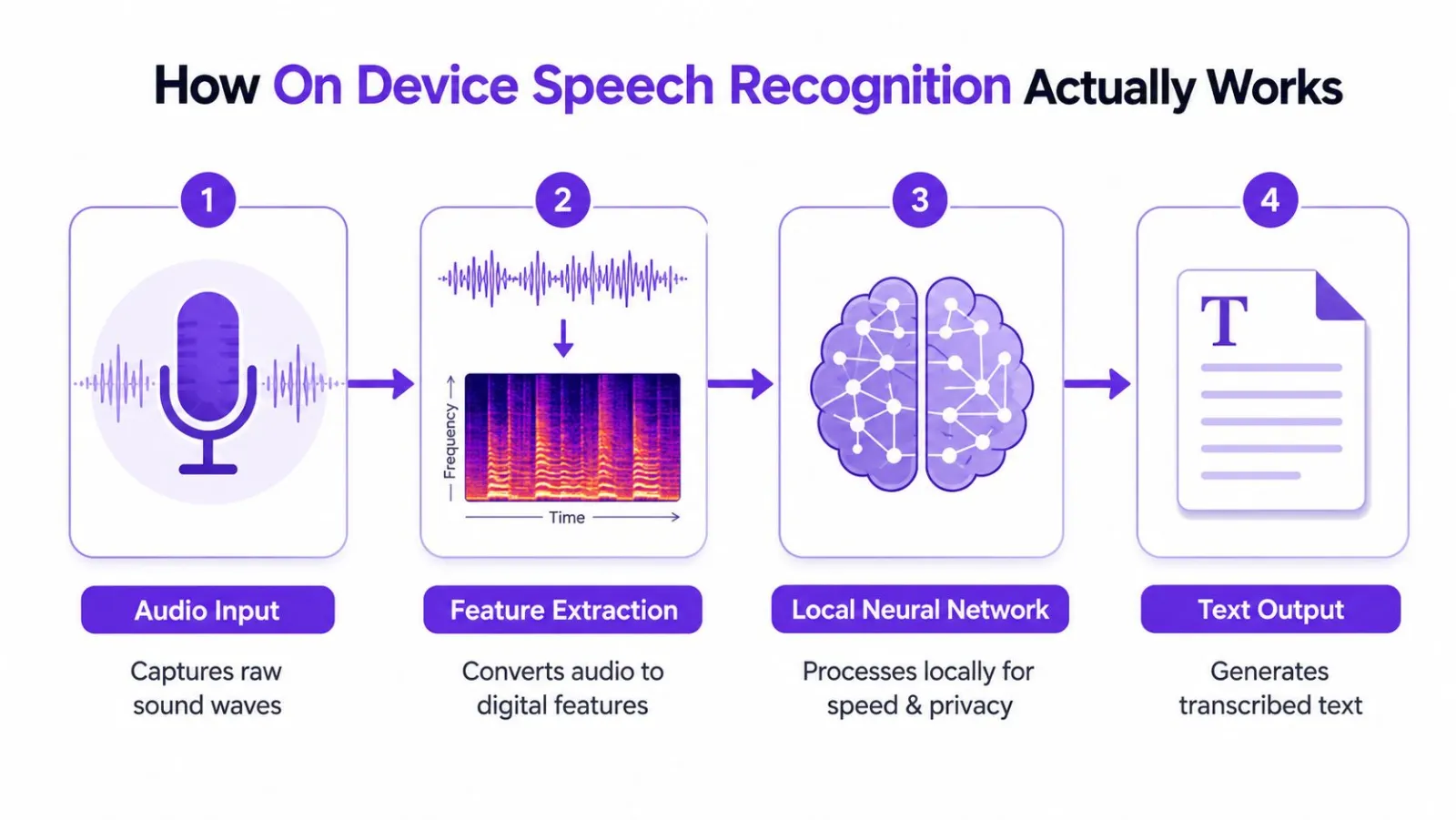
An on-device speech-to-text system turns a live microphone signal into text through several local stages. It captures sound, converts the waveform into numerical features, runs a speech model, then inserts the resulting text into the application.
Capturing and preparing the audio
The microphone receives a continuous stream of pressure changes. Software divides that stream into short segments and converts each segment into digital features, often a spectrogram-like representation showing how frequencies change over time. The model does not interpret a sentence the way a person does. It processes numerical patterns associated with sounds, syllables, words, and surrounding context.
Keyboard noise, room echo, music, and nearby speakers all become part of the input. Local inference cannot compensate for poor capture conditions by itself. A quiet room, a consistent speaking distance, and a suitable microphone often improve results more than switching models without testing the recording environment.
Running the model locally
The main difference from a cloud API is the location of inference. A cloud service uploads audio, processes it remotely, and returns text. With local inference, the model is loaded into device memory and processes the audio on that computer. The result can arrive quickly and without sending the live recording to a remote provider, but the device must supply the required memory and processing capacity.
Whisper helped make downloadable local recognition practical, and developers adapted it for use on personal computers historical background on the downloadable model. Projects such as Whisper.cpp and other optimized runtimes reduce the resources required for execution while keeping the same broad recognition pipeline.
Model size creates a direct trade-off. Larger models can handle more linguistic and acoustic variation, including difficult accents or specialized vocabulary, but they require more memory and compute. Smaller models launch faster and use fewer resources, yet errors may appear sooner with noisy speech, unfamiliar terms, or speakers whose accents were less represented in testing data. Quantization lowers the precision of model weights to reduce resource use. Hardware acceleration allows compatible CPUs, GPUs, or neural engines to process those operations more efficiently.
Turning predictions into useful text
Recognition ends with more than the model's first word sequence. The dictation layer may add punctuation, capitalization, formatting, language detection, vocabulary substitutions, and text insertion. These operations can remain local or use a remote service. A tool that recognizes audio locally but uploads the transcript for cleanup is only partly local, so inspect each downstream step before treating the workflow as private.
Linux users also need to test the insertion path, not only the recognition engine. This Linux voice recognition guide explains how the desktop environment controls the way generated text reaches the focused window. Recognition may be accurate while insertion still fails in a terminal, editor, or Wayland application. That failure affects practical accuracy just as much as a misheard word, because repeated corrections can erase the time saved by offline processing.
Privacy implications beyond local processing
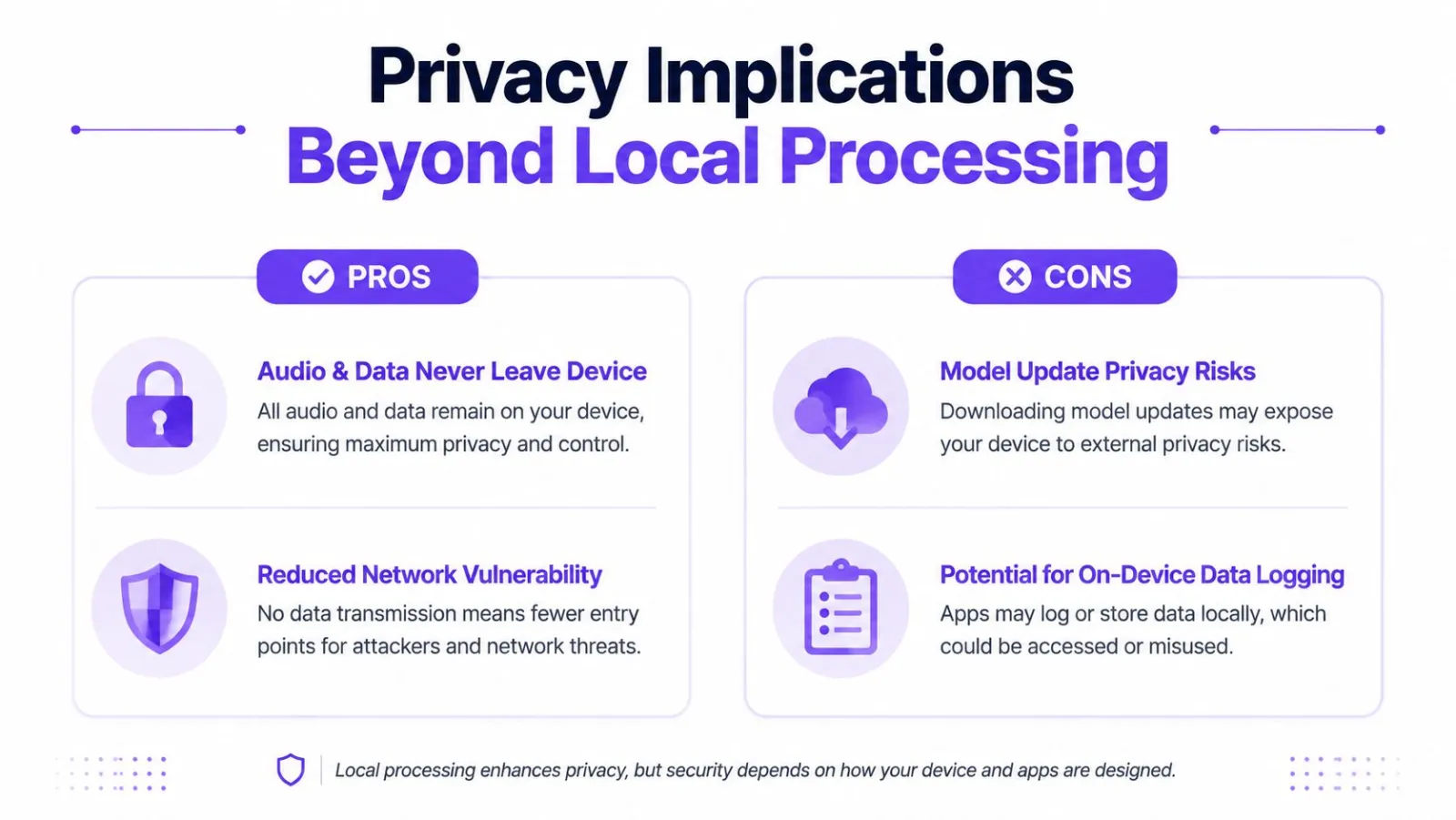
Local processing removes one risk, but transcript handling often reintroduces it. A recognizer may keep live audio on the device while the application uploads transcripts for summaries, stores history in a synchronized database, or leaves temporary files on disk. Privacy depends on the complete data path, not only on where inference runs.
Audio, transcripts, and downstream features
The safest local design processes audio in memory and discards it immediately. One documented privacy-preserving transcription design keeps dictation history and transcripts on the user's computer instead of storing them on servers description of in-memory processing and local retention. That limits exposure from live audio transmission and server-side recording retention.
The transcript still needs its own review. If an application sends generated text to a cloud model for summarization, rewriting, search, or synchronization, the conversation has entered a remote data path. The original audio may remain private while its content becomes accessible to another service. That distinction matters for patient notes, contract discussions, and internal incident reports.
Review how local history and privacy work before enabling features that retain or synchronize text. Ask vendors specific questions:
- Is audio transmitted, cached, written to temporary files, or discarded after inference?
- Does the application save local history, sync it, or upload it for another feature?
- Is user audio or text used to train models?
- Which functions remain local, and which require a remote service?
- What happens if the laptop or phone is lost, or backed up?
Why regulated teams need the full picture
Clinical privacy analysis makes the trade-off clear. On-device processing removes transmission risk during a live encounter, while syncing text to the cloud for summarization or workflow features restores a cloud-like privacy model. Device loss is a separate risk because sensitive transcripts may remain on the endpoint even when they never reach a server clinical privacy analysis of local and downstream processing.
Healthcare and legal teams should review local storage, encryption, account recovery, backups, permissions, and administrative controls alongside model execution. Local inference reduces one category of exposure, but it does not replace endpoint security or organizational policy.
The privacy boundary is wherever readable content remains. That may be the microphone buffer, local history database, clipboard, synchronized transcript, or summary service.
A sound implementation makes each boundary visible. It explains what happens during recording, after text insertion, and when optional features are enabled. That is worth more than a claim that the product is "fully local."
Performance trade-offs you should expect
A local dictation setup feels fast only when it keeps pace with live speech and returns usable text. One offline speech study puts the useful operating range at roughly 1-2 seconds of model load time, about 300 MB of memory footprint, and a real-time factor below 1.0 offline and edge speech recognition study. A real-time factor below one means the system processes audio faster than it arrives, so transcription keeps up during dictation.
Speed alone does not define the experience. A quick model may still produce weak punctuation, misrecognize names, or fail to place text in the focused application. The workflow includes inference, correction, text insertion, and the privacy consequences of retaining the resulting transcript.
Model selection changes accuracy
Independent testing with real call-center audio shows how much model choice affects recognition quality. Faster-whisper-large-v2 reached 5.72% WER, whisper-medium reached 5.90% WER, and a smaller Conformer-TDT baseline reached 21.09% WER in that benchmark offline ASR benchmark on call-center audio.
| Model | Word error rate | Memory footprint | Best for |
|---|---|---|---|
| faster-whisper-large-v2 | 5.72% | Not specified in the benchmark data | Accuracy-focused local transcription |
| whisper-medium | 5.90% | Not specified in the benchmark data | A balance between recognition quality and local resource use |
| Conformer-TDT baseline | 21.09% | Not specified in the benchmark data | Lightweight baseline experiments, where lower accuracy is acceptable |
The largest model is not automatically the right choice. A developer on a lightweight laptop may value quick startup and lower resource use, while a clinic or support team may accept heavier local inference to preserve transcript quality. Test with the microphones, accents, interruptions, and vocabulary used in the actual workflow.
Accents and specialist language remain difficult
Historical ASR benchmarks show word error rates in the low single digits on clean read speech and the mid-single digits to low teens on conversational speech during the 2015 to 2021 period historical speech recognition review. Clean speech improved faster than spontaneous conversation. That gap matters during dictation, where speakers restart sentences, talk over background noise, or use unfamiliar names.
Offline recognition also tends to perform less consistently with accents, noisy audio, less common languages, long-tail vocabulary, and technical terms than with clean English speech discussion of multilingual and accent trade-offs. A language support list does not show whether a model handles a particular regional accent, domain vocabulary, or punctuation style. Validate those conditions before deployment.
Resource planning covers more than model memory. The recognizer shares CPU, GPU, battery, and thermal capacity with the editor, browser, terminal, or video call running beside it. After transcription, permissions and retained text still shape the risk profile. Teams can review guidance on how to master app permissions on any device, especially for microphone access and local storage.
Platform challenges and cross-device realities
A speech model can run locally across platforms while the dictation workflow still breaks at the application boundary. After transcription, the tool must insert text into the focused window. macOS, Windows, X11, and Wayland expose different input and accessibility mechanisms, so an integration that works on one system may need a separate implementation elsewhere.
Why Linux requires special attention
Wayland limits synthetic input more strictly than X11. A dictation application cannot assume that generic keystroke injection will work across every compositor or application. Usable routes may include wtype, ydotool, dotool, a desktop portal, or compositor-specific integration Linux speech-to-text and Wayland input considerations.
Native Linux support therefore involves more than running the recognition model. The transcribed text still needs a controlled path into a terminal, code editor, browser field, or chat client. Terminals may require plain-text insertion, since formatting or clipboard handling can introduce unwanted control characters.
Consistency across machines
Cross-device setups add configuration and privacy trade-offs. Users may want the same hotkey, custom dictionary, language preference, and formatting behavior on a desktop and laptop. Synchronizing those settings can expose information that seems harmless at first. A custom dictionary might contain project names, client terms, or medical vocabulary, while transcripts and dictation history carry more direct sensitivity.
A practical evaluation should test:
- Does text reach terminals, editors, browsers, and chat windows?
- Does the Linux integration cover Wayland and X11 where required?
- Can hold-to-talk and toggle modes coexist with existing system shortcuts?
- Can users disable, clear, or retain dictation history locally?
- Can the application use plain text in terminals and different formatting in documents?
Also check what happens after local recognition. Text may enter clipboard history, editor backups, application logs, sync services, or crash reports even when audio never leaves the device. Review those paths alongside microphone and storage permissions.
Choose a tool against the desktop environments and retention policies your users run. Model portability does not guarantee reliable insertion or consistent privacy controls across the workflow.
Real-world use cases for local dictation
A developer dictating into a terminal needs quick insertion and predictable formatting. The output may be a shell command, commit message, issue description, or short explanation in an editor. Local recognition keeps work moving through unreliable connections and avoids sending source code, credentials, incident details, or internal architecture to a remote transcription service. Terminal input still requires its own testing, since pasted text, line breaks, punctuation, and clipboard handling behave differently from document text.
A clinician has a different workflow. Patient conversations can produce names, medications, procedures, abbreviations, and specialty terms that require review before entering a record. Local processing limits live audio transmission, but the clinic must still control note retention, synchronization, endpoint access, and exports. After transcription, text can remain in the application, clipboard history, backups, or the clinical system.
Dictation for technical and professional work
Dictation helps knowledge workers most during drafting. A formatter can clean punctuation and filler, yet facts, names, figures, and instructions still need human review. Visible edits or a change-by-change comparison make that review easier by showing how spoken material became final text.
For developers, a useful setup separates command entry from prose. Hold-to-talk insertion may work well in an issue tracker or editor but create unwanted execution risk in a terminal. Test whether the tool inserts plain text, preserves intended line breaks, and leaves commands for confirmation rather than immediate execution. For clinicians, test capture with the actual note template and verify that copied text does not carry unexpected formatting or remain in an unmanaged history.
Offline dictation also supports travel, field work, and remote drafting during network outages, provided the language model is installed and the device has enough resources. That benefit is reduced if summaries, synchronization, or history depend on a remote connection.
Multilingual teams need specific testing
A language list does not describe workflow quality. Teams should test representative speakers in the applications they use, then measure correction time rather than judging a short demonstration. Include ordinary conversation, product names, technical terms, regional names, code-switching, and recordings from the actual work environment.
Run the same task across each target operating system and microphone setup. Compare the effort needed to correct a command, a patient note, and a longer draft. Record recurring substitutions and add approved terms to a shared evaluation set. This exposes whether local dictation saves time for the team's actual work, rather than only performing well with prepared sentences.
Choosing between on device and cloud speech to text
Choose on-device speech to text when privacy, offline availability, or low network latency outweighs the convenience of remote processing. It's a strong fit for local drafting, sensitive first-pass notes, terminal workflows, and environments where connectivity can't be assumed. Choose cloud recognition when the device lacks sufficient processing capacity or when your workflow depends on cloud-only language features and centralized processing.
Evaluate candidates against four questions:
- Where does audio go during recognition?
- Where does text go after recognition?
- How does the model perform with your accents and vocabulary?
- Can it insert text reliably into your operating system and target apps?
Run a short pilot with real dictation, not scripted sentences. Include background noise, names, technical language, corrections, and the applications your team uses every day. Review memory usage, startup behavior, history controls, and any feature that sends text elsewhere.
Vibe Typer provides system-wide voice typing for Linux, Windows, macOS, and iOS, with local in-memory audio processing, no server-side transcript retention, support for 99 languages, custom vocabulary, app-aware text insertion, and a local history option. If that workflow matches your privacy and platform requirements, visit Vibe Typer to test voice typing in the terminals, editors, and desktop apps you already use.
Try Vibe Typer free
Voice typing that works in every app on Linux, Windows, and macOS. Free to download: 2,000 words a month, no card.
Download free