Dictation App for iPhone: Top 7 Picks for 2026

You're halfway through drafting an email when your hands are busy, or you're trying to capture a thought before it disappears. The iPhone's built-in microphone can place words directly into almost any text field, but that isn't the same as recording a meeting, creating searchable notes, exporting a transcript, or keeping sensitive audio close to the device. The right dictation app for iPhone depends less on a generic accuracy claim and more on where your words need to go.
This comparison looks at iOS integration, transcription and editing, privacy trade-offs, customization, speaker handling, exports, and offline-friendly use. Capabilities and language support vary by app version and device setup, so check the current details before you rely on a tool for important work. Start with the destination for your words. Then work out whether you need direct typing, recording, transcription, editing, storage, or export. For voicemail, see these accurate voicemail transcription tips.
Table of contents
- 1. Vibe Typer
- 2. Apple Dictation
- 3. Otter
- 4. Notta
- 5. Just Press Record
- 6. Whisper Memos
- 7. Rev Record & Transcribe
- Top 7 iPhone dictation apps, feature comparison
- Choose by where your words need to go
1. Vibe Typer
If an idea needs to reach an email, terminal, editor, or chat window immediately, Vibe Typer is built for that. Its iPhone app pairs a dictation keyboard with a companion app, and ships on the App Store for iOS 17 or later. The iOS keyboard is dictation-only, without a letter keyplane. You record in the companion app, then the keyboard inserts the finished text where the cursor is.
That design separates Vibe Typer from a memo archive or meeting recorder. Its main task is converting speech into usable text inside an existing app, rather than storing recordings for later review.
Vibe Typer also runs on Linux, Windows, and macOS, with native Linux support for Wayland and X11. Desktop controls include hold-to-talk and toggle hotkeys, per-app insertion behavior, automatic system muting, and a portable AppImage. These suit people who switch between terminals, editors, chat windows, and email all day. It supports 99 languages, automatic language detection, custom dictionaries, and style instructions.
Why the editing layer matters
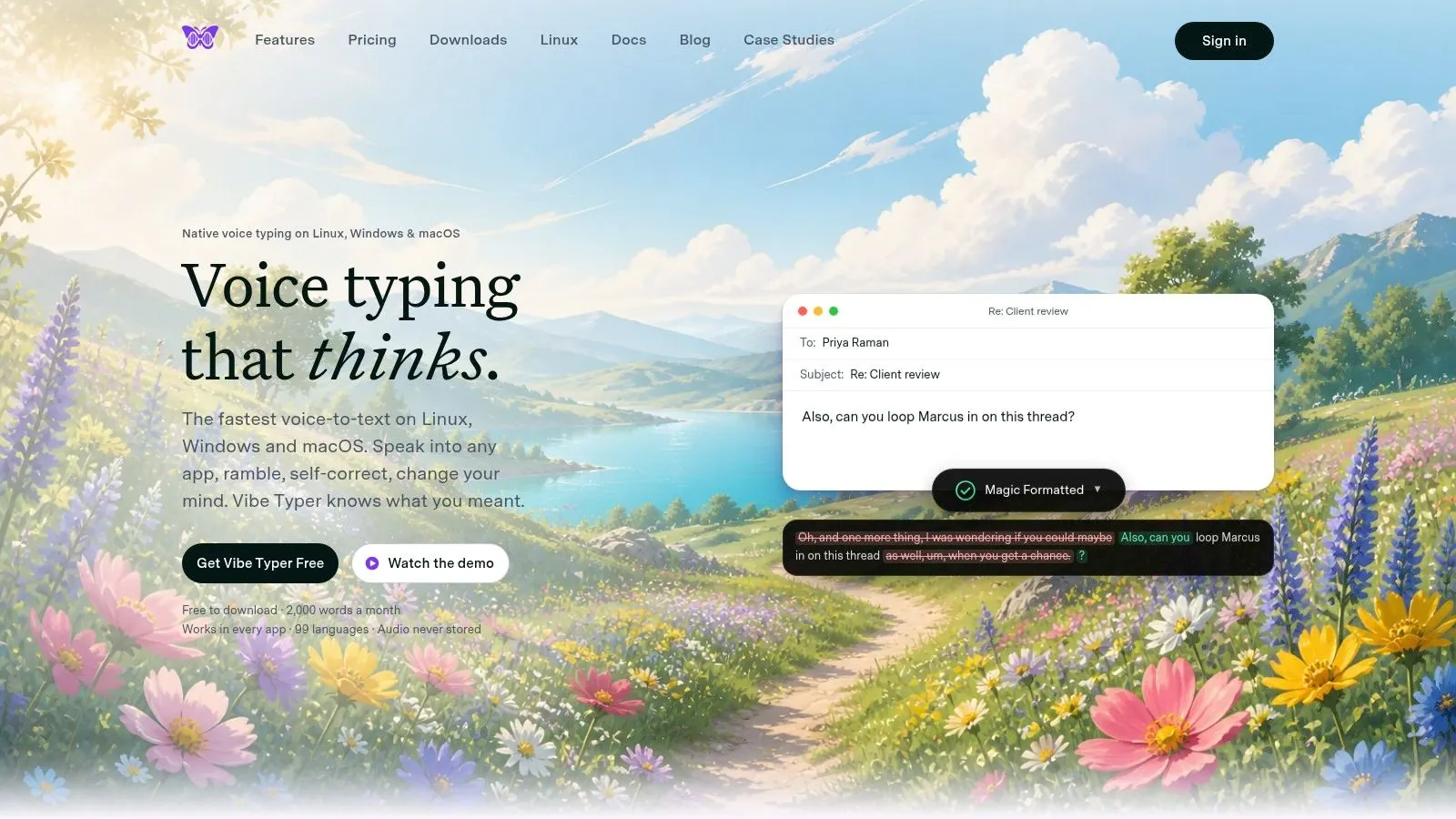
A transcript can contain filler, spoken self-corrections, and inconsistent punctuation. Vibe Typer's Magic Formatter cleans those up, follows the style instructions you write, and leaves names, numbers, and dates unchanged. Its diff view shows what changed between the spoken input and the final text, so you can inspect the cleanup instead of accepting an unseen rewrite.
The privacy claims are specific. Vibe Typer processes audio in memory, stores no transcripts on servers, and does not train on user audio or text. Organizations that require strictly offline processing should confirm the technical setup before deployment.
Best fit: Users who want clean text inserted into active apps, especially across desktop platforms, and want the same setup on iPhone.
The Free plan includes 2,000 words per month and 20 AI operations per month. Pro costs $8 per month billed annually, which is $96 per year, or $10 per month month-to-month. Heavier users can look at the seat-based Business plans. The trade-off is a service that depends on connectivity. Review the Vibe Typer website for current iOS access and plan details.
Pros
- Native Linux support covers Wayland and X11, alongside Windows, macOS, and iOS.
- Audio is processed in memory, transcripts stay off the servers, and user data is not used for training.
- Magic Formatter and the diff view make the cleanup visible and controllable.
- App-aware insertion, automatic muting, custom dictionaries, and style instructions cover daily use.
Cons
- The iOS keyboard is dictation-only, so you switch to it and back.
- The Free plan has monthly limits.
2. Apple Dictation
A message, email, or note often starts with an active cursor, not a recording session. Apple Dictation is built for that. Its microphone button places speech input beside ordinary typing, so users can dictate directly in Messages, Mail, Notes, Safari, and other apps. Apple introduced iPhone dictation with the iPhone 4S launch on October 4, 2011, describing it as available wherever a keyboard appeared on screen. Apple's original launch coverage records that Siri and dictation were labeled beta at launch, with Siri initially supporting English, French, and German.
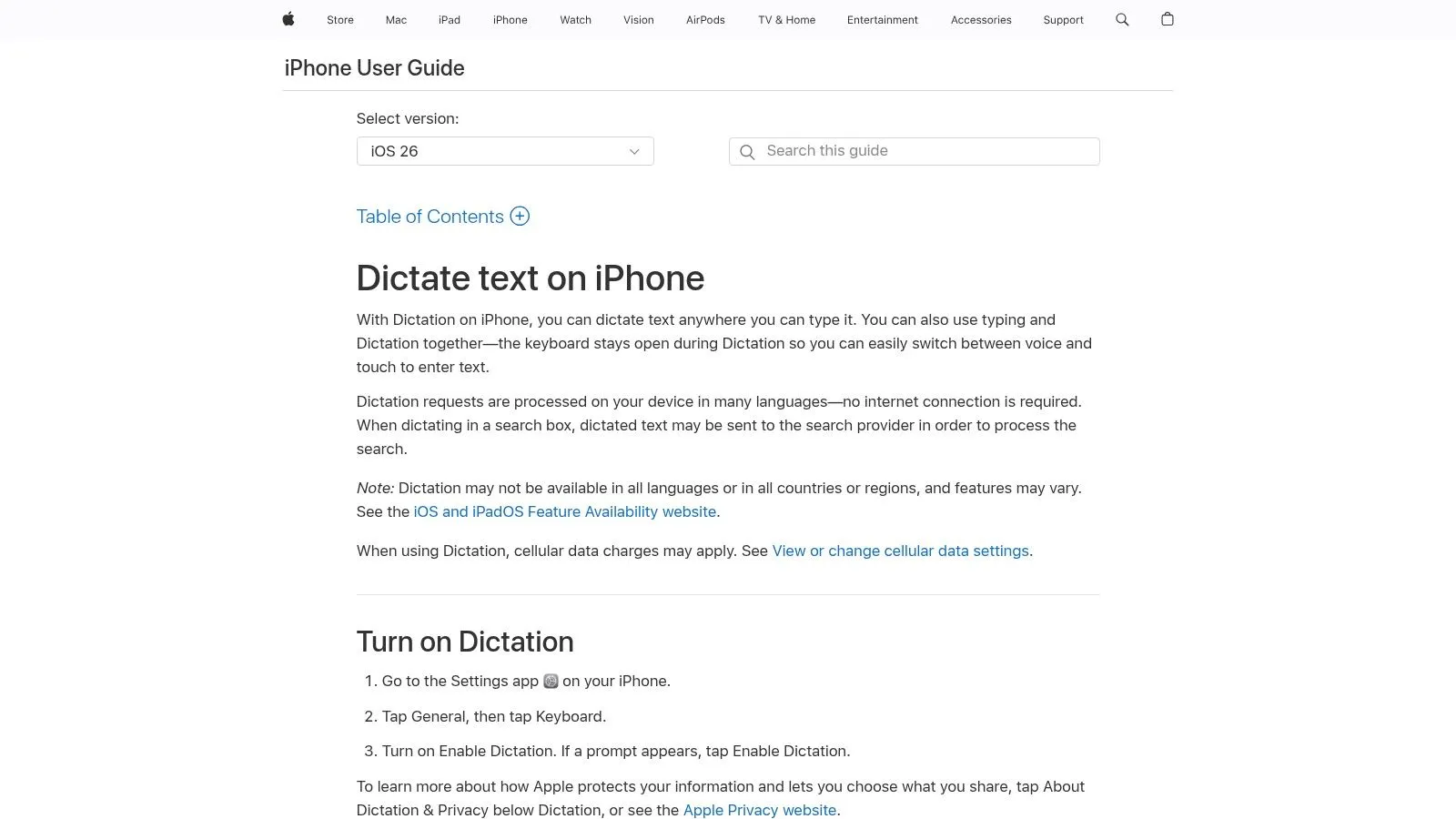
Setup takes little time. Open Settings → General → Keyboard, then turn on Enable Dictation, following Apple's iPhone dictation guide. Apple also states that standard Dictation cannot be used while Voice Control is enabled, so you pick one or the other.
What the built-in option handles
Apple Dictation accepts voice commands for punctuation, formatting, and text edits. On-device processing is available for many languages, while Apple's feature documentation lists language and regional variations including Arabic, Cantonese, Danish, Dutch, and multiple English variants. Processing behavior and available commands can therefore change with the language, iOS version, device, and selected settings.
Its main advantage is placement. The result appears where the cursor is already active, without moving text through a separate recorder or transcript workspace. That makes it efficient for short messages and quick notes. It offers less control over custom style rules, specialized vocabulary, app-specific insertion behavior, and transcript review than dedicated dictation tools.
Apple Dictation captures speech for immediate entry. Meeting-focused apps build a searchable record with recordings, speaker labels, summaries, or collaboration features. Long memos may also require manual cleanup after dictation ends.
For a broader comparison of keyboard-based dictation, see this iOS dictation app guide.
- It comes with iOS, so there is no separate app subscription.
- It works wherever the iOS keyboard appears.
- The microphone button and the voice commands behave the same way in every supported app.
- Specialized vocabulary and formatting controls are narrower than in dedicated tools.
- Accuracy and available features depend on the language and the iOS version.
- It does not replace a recorder with speaker labels, summaries, or collaboration tools.
3. Otter
A meeting ends, and the useful output is often a record that others can search, review, and share. Otter is built for that, on iPhone and the web. It combines live transcription with speaker identification, audio-word alignment, meeting summaries, action items, and collaboration. These capabilities fit meetings, interviews, and team discussions better than a sentence that needs to appear immediately in an existing text field.
It starts with a recording session, then builds an organized transcript around it. Users can compare audio with the words on screen, identify speakers, and share notes through its iOS, Android, and web access. Calendar and major video-platform integrations also support meeting capture through the Otter platform.
Choose Otter for review, not quick entry
Otter's defining feature is the review layer. Speaker identification and audio-word alignment help users find the source of a passage. Summaries and action items reduce the work required to circulate a long discussion, while collaboration gives a team a shared place to review the result.
That also sets limits. Otter is primarily cloud-based, so users with strict on-device requirements should examine how recordings and transcripts are stored and accessed before adopting it. Account permissions and organizational controls matter as much as the transcription feature itself. The deeper features sit on paid tiers, so the free version is not the complete meeting workflow.
Accuracy still depends partly on the recording conditions. Room noise, overlapping speakers, distance from the phone, and microphone quality can affect every recording-based app. Compare your setup with these microphones for dictation.
For iPhone users, the choice is therefore about destination. Otter is appropriate when speech needs to become a searchable, collaborative meeting record. It is a weaker fit for cursor-first typing, where text must be inserted directly into a message, form, or note.
- Live transcription, speaker identification, summaries, and action items all target group conversations.
- Shared transcripts make discussion notes easier to check and circulate.
- iOS and web access suits teams working across devices.
- It is cloud-based, which rules it out if you need strict on-device handling.
- The full meeting toolset requires paid access.
- Otter is not built to place polished text into an arbitrary iPhone text field.
4. Notta
Notta fits work that begins with either live speech or an existing recording. Users can dictate in real time, import audio or video, and then edit, translate, or organize the resulting transcript. That suits people who move between quick notes, recorded calls, and longer meeting material more than people who only want text dropped at the iPhone cursor.
It connects with Zoom, Teams, Meet, and Webex, which cuts the manual capture steps for calls on those services. The Notta workspace also includes speaker labeling, proofreading, translation, and custom dictionaries. These tools matter when a transcript needs review, specialized terminology, or circulation to people who did not attend the conversation.
Where Notta fits
Custom dictionaries can help with recurring names, product terms, and industry vocabulary, but they do not remove the need to test recognition with your own speech and recordings. Real-time capture and file import also take it beyond memo recording. You can dictate a note now and process an existing file later.
That flexibility brings more setup and greater dependence on cloud processing. Paid plans contain the advanced capabilities, while cloud handling may conflict with strict privacy requirements. iOS in-app purchase support and a defined plan structure make pricing easier to assess, but they do not explain what happens to uploaded audio or transcripts. Review the current storage and processing terms before using the service for confidential material.
A practical test is more informative than a feature list. Record the same short passage in your normal environment, then check punctuation, names, speaker separation, and export behavior.
Pros
- Real-time dictation and imported audio or video cover different starting points.
- Zoom, Teams, Meet, and Webex connections cut manual recording and upload steps.
- Custom dictionaries and proofreading help with specialized notes and transcript cleanup.
- Translation covers work that spans more than one language.
Cons
- The full set of meeting and editing tools is not on every plan.
- Processing is cloud-based, which rules it out if you need local handling.
- Notta is built around captured transcripts, not around placing finished text into an active iPhone text field.
5. Just Press Record
A quick thought often starts before a document or chat is open. Just Press Record is built for that moment: tap once, record on iPhone or Apple Watch, and return to the audio later. Background capture supports hands-free notes, while built-in transcription makes recordings searchable and easier to share or export.
It stays centered on the recording rather than on a live text field. That makes it a better fit for personal memos, interviews, and spoken drafts than for system-wide typing. It transcribes 30+ languages, although coverage and recognition quality vary by language, microphone conditions, and speaking style. Check the current app information before relying on it for a specific language. The Just Press Record app provides basic editing, but it does not turn a recording into a meeting workspace with automated interpretation.
Storage is the main point of distinction. Recordings can remain local or use iCloud Drive, giving users a more visible way to manage audio than an app built around a shared transcription service. iCloud still involves an account and synchronization, so privacy-sensitive users should review those settings rather than treating local and iCloud storage as identical. The one-time purchase model also suits occasional recording without an ongoing subscription.
Its limits become clearer in group settings. Just Press Record does not offer native multi-speaker labels, meeting summaries, action-item extraction, or team collaboration comparable to Otter or Notta. Its strength is a short chain of actions: capture audio, produce searchable text, review it, and export the result.
For everyday memo capture, that narrower scope can be an advantage.
- One-tap recording and Apple Watch support suit spontaneous notes.
- Recordings can stay local or go to iCloud Drive.
- A one-time purchase avoids an ongoing subscription.
- Basic editing and searchable text cover common memo needs.
The trade-off is transcription variability. Results depend on the current implementation, selected language, and recording conditions, while sharing remains simpler than a collaborative transcript workspace. Choose it for controlled personal capture, not for speaker-heavy meetings or automated team follow-up.
6. Whisper Memos
Whisper Memos is built around memos rather than text fields. Start a recording on an iPhone or Apple Watch, receive an automatic transcription, then choose optional cleanup to remove filler words or lightly rewrite the draft. Its formatting favors notes and paragraphs, so the output can require less editing than a raw spoken transcript.
It is deliberately personal. The Whisper Memos site describes a voice-memo-to-text tool rather than a meeting collaboration suite. Pinned lock-screen reminders add a small capture convenience, while the app's main value is turning an idea, reflection, outline, or work note into readable text without setting up a larger transcription system.
Cleanup can save copy-and-paste work, but it changes the review task. Removing filler and restructuring sentences may make a memo easier to read while also changing phrasing, chronology, names, or instructions. Compare the cleaned text with the original recording or transcript whenever exact wording matters. A clearer draft is not automatically a more faithful one.
The current per-memo limit is 90 minutes, so check the rule before starting a long recording. That boundary makes the app better suited to bounded personal notes than to treating it as a general meeting recorder. Its lighter collaboration layer also keeps the product oriented toward individual capture.
- Recording, transcription, and formatting all serve individual voice notes.
- Filler removal and light rewriting produce a more readable draft.
- Recording can start on an Apple Watch, without opening the iPhone app.
- A changelog and steady updates make the product's changes easy to follow.
Confirm the 90-minute per-memo limit before relying on it for long sessions, and expect fewer team tools than meeting-focused platforms. For important notes, retain the original audio and review any rewritten passage against it.
7. Rev Record & Transcribe
With Rev you record first, then decide whether the transcript needs automated output or human verification. Its app includes a free recorder and a live AI transcript preview. Users can inspect the initial text before ordering AI or human transcription through Rev's platform, separating quick capture from higher-stakes review.
That choice matters for interviews, research recordings, legal-adjacent documentation, and other material where near-verbatim wording matters more than an instantly polished memo. The Rev mobile recorder also connects recording with editing tools and team workflows, so the iPhone is the capture point, not the whole process.
Human review changes the decision
Human transcription adds a service cost, particularly as recordings become longer. AI transcription may suit higher-volume work, while human review is easier to justify when correcting names, quotations, or important passages would take substantial time. Rev offers per-minute purchasing and subscriptions for high-volume AI minutes, so the relevant comparison is the service price against the reviewer's time and the consequence of an unresolved error.
Processing is cloud-based. Audio and transcripts move through the platform, which makes Rev a poor fit for strict on-device requirements or policies centered on minimizing data transfer. Confirm current handling terms before recording sensitive material.
Rev also serves a different task from system-wide iPhone dictation. Apple Dictation is faster for inserting a sentence into an email or document. Otter and Notta are better aligned with searchable team meetings and collaboration. Rev is worth considering when a recording needs a transcript that can receive human review, rather than just text placed at the cursor.
For clinical use, compare the process with this medical dictation software overview, then verify each vendor's current handling terms before entering sensitive information.
Pros
- You can order human-reviewed output when near-verbatim accuracy matters.
- The AI and human options cover different quality and budget requirements.
- The live AI transcript shows you what is being captured during the recording.
- Editing and team tools carry on after the initial iPhone capture.
Cons
- Longer recordings and human review raise the total cost.
- Processing is cloud-based, so it does not fit strict on-device privacy requirements.
- It centers on recorded media and ordered transcripts, not direct keyboard insertion.
Top 7 iPhone dictation apps, feature comparison
| Product | Implementation complexity | Resource requirements | Expected outcomes | Ideal use cases | Key advantages |
|---|---|---|---|---|---|
| Vibe Typer | Moderate, desktop installs (AppImage/Windows/macOS) and seat setup for teams | Low-Moderate, in-memory audio processing; internet for sync/AI ops | High, polished, cleaned transcripts with diff and style preservation | Dictation into other apps (terminals, clinicians, email, cross-platform teams) | Native Linux/Wayland support; in-memory audio processing; Magic Formatter; app-aware insertion |
| Apple Dictation (built-in) | Very low, system-wide, no install or config for iOS users | Low, on-device processing available for many languages | Good, reliable for short/quick dictation; quality varies by language | Quick mobile dictation across apps and casual notes | Free and built into iOS; consistent UI; voice edit commands |
| Otter | Low, app/web with integrations to configure | Moderate, cloud-based processing; web/iOS clients | Strong for meetings, live transcription, speaker ID, summaries | Meetings, team collaboration, searchable shared notes | Strong collaboration and integrations; speaker labeling and AI summaries |
| Notta | Low, app install; meeting integration setup | Moderate, cloud processing; supports custom dictionaries | Good, real-time transcription, translation, editable output | Meeting capture, translation, daily knowledge work | Translation features; custom dictionary and proofreading tools |
| Just Press Record | Very low, one-tap app (one-time purchase) | Low, local or iCloud storage; lightweight processing | Good, reliable recordings and basic transcripts | Personal notes, Apple Watch capture, lightweight recording | One-time purchase; Apple Watch support; local/iCloud storage |
| Whisper Memos | Low-Moderate, app install; memo limits apply | Moderate, modern speech models; per-memo time limit | Good, memo-focused transcripts with filler cleanup | Voice memos, meeting notes, short recordings needing cleanup | Automatic cleanup/rewrites; active updates; memo formatting |
| Rev: Record & Transcribe | Low, app install; optional ordering workflow for human transcripts | Moderate-High, cloud processing; pay-per-minute for human service | Very high (with human option), near-verbatim accuracy if human service used | Interviews, legal/journalistic recordings, verbatim transcription needs | Human transcription option for highest accuracy; flexible pricing (pay per minute) |
Choose by where your words need to go
The best dictation app for iPhone is the one that matches the destination of your speech. If you need a sentence to appear immediately in Messages, Mail, Notes, Safari, or another app using the iOS keyboard, start with Apple Dictation. It requires no additional installation and is the most direct system-wide option, although language, iOS version, and customization limits still matter.
Choose Vibe Typer when the output needs to be cleaner than a raw transcript, especially if you work across desktop platforms, use app-specific insertion rules, need style instructions, or want a service that processes audio in memory and doesn't retain transcripts on servers. On iPhone it works as a dictation keyboard plus a companion app, so try that flow before making it your primary mobile method.
For meetings, Otter and Notta are the more natural choices. Otter emphasizes live transcription, speaker identification, summaries, action items, and collaboration. Notta combines live and file-based transcription with translation, proofreading, custom dictionaries, and meeting integrations. Both require a careful review of cloud handling and paid-plan boundaries.
Just Press Record is the better fit for straightforward capture with local or iCloud Drive storage. Whisper Memos suits formatted personal memos where filler cleanup and paragraph structure reduce editing. Rev is the specialist option when a human-verified transcript is worth the added cost, especially for recordings where near-verbatim review matters more than instant output.
Don't choose from a quiet demonstration alone. Accent and locale affect recognition. Recent smartphone speech research found that even the best-performing localized models exceeded a 10% word error rate, while models for Japan, India, and Singapore were above 20% in some cases, according to research on speech recognition across diverse English varieties. Test your own accent, vocabulary, background noise, and speaking pace. Before relying on any app for sensitive or connectivity-dependent work, verify current language support, plan limits, iOS compatibility, storage behavior, privacy settings, and whether offline operation is available.
Apple's privacy documentation also states that location may be sent to improve Siri and Dictation accuracy when Location Services is enabled, while users can find related Siri and Dictation improvement controls under Settings → Privacy & Security → Analytics & Improvements. Apple's privacy documentation explains the location-related point, and its Siri and Dictation improvement settings identify the user-facing control. A separate 2025 security report found that Siri could send dictated message content and commands to Apple servers in some cases even when that transmission wasn't necessary to complete the request, as reported by Black Hat coverage of the finding. Treat privacy as an operational question, not a label. Ask what leaves the device, under which settings, for what purpose, and whether anything is retained.
Vibe Typer does app-aware voice typing, Magic Formatter cleanup, diff-based review, custom dictionaries, and 99 languages. It processes audio in memory and keeps no server-side transcripts. To test that across iPhone, Linux, Windows, and macOS, visit Vibe Typer for current iOS and plan options.
Try Vibe Typer free
Voice typing that works in every app on Linux, Windows, and macOS. Free to download: 2,000 words a month, no card.
Download free