Voice for Computer: Dictation, TTS, and Assistants Explained

The most popular advice about voice for computer is also the least useful: "Speak clearly, and the software will do the rest." That advice treats dictation as a microphone problem. In practice, the difficult part comes after recognition. Your system must understand the accent, place punctuation, preserve technical vocabulary, clean up corrections, and insert usable text into the application under your cursor.
Voice recognition has come a long way from Bell Labs' Audrey system, built in 1952 to recognize spoken digits from a single speaker, and IBM's Shoebox, which understood 16 English words. The field later moved from template matching to statistical methods, deep neural networks, larger datasets, and cloud servers, as summarized in this history of speech recognition. Modern dictation is good, but raw transcription still isn't finished writing.
That distinction matters most on Linux and Wayland, where a recognizer can work perfectly while text insertion fails. It also matters for privacy. Cloud processing may improve recognition, but it changes where your audio travels and how you must evaluate a tool. Judge a voice tool on clean output, reliable app integration, platform behavior, and data handling, not on a benchmark number alone.
Table of contents
- What voice for computer actually means
- Dictation vs text-to-speech vs voice assistants
- Platform realities across Linux, macOS, and Windows
- Why accuracy alone does not make voice typing useful
- Recommended workflows and tools for daily use
- Getting started without breaking your existing setup
What voice for computer actually means
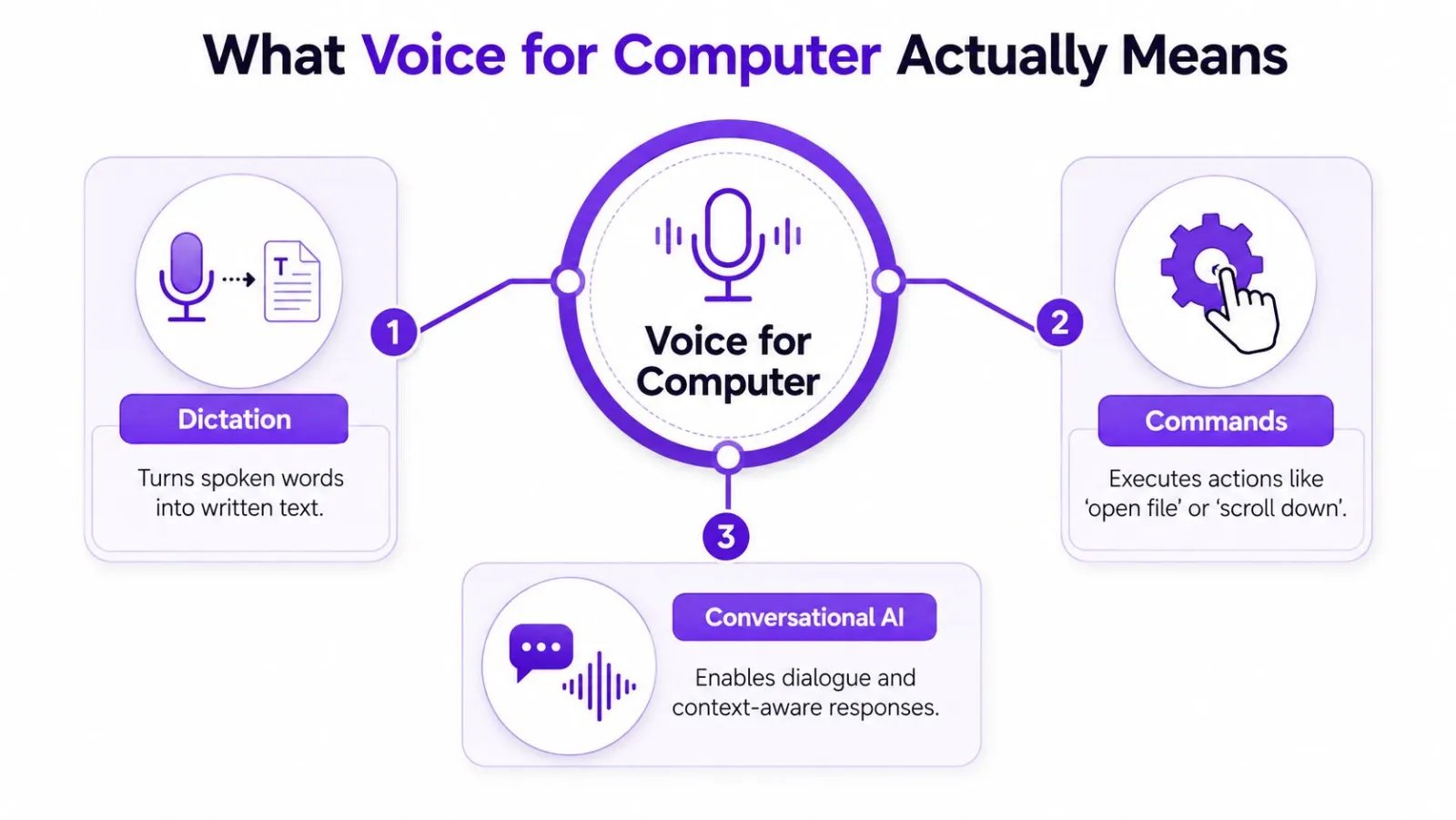
"Voice for computer" sounds like one feature. It isn't. The phrase usually bundles together dictation, text-to-speech, and voice assistants, three systems that accept or produce speech in different ways.
Dictation converts spoken language into text. You speak an email, a note, a comment, or a document, and the application receives editable characters. Whisper-based transcription is an example of this category. The important question is where the resulting text goes. A useful dictation tool inserts it into the focused text field, rather than forcing you to copy a transcript from a separate window.
Text-to-speech, or TTS, reverses the direction. The computer reads text aloud through a synthesized voice. macOS say is a familiar example, as are screen readers and dedicated accessibility tools. TTS helps users listen to documents, proofread by ear, or operate software with reduced visual dependence, but it doesn't turn your speech into input.
Voice assistants interpret commands and often perform actions. A Cortana-style agent may open an application, search for information, set a reminder, or control a system setting. Conversational AI extends that model by maintaining dialogue and responding to natural-language requests. Neither category should be confused with sustained, app-ready dictation.
Match the tool to the task
The category determines the failure you'll encounter:
- Drafting a report. Use dictation. You need text that remains editable and lands in your document.
- Listening to a webpage. Use TTS. You need spoken output, not transcription.
- Opening a file or scrolling. Use voice commands. You need an action, possibly without any persistent text.
- Rewriting a message. Use conversational AI or a voice command layered on top of dictation, provided the tool can access the relevant text.
The practical boundary is simple. Dictation creates text, TTS reads text, and assistants execute intent. A guide to AI typing assistants is useful only if it makes that distinction clear. A smart speaker won't give you system-wide text insertion, and a transcription window won't give you reliable computer control.
Practical rule: Decide whether you need text, audio output, or an action before choosing a voice tool.
Dictation vs text-to-speech vs voice assistants
The three categories differ most in what happens after the voice signal is captured. Dictation can improve long-form drafting, but it often needs punctuation and formatting cleanup. TTS can make reading more accessible and can expose awkward prose during proofreading, but it offers no input capability. Assistants are convenient for short commands, but writing long text through one is clumsy because they're built for intent, not documents.
| Category | Privacy risk | Productivity fit | Platform support | Primary failure mode |
|---|---|---|---|---|
| Dictation | Audio may leave the device, depending on the engine | Strong for drafting and short bursts | Native and third-party options vary by operating system | Incorrect words, punctuation, formatting, or text insertion |
| Text-to-speech | Text may be processed locally or by a service, depending on the reader | Strong for listening and accessibility | Broad support through operating systems and dedicated apps | Unnatural pronunciation, poor voices, or limited document context |
| Voice assistants | Commands and context may be sent to remote services | Strong for discrete actions | Common on mainstream platforms, less uniform elsewhere | Misunderstood intent or inability to complete multi-step work |
Privacy isn't a label you can infer from a product category. Microsoft's documentation says real-time Speech to Text audio is processed in Azure server memory and isn't stored at rest, while batch transcription uses customer-specified storage for audio and output files, so the customer controls retention there. Philips SpeechLive describes a different arrangement, with desktop and mobile dictation audio or text not saved on its servers, while its web version temporarily stores audio and transcription during recognition before automatic deletion. Read the specific retention model instead of assuming that "cloud" or "private" tells the whole story.
For TTS hardware and listening setups, a practical overview of text to speech devices can help separate speakers, dedicated readers, and accessibility-oriented equipment. Hardware may improve listening comfort, but it won't fix a dictation pipeline that drops punctuation or fails to insert text into the target application.
Where each category breaks
Dictation struggles with code syntax, names, acronyms, and mid-sentence corrections unless the workflow includes a custom vocabulary and a cleanup stage. TTS doesn't fail at transcription because transcription isn't its job. Assistants often handle "open the terminal" better than "write a technically precise paragraph with two quoted identifiers and a numbered list."
That mismatch explains many disappointing demos. A developer may test an assistant when they really need a system-wide dictation layer. A screen-reader user may be offered a productivity tool that ignores accessibility settings. A writer may receive a fast transcript that still requires enough editing to cancel the time saved.
For a more focused evaluation of recognition engines and workflows, use this voice-to-text software guide. The right comparison isn't "which voice product is smartest?" It's "which system produces the kind of output my application can use?"
Platform realities across Linux, macOS, and Windows
Voice input quality depends on the entire path from microphone to text field. Recognition is only one stage. The operating system must grant capture permission, route audio correctly, interpret the session, and inject text into the focused application without violating its security model.
Windows favors integration
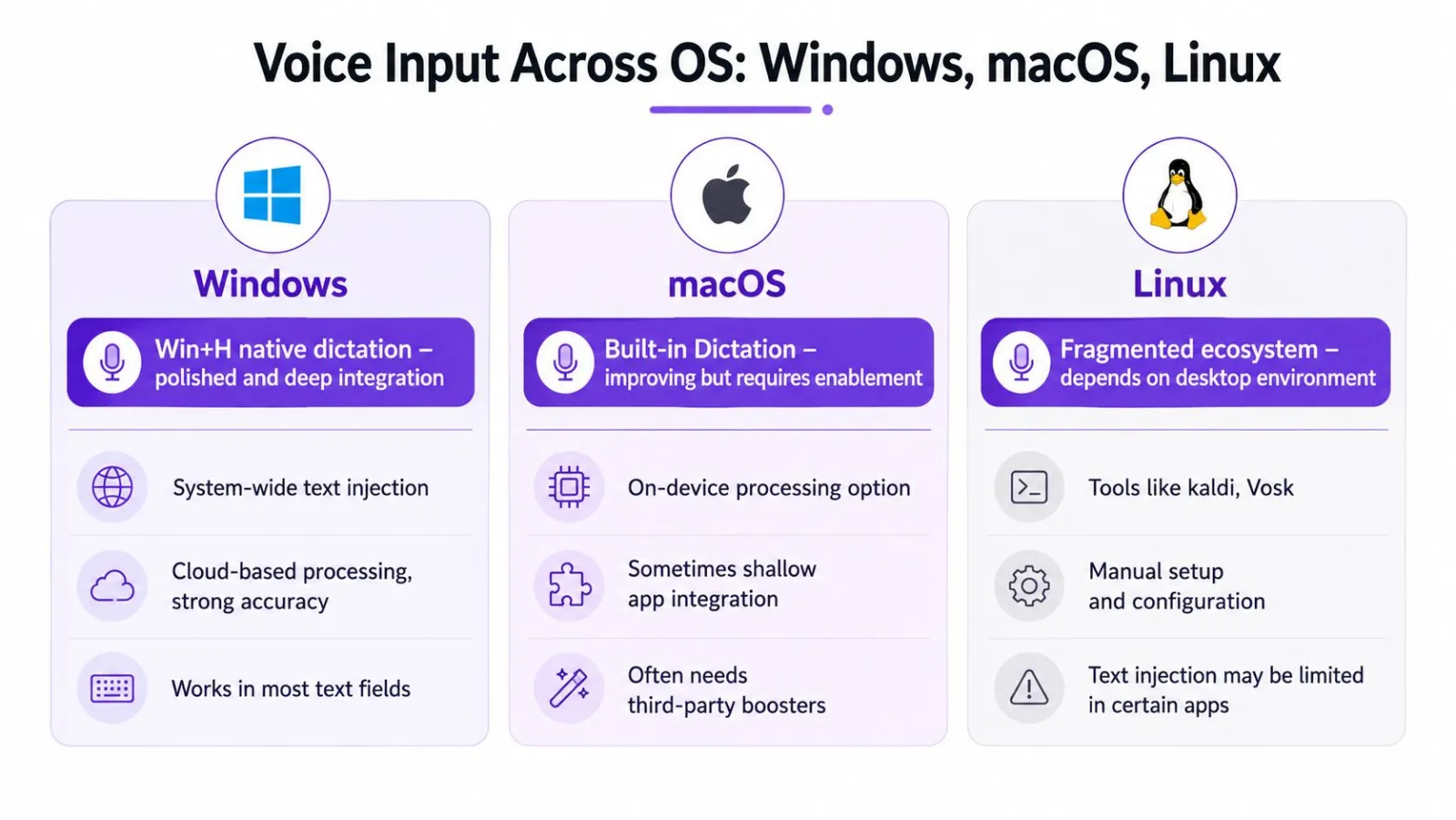
Windows has the clearest native path for many users. Win+H provides system dictation with broad text-field integration, so the same gesture can work in a document, browser form, or message composer. That convenience comes with a processing trade-off. If you want control over where audio goes, check the account, network, and offline-model requirements. Built-in doesn't mean local.
The strength of Windows is consistency. The weakness is that the operating system decides much of the behavior for you. If the native recognizer mishandles technical terms or formatting, you need a separate tool. There's no post-processing layer to adjust.
macOS is polished but bounded
macOS includes built-in Dictation through Keyboard settings and offers an on-device processing option in supported configurations. It behaves consistently inside Apple's own applications, but less so in non-native apps, terminals, and specialized editors.
That's fine if your work stays inside standard macOS text fields. It's less convenient when you need custom shortcuts, application-specific insertion rules, or the same preferences across multiple operating systems. Third-party tools can fill those gaps, but each added layer introduces another permission screen and another failure point.
Linux exposes the plumbing
Linux gives power users more control, but voice typing varies with the desktop environment, display server, input method, and application toolkit. X11 tools such as xdotool inject keystrokes reliably. Wayland deliberately restricts synthetic input, so a tool designed around simulated keystrokes may record speech successfully yet produce no text.
Workarounds include clipboard insertion and compositor-specific protocols such as wlr-virtual-keyboard, but they aren't universal. A Linux voice typing guide is most useful when it discusses the complete input path, not just the recognizer.
Dictated-text problems on Wayland often come from input-method configuration rather than PipeWire. Checking the active input device and the selected session or input path is more productive than repeatedly changing microphone settings. Ubuntu's 2026 Myna initiative also targets local, privacy-preserving dictation on Ubuntu Desktop and Wayland, and community projects keep filling gaps for Wayland and X11. Things are improving, but reliable native insertion is still the dividing line.
Why accuracy alone does not make voice typing useful
A word error rate measures transcription mistakes. It doesn't measure whether the final text is ready for an editor, terminal, ticketing system, or email client.
Speech recognition hit a run of benchmarks in 2016 and 2017. IBM reported a 6.9% word error rate, Microsoft claimed 5.9%, IBM later reported 5.5%, and Google claimed 4.9%, as documented in this history of speech recognition milestones. The same summary places speech recognition near 80% accuracy by 2001. Those figures show technical progress, but they don't tell you how much cleanup a real workflow requires.
Clean text has several layers
A useful voice typing system must handle more than word recognition:
- Punctuation. It should infer sentence boundaries without forcing you to dictate every comma.
- Formatting. Paragraphs, lists, headings, and usable spacing.
- Corrections. A later phrase should replace an earlier one.
- Vocabulary. Product names, code identifiers, clinical terms, and proper nouns survive intact.
- Insertion. The result lands in the correct app and respects the target field.
Accent performance adds another hidden variable. A large 2022 evaluation of off-the-shelf recognizers found absolute accuracy gaps of about 2% to 12% and relative gaps of about 16% to 49% between non-American accents and General American English across systems, according to the LREC evaluation. A 2024 Whisper analysis likewise found stronger recognition for American English than for British and Australian accents, while Canadian English was closer to American performance, as summarized in this PubMed study.
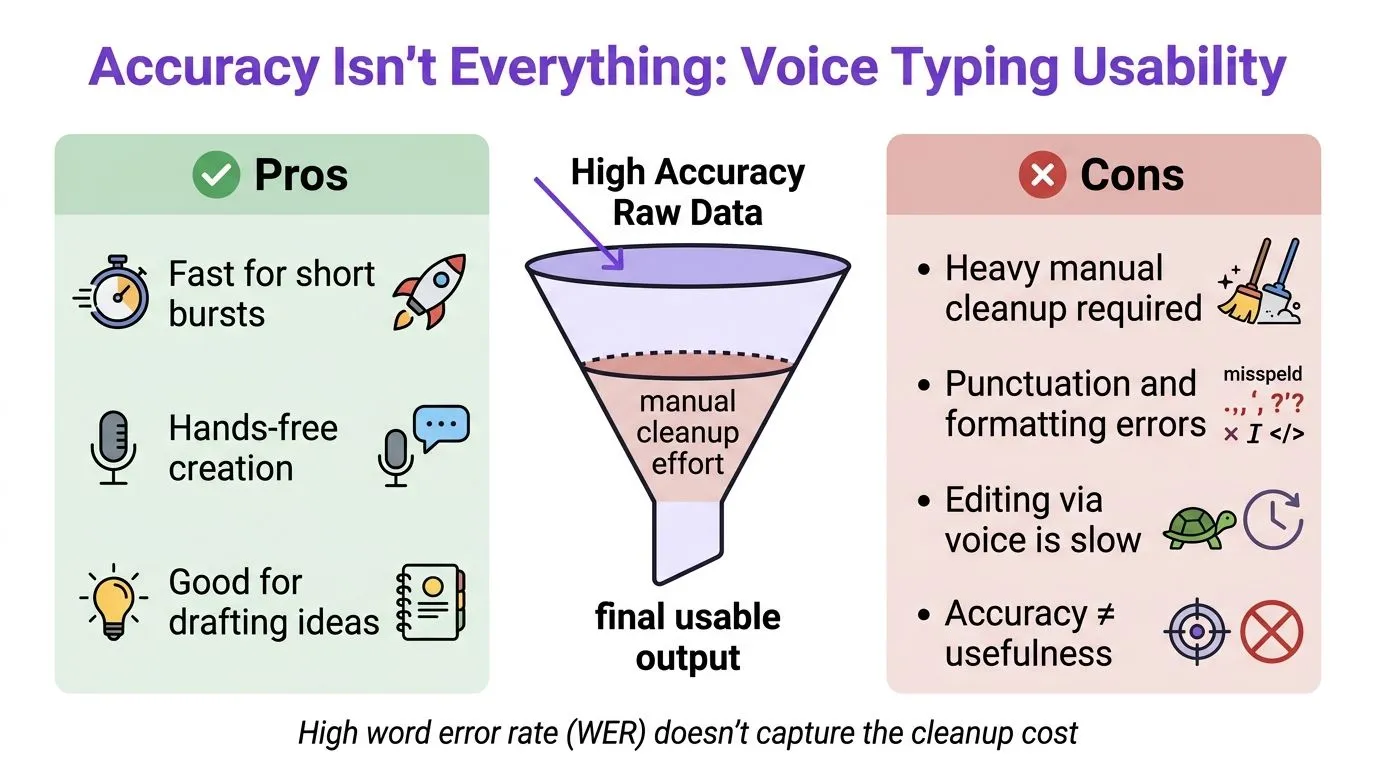
The cleanup bill decides the outcome
A clean English draft in a quiet room may go smoothly. Technical vocabulary, fast corrections, mixed languages, and application switching expose the cost. Independent 2026 coverage reports that voice can be 3x to 4x faster than typing and that leading engines can exceed 95% accuracy in clean English, but it also notes weaker performance with technical vocabulary and the continuing need for edited output. Those claims appear in the 2026 voice-to-text analysis.
The better question is not whether voice is faster than typing in isolation. Ask whether speaking, correcting, formatting, and inserting the result is faster than your existing keyboard workflow. Privacy belongs in the same calculation. A cloud engine may produce cleaner text, but sending audio to a remote service is a meaningful trade-off for confidential notes, source code, or sensitive business material.
Recommended workflows and tools for daily use
Voice works best when you assign it the part of the process it handles well. Use speech for generating ideas, first drafts, explanations, and short messages. Use the keyboard for precise editing, code syntax, selection, and final review.
Build around a deliberate handoff
For long-form writing, set a push-to-talk shortcut, speak in complete thoughts, and pause between paragraphs. A foot pedal can make hold-to-talk practical when both hands remain on the keyboard. The productive pattern is voice for composition, keyboard for correction, not an attempt to perform every editing operation aloud.
For email and notes, keep the session short and low-risk. Speak the main point, let the formatter remove filler and apply punctuation, then scan names, dates, numbers, and commitments before sending. For code, dictate comments, issue descriptions, commit messages, and explanations rather than source syntax. Voice can describe a function clearly, but punctuation-heavy code still benefits from direct keyboard entry.
Compare tools by the workflow they support
| Tool | Platforms | Privacy model | Best for | Key limitation |
|---|---|---|---|---|
| Vibe Typer | Linux, Windows, macOS, iOS | Audio processed in memory, no server-side transcript storage | Cross-platform dictation with formatting and app insertion | Requires configuration for the preferred hotkey and per-app behavior |
| Whisper-based local pipeline | Depends on the implementation | Local processing when models run on-device | Users who prioritize control and customization | Setup, model management, and text injection can be demanding |
| macOS Dictation | macOS | Includes an on-device processing option in supported configurations | Native Apple workflows | Less flexible across specialized apps |
| Windows Voice Typing | Windows | Processing and account requirements depend on configuration | Fast system-wide entry | Cloud dependence and limited specialized formatting |
| Linux desktop tools | Linux, varies by desktop and session | Depends on the selected engine | Experimentation and custom setups | Wayland and input-method integration can require manual work |
Vibe Typer converts speech into text at the cursor across Linux, Windows, and macOS, supports 99 languages, and includes Magic Formatter for filler removal, self-corrections, punctuation, and style instructions. Its diff view makes the transformation visible, while custom dictionaries help with names and technical terms. Audio is processed in memory, transcripts aren't kept on servers, and nothing trains on user audio or text.
Tune the environment before blaming the model
Start with a decent microphone and a quiet room. Disable system sounds during recording so notifications and playback don't contaminate the session. On Linux, test both the recognizer and the insertion path in the exact applications you use, especially terminals, Electron apps, browser fields, and Wayland-native editors.
Keep a small vocabulary list for product names, commands, and domain terms. Then review the diff after a few sessions. That tells you whether the problem is recognition, formatting, or insertion. Each needs a different fix.
Getting started without breaking your existing setup
Don't replace your keyboard workflow on day one. Start with short sessions for notes, messages, or rough drafts, then inspect the cleanup required before moving to longer documents.
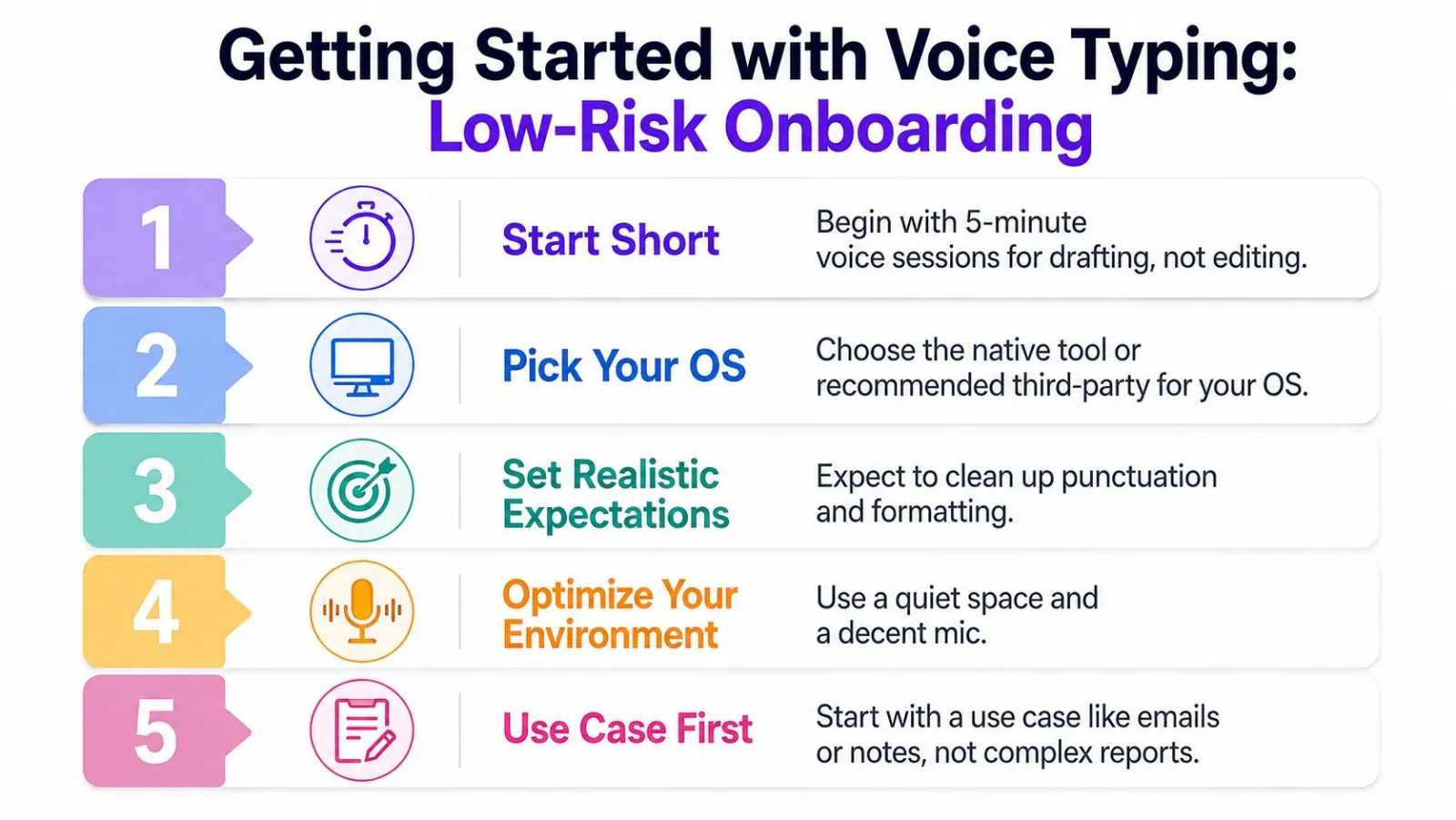
Use this sequence:
- Start short. Dictate a small note rather than editing a finished document.
- Check your OS path. Verify microphone permissions, input methods, and text insertion.
- Set expectations. Plan to correct punctuation, formatting, names, and technical vocabulary.
- Test your environment. Use a quiet space and confirm the selected microphone.
- Choose one use case. Begin with email, notes, or drafting before complex reports.
Wayland clipboard behavior can disrupt insertion even when recognition succeeds. macOS users may encounter dictation timeout behavior, while Windows Voice Typing may require an online Microsoft account. Test the exact applications you depend on, and give the workflow a sustained trial before changing your default habits.
Treat voice as a complement to the keyboard. You're not trying to speak every command or stop editing. You're trying to get ideas into the right app faster while keeping control of the final text.
Vibe Typer offers cross-platform voice typing for Linux, Windows, and macOS, with system-wide insertion, formatting controls, custom vocabulary, and in-memory audio processing. If you want to test whether clean, private dictation fits how you work, visit Vibe Typer and start with the short-session approach described above.
Try Vibe Typer free
Voice typing that works in every app on Linux, Windows, and macOS. Free to download: 2,000 words a month, no card.
Download free