AI Typing Assistant Guide: What It Is and How It Works

You're halfway through an email, one hand still on the keyboard, the other hovering near the mic button because typing the next paragraph feels too slow. You speak a rough sentence, watch the text appear in the active app, and then notice the awkward parts get cleaned up before you send anything. That's the appeal of an AI typing assistant. It sits between your microphone and your cursor, turning spoken language into usable text instead of leaving you a raw transcript to fix later.
Table of contents
- What an AI typing assistant actually does
- The two engines behind every smart typing tool
- Core features that shape daily writing
- Real workflows across roles and devices
- AI assisted typing versus plain dictation
- How AI typing assistants pair with voice typing tools
- Privacy, transparency, and what to look for
What an AI typing assistant actually does
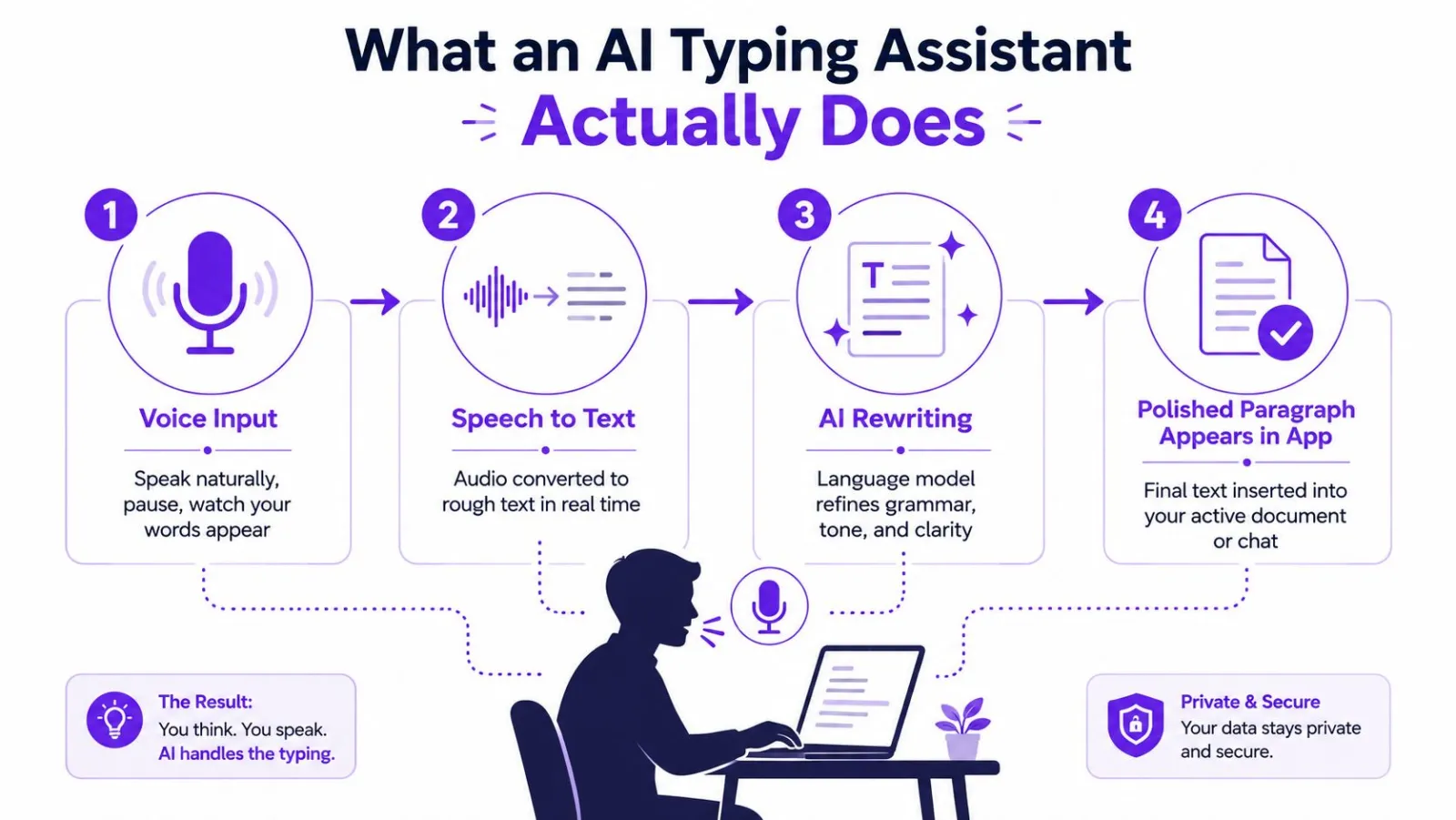
A plain dictation tool listens, converts speech, and drops the result into your document. An AI typing assistant does that too, but it adds a second layer that cleans up the rough edges while you keep moving. That matters the moment you say, "um," restart a sentence, or correct yourself mid-thought, because real speech is messy and writing usually isn't.
Think of it as an editor sitting between you and the app. You speak, the assistant catches the words, and the model layer trims filler, fixes punctuation, and tidies phrasing before anything reaches the app. The Tutorial AI demo on Docs AI shows that flow inside a document editor.
Practical rule. If a tool only transcribes, you still own every cleanup pass. If it can rewrite as it inserts, the cleanup happens while the thought is still fresh.
That matters for everyday writing, not only long documents. The feature list on Vibe Typer's product page is typical of the category. The value isn't the speech capture, it's the cleanup and insertion after it. To see it, speak a sentence and look at what arrives in your chat, note, or editor.
The two engines behind every smart typing tool
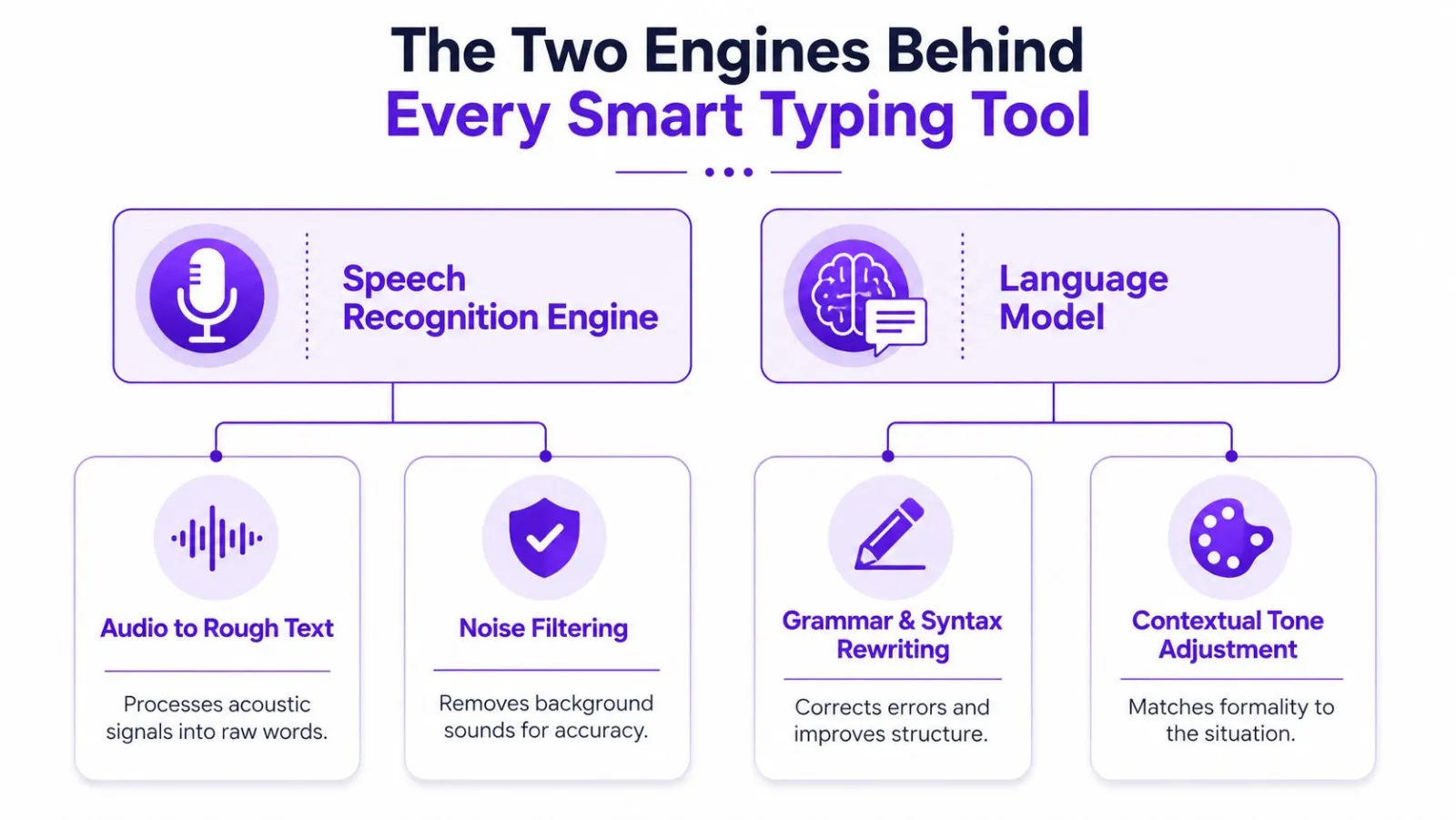
Smart dictation works like a two-person desk, one listener, one editor. The listener turns your voice into text at speed, while the editor reshapes that text so it reads like something you meant to send.
Speech recognition handles the rough draft
The speech engine turns audio into text. Accent handling, language detection, and custom dictionaries matter here, because names and jargon are where raw transcription slips most often. In healthcare or software, one wrong term changes the meaning, so vocabulary support is part of the tool, not decoration.
The usual pattern: process audio locally when you can, then pass plain text through the active app's input path so the words land where the cursor is. That matters in terminals and editors, because formatting breaks if the tool treats every app like a browser text box. The Whisper dictation on Linux guide shows this layer on a Linux desktop.
The language model shapes what gets sent
The second engine is the part people notice most. It removes filler, turns half-finished thoughts into complete sentences, and can follow style instructions without flattening every line into the same voice. Rewrite and reply behavior sits here, along with the cleanup that makes the transcript ready to use.
Hearing you correctly is the easy half. The assistant also has to know what kind of text belongs in this window.
The two layers also let the assistant show what changed. A diff view makes the cleanup visible, so you can check the tool kept your meaning before the text reaches the document.
Core features that shape daily writing
The features people notice are the ones that sit between thought and delivery. A hotkey starts capture, a hold-to-talk or toggle mode keeps your hands free, and the assistant inserts the result directly into the app that already has focus. That sounds small until you're switching between a terminal, a note, and a reply thread in the same hour.
Rewrite and reply change what happens after transcription
Rewrite is for the moment your voice note is structurally correct but still too rough to send. You might dictate, "Send the update to the team, say the draft is delayed, mention I'll clean it up tomorrow," and the assistant turns that into a tighter message that sounds like something you'd put your name on. Reply goes one step further, because it can use clipboard context to draft a response in place.
Magic formatting fills in the middle ground. It removes filler words, applies spoken self-corrections, and normalizes punctuation before the text reaches the cursor, which helps when you speak in bursts rather than reading from a script. The point isn't perfection, it's less cleanup after the fact.
Custom words and app-aware insertion matter more than they look
Custom dictionaries are where a lot of assistants earn trust in daily use. If your work includes product names, medical terms, or uncommon surnames, the wrong substitution forces you to stop and repair the sentence by hand.
- Custom dictionary entries. Names and jargon stop getting "fixed" into the wrong word.
- Automatic system mute. Alert sounds and notification chimes stay out of the capture.
- Per-app insertion behavior. Text lands cleanly in terminals, editors, and chat windows instead of every field being treated like a browser text box.
Useful test. Dictate a sentence with one proper noun, one number, and one correction, then check whether the assistant shows you exactly what changed.
That last part is the difference between a tool you trust and one you tolerate. If you can't see how the cleanup happened, you'll always wonder whether the model changed the meaning while improving the wording.
Real workflows across roles and devices
A developer on a Linux laptop dictates a commit message or a shell command with the terminal open, and the tool has to insert plain text without mangling anything. The win is fewer pauses and less retyping.
A clinician's day looks different. Between appointments, the pressure is to capture a note while the details are fresh, then move on without cleaning up the same sentence three times. There, custom vocabulary and system mute matter because names, abbreviations, and domain terms have to survive the trip from speech to record.
A knowledge worker lives in the middle. One minute they're answering a colleague, the next they're drafting a customer reply, then they're pulling together a summary from a chat thread. The assistant becomes useful when it helps them keep tone consistent across those jumps, so a quick spoken reply doesn't sound casual in one message and stiff in the next.
The same feature set behaves differently in each setting. A developer may care most about insertion fidelity in a terminal, while a clinician cares about terminology, and a support lead cares about tone in outbound replies.
Good dictation tooling disappears into the task. If you notice the software more than the sentence, the workflow still needs work.
That's why device coverage matters too. People don't write in one place anymore, and the assistant has to behave the same whether the cursor is in a desktop app, a browser field, or a messaging window on the go.
AI assisted typing versus plain dictation
Plain dictation gives you the fastest possible first draft. An AI typing assistant gives you a first draft plus a cleanup pass, which is why the output usually feels closer to sendable text. The trade-off is simple. Raw transcription is easy to check, while AI-assisted output is more useful and asks for more trust.
| Dimension | Plain dictation | AI typing assistant |
|---|---|---|
| Accuracy | Captures spoken words as text, but often leaves filler and rough phrasing intact | Captures speech and then cleans grammar, punctuation, and style |
| Edit effort | Higher, because you usually fix the draft manually | Lower, because cleanup happens during insertion |
| Customization | Often limited to basic vocabulary help | Can include dictionaries, rewrite rules, and tone shaping |
| Trust | Easier to inspect because it stays close to the transcript | Requires transparency so you can see what changed |
The practical difference shows up with technical terms and names. A plain transcript may preserve the general meaning but still leave you correcting one word at a time, especially if your speech includes self-corrections or mixed terminology. The AI-assisted version is more willing to smooth the whole sentence, which helps when your goal is communication rather than transcription for its own sake.
That doesn't make raw dictation wrong. It just means some users only need capture, while others need capture plus shaping. If you write short notes, plain dictation may be enough. If you draft messages, reports, or replies all day, the rewrite layer earns its place quickly.
How AI typing assistants pair with voice typing tools
The most useful pattern is a voice typing app that handles capture, insertion, and cleanup in one place. On Linux, Windows, macOS, and iOS, that means respecting the active app instead of assuming a browser, because people write in terminals, code editors, chat windows, and notes as often as in documents. Vibe Typer is one example, with speech-to-text, AI rewrite, and reply commands sitting on top of voice typing rather than replacing it.
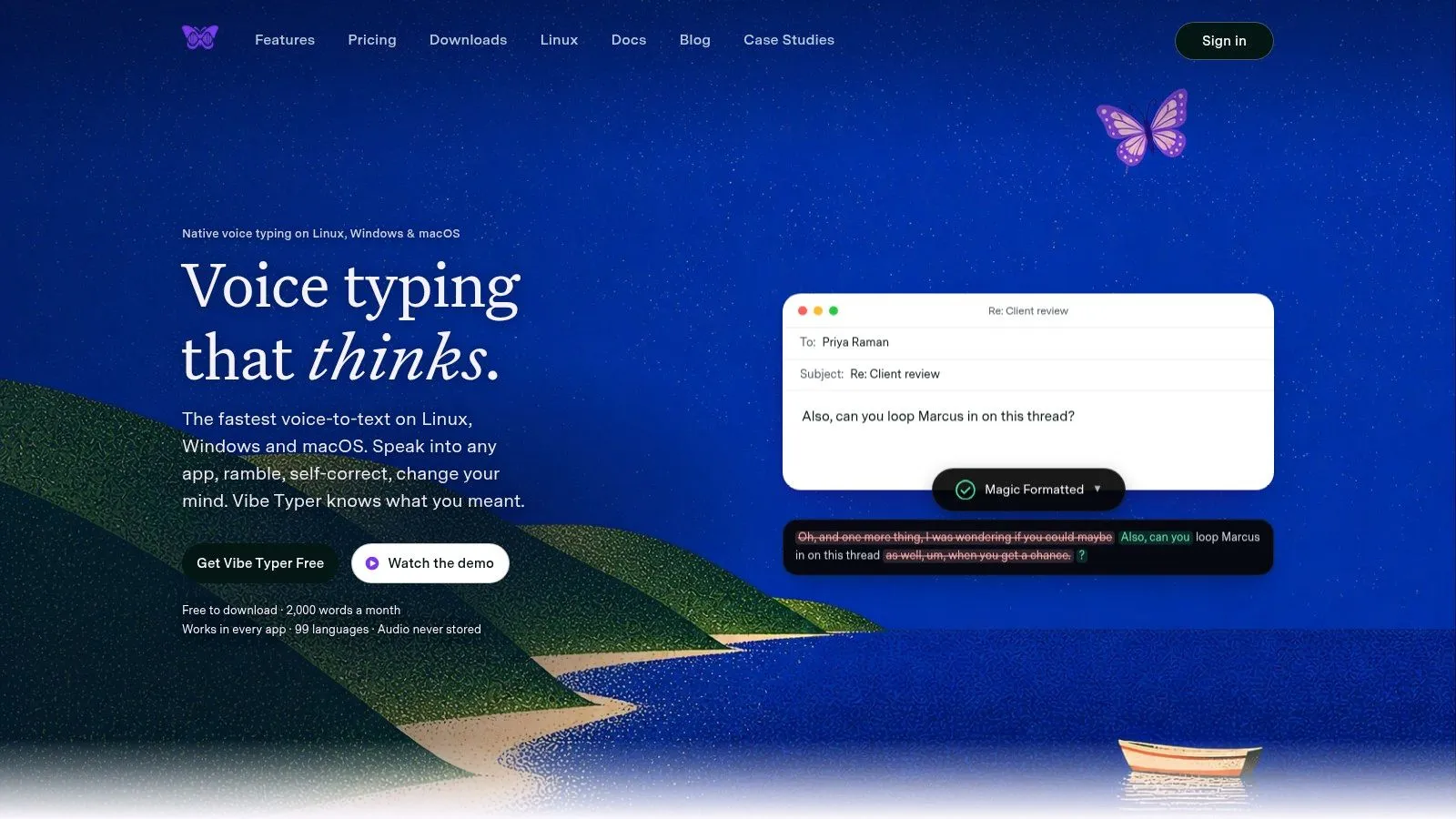
What matters is underneath the buttons. In-memory audio processing means no recording is kept after delivery, and no server-side transcript retention means your speech isn't sitting in a queue after the text has appeared. Per-app insertion matters for the same reason: terminals and editors need plain text, not rich text.
Linux users notice a different problem first. Wayland and X11 are different display models, and a tool that's vague about which it supports usually leaves you guessing when it has to place text at the cursor.
On Linux, "works on my desktop" is not enough. It has to work in the app you actually use, with the display server your system actually runs.
Portable packaging matters when you move between machines or distributions. A tool that assumes one desktop stack can pass a demo and fail in daily use. One that handles insertion on every platform starts to feel like part of the keyboard instead of a separate gadget.
Privacy, transparency, and what to look for
An AI typing assistant is a trust decision as much as a speed decision. If the tool turns speech into text but hides what happened along the way, you end up guessing about substitutions, formatting changes, and whether a cleanup pass altered a name or number. You need to know what changed, not just see the final sentence.
Start by asking where the audio lives while it is being handled. In-memory processing keeps the capture temporary, and no server-side transcript retention means the text is not left sitting around after delivery. The next question is whether you can review the edits, because a diff view shows the cleanup instead of asking you to accept it without inspection.
Linux and Wayland belong in the same conversation. A tool that only describes mainstream desktop defaults leaves out the people who need reliable insertion in editors and terminals. Custom dictionaries and accent handling matter for the same reason: accuracy only helps if it survives real conditions, not a demo script.
For teams, the privacy policy should say plainly what is stored, for how long, and whether anything is used for training. Vibe Typer's local history and privacy documentation is where to check that before rolling a tool out across a department.
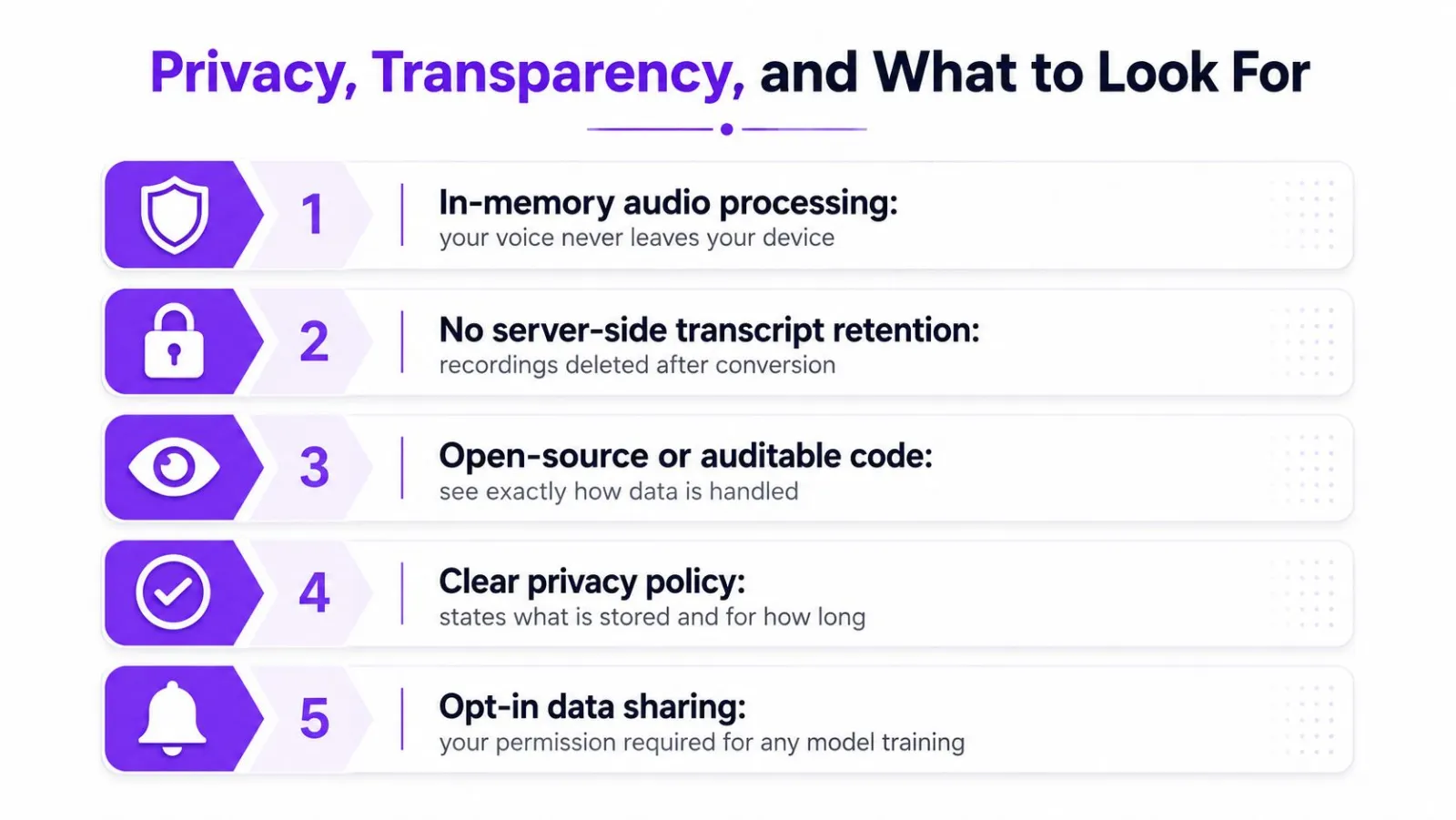
The checklist:
- In-memory audio processing. The voice capture should disappear after conversion.
- No server-side transcript retention. The service should not keep a hidden copy of what you said.
- Visible change tracking. You should be able to inspect what the model altered.
- Clear storage rules. The policy needs to say what is saved and what is not.
- Opt-in data sharing. Model training should never be the default assumption.
If a tool can answer those questions, you can defend deploying it. If it can't, the assistant may be doing more with your words than you intended.
Try Vibe Typer free
Voice typing that works in every app on Linux, Windows, and macOS. Free to download: 2,000 words a month, no card.
Download free