10 Best Mac Dictation App Picks for 2026


You've probably hit this exact moment on your Mac. You're in Slack, Notes, Terminal, or a long email, you press dictation, and the text appears, but it needs cleanup, the punctuation is off, or the app you're using doesn't quite treat voice input the way you need. In 2026, picking a mac dictation app comes down to four things: where the audio goes, whether the tool can insert text into any app, how much cleanup you want, and whether your Mac is Intel or Apple Silicon. Apple's built-in Dictation is still the lowest-friction baseline, because it is part of macOS and starts from any text field, and it takes spoken commands like "new line" and "new paragraph" while you dictate. Apple documents microphone selection in System Settings and notes a historical privacy model for Siri and Dictation request history on its support page (Apple Dictation help). But if you need better accuracy, better history, or a more explicit privacy posture, third-party tools earn their keep fast.
Table of contents
- 1. Vibe Typer
- 2. Apple Dictation and Voice Control
- 3. MacWhisper
- 4. Wispr Flow
- 5. Aqua Voice
- 6. VoiceInk
- 7. Parrot
- 8. Notta Desktop
- 9. Otter
- 10. Talkatoo
- Top 10 Mac dictation apps, feature comparison
- Picking the right dictation setup for your Mac
1. Vibe Typer
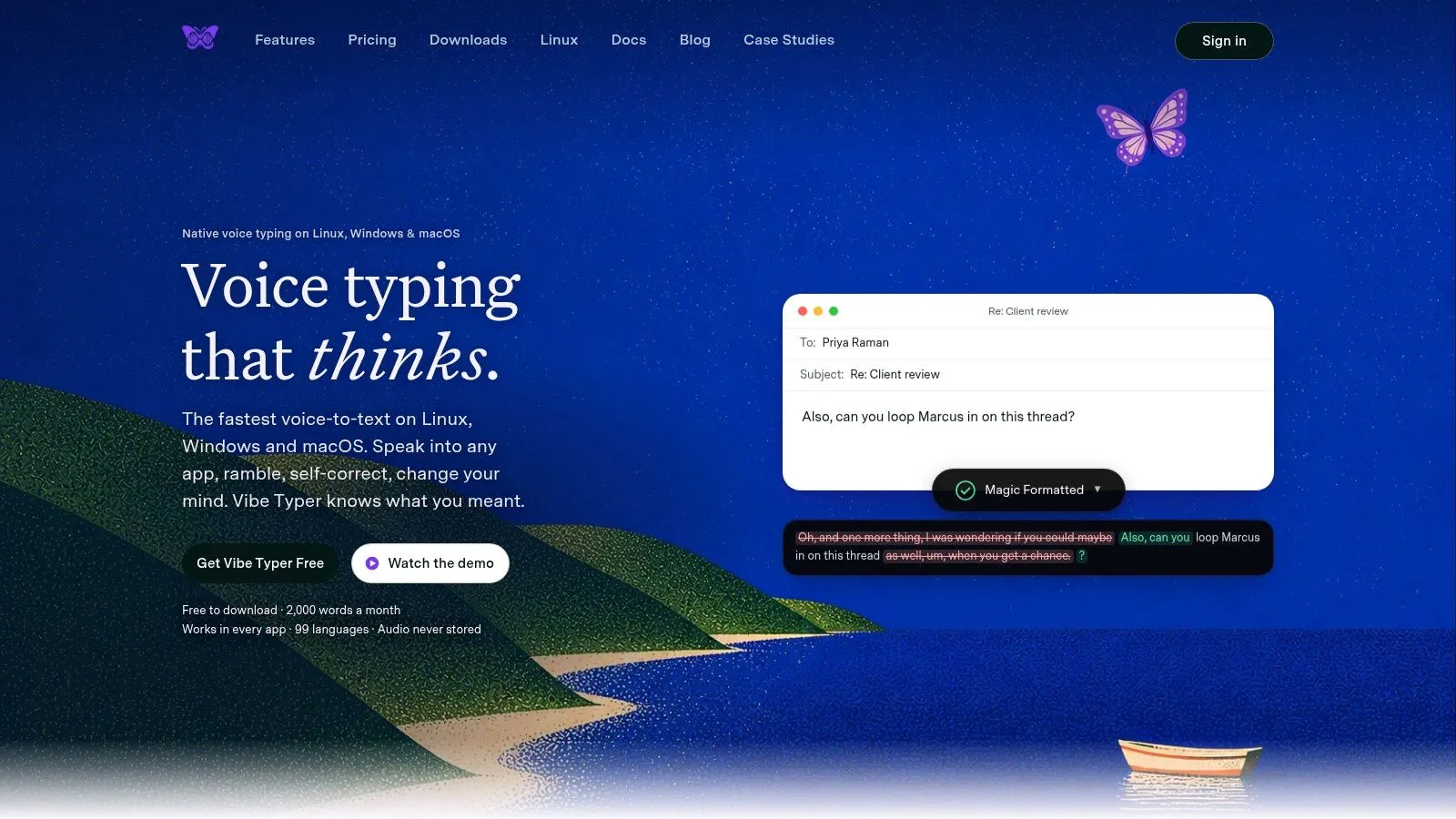
If your Mac dictation needs to do more than dump raw speech into a text box, Vibe Typer is built for that job. It inserts cleaned text into whatever app already has focus, including terminals and code editors, so the tool fits people who move between chat, docs, and technical work instead of staying inside one editor. Magic Formatter strips fillers, applies self-corrections, fixes punctuation, and follows style instructions, which is the cleanup that makes dictated text usable without extra editing. Vibe Typer
Why it stands out in daily use
The main trade-off is how it handles audio and text insertion. Vibe Typer says audio is processed in memory, transcripts are not stored or used for training, and a private on-device history keeps records local. That privacy model matters to people who do not want dictation history sitting in a cloud account. The app-agnostic insertion matters to anyone who needs the text to land in the active app without a copy-paste step.
It also includes system-wide auto-mute during recording, visible diff output so you can review exactly what changed, and per-app insertion rules so dictation behaves differently depending on where the text lands.
If you spend time in terminals, code editors, and chat windows, the value is in a dictation tool that respects the destination app instead of fighting it.
Vibe Typer also supports 99 languages with optional auto-detection, plus a custom dictionary for names and jargon. The free tier is limited to 2,000 words per month and 20 AI operations per month, while Pro offers unlimited voice typing and AI operations on a subscription, and Business plans are available for teams.
The clearest fit is for doctors, engineers, Linux switchers, and teams that want seat-based deployment without server-side transcript storage. If you care about insertion into any app, visible edits, and privacy-first handling, it is the most ambitious option in this group.
2. Apple Dictation and Voice Control
Apple's native Dictation is still the baseline new users should start from, because it's already on the Mac and it launches from any text field with the default Fn-key shortcut or the built-in microphone key flow. Apple also documents spoken commands like "new line" and "new paragraph," which makes it more usable than casual users expect once you learn the basic command vocabulary. For quick notes, short replies, and low-effort voice entry, it's hard to beat the fact that it costs nothing and needs no extra install. Apple Dictation and Voice Control
Apple's built-in Dictation also sits at the operating-system level, not inside a standalone app. Apple notes that you can choose a microphone source in System Settings, which matters when you're switching between a laptop mic, earbuds, and a desk mic. A third-party review also notes that Apple Dictation on Apple Silicon can process speech on-device and supports automatic punctuation for supported languages including English, Spanish, French, German, Italian, Portuguese, Mandarin, Cantonese, Japanese, and Korean, so the native path is better than many people assume on newer Macs (Apple Dictation review).
Where it falls short
The limit is real-world polish. Even though Apple Dictation is the lowest-friction choice, a 2026 comparison places its accuracy at about 85-95%, while another review estimates a 15-18% word error rate on technical and accented speech versus 5-9% for top cloud models such as GPT-4o Transcribe and Deepgram Nova-3 (Mac dictation comparison). That gap shows up most when you dictate names, jargon, or code-adjacent language.
If you only dictate occasionally, Apple's tool is enough. If you rely on dictation for daily work, the cleanup burden gets old fast. It's free, already installed, and broadly compatible, but it's not the strongest choice when accuracy and control over insertion are the priority.
3. MacWhisper
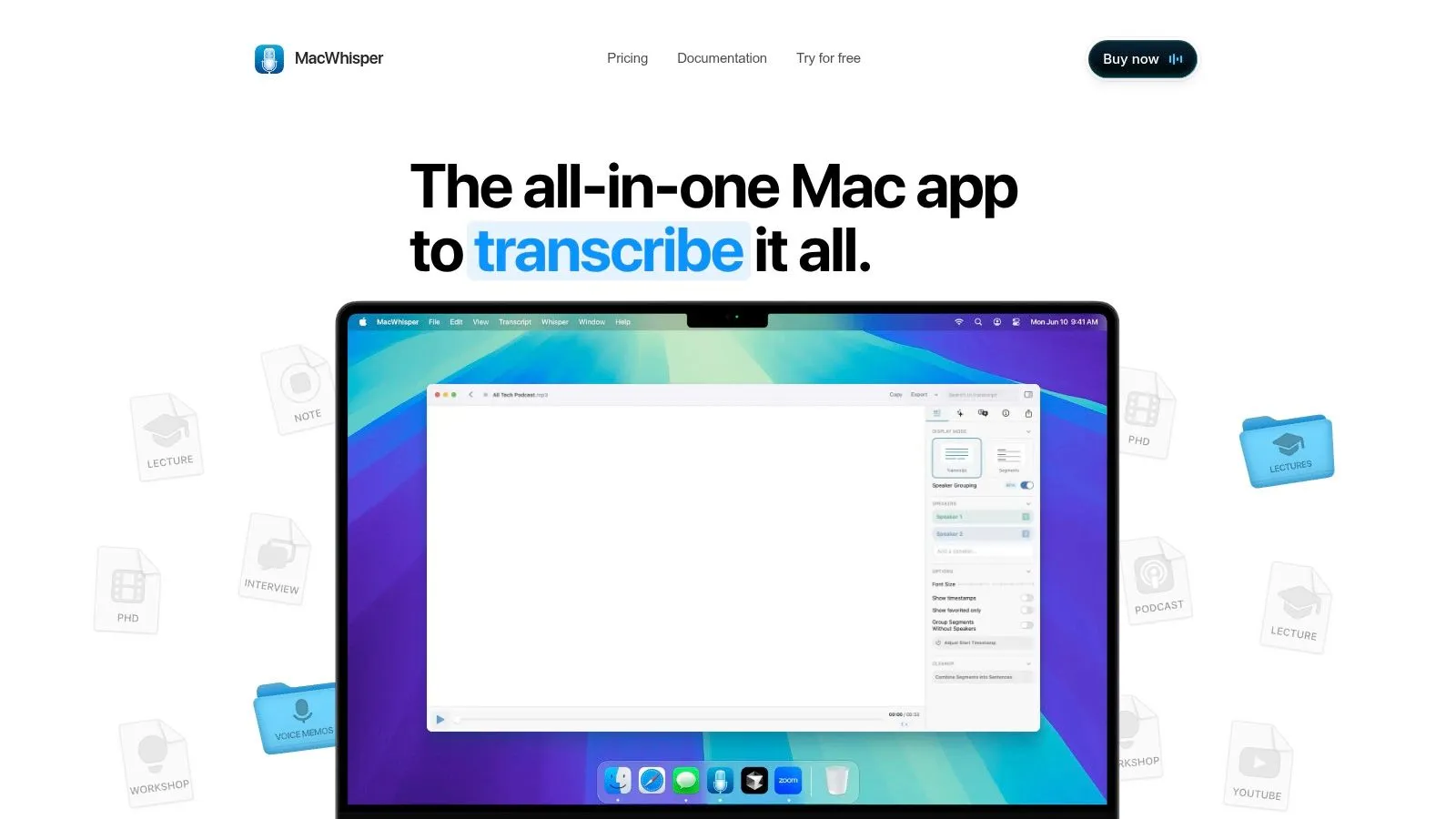
MacWhisper sits in the on-device transcription camp, with a different workflow from Apple's built-in dictation. It is designed around local transcription and dictation, so you can use it for live speech and for audio files in the same app. The appeal is simple. The text stays local, privacy is easier to reason about, and AI cleanup is there when you want it. MacWhisper
The local-first trade-off
MacWhisper makes sense if you want an offline model with broad language support and you would rather pay once than keep another subscription active. It also covers a wider transcription job than plain dictation, which matters if you work from recorded audio, interviews, or meeting files as often as live voice input. It also has watch folders, CLI access, and Pro features, so it can grow with a heavier transcription load without recurring fees.
The trade-off is that the dictation side still feels closer to a transcription tool with dictation added on top than a purpose-built app for inserting speech into any field. That matters in daily use. It works, but it is not always as smooth as tools built from the start for live insertion across apps.
If offline processing is the first requirement, MacWhisper fits well. If the first requirement is text that drops into any app with the least possible friction, a more insertion-focused tool will usually feel better.
For readers comparing local tools by architecture, MacWhisper details are useful because they show how a privacy-first setup behaves outside the marketing pitch. The question is not whether it can transcribe speech. It is whether you want a local setup you manage yourself, or a dictation app that hides the mechanics.
4. Wispr Flow
Wispr Flow belongs in the cloud-powered category, and that is the main reason people pick it. It is built for fast dictation across Mac, Windows, and mobile, with a clear bias toward teams that need shared vocabulary controls, templates, and admin features. If your group wants one shared voice-input setup instead of a set of personal shortcuts, it is one of the more direct fits. Wispr Flow
Built for polished output, not local isolation
Wispr Flow's value is in cleanup and consistency. It is designed to strip filler words, correct grammar, and turn spoken input into text that reads like something you wrote, not a rough transcript of what you said. It also includes a desktop macOS app with meeting capture, so it moves between live dictation and note-taking without forcing you to juggle a separate recorder.
The cloud model is also the reason it will not fit every setup. If your policy requires local-only handling, Wispr Flow is the wrong architectural choice even if the interface feels polished. It fits teams, cross-device workers, and people who care more about editing support and collaboration than strict local processing. For readers comparing cloud dictation tools, the Wispr Flow alternatives page is a useful next stop because it compares them by privacy posture and how they insert text, not by feature slogans.
A 2026 market overview puts the broader speech-and-voice-recognition market at $19.09 billion in 2025 and $23.70 billion in 2026, with a projected $104 billion by 2034 (market overview). That growth is part of why tools like Wispr Flow keep adding team controls and admin features.
5. Aqua Voice
Aqua Voice is another cloud-based option, but it reads more like a focused dictation tool than a wider productivity suite. The draw is straightforward dictation in any app, along with a custom dictionary and voice commands for people who want better formatting and terminology handling than Apple's built-in tool usually gives them. Aqua Voice
Where Aqua Voice fits
Aqua Voice fits users who want a cleaner voice-to-text setup across the Mac without managing local models or tinkering with transcription tools. The onboarding and documentation matter here. Most people do not want to study how the system works. They want speech input that behaves well the first time. That is useful if you dictate into work apps all day and need the tool to stay out of the way.
It has the same trade-off as the other cloud-first dictation apps. You accept subscription pricing and cloud processing, so it is not the right choice for highly sensitive material or for anyone who wants a lifetime-license model. If your policy requires local-first handling, Aqua Voice is the wrong fit. If you want a simple, documented, cloud-assisted dictation tool, it makes sense.
For a direct comparison with another polished cloud dictation app, Aqua Voice vs Wispr Flow shows how the two differ in privacy posture and output cleanup. Aqua Voice is aimed at clean output and cross-app use, not strict local processing.
6. VoiceInk
VoiceInk is the privacy-first Apple Silicon answer for users who want local dictation without giving up features like app-specific modes. It's built around on-device dictation with optional cloud integrations you control, so it gives you a private default and a path to bring your own provider when you need it. It also has app-specific modes and low-latency streaming, which is what makes local dictation feel usable. VoiceInk
Strong privacy, narrower hardware fit
VoiceInk's strongest argument is its buy-once model and local-by-default posture. That combination is valuable if you're done paying for recurring subscriptions but still want a serious voice typing tool. It also supports custom vocabulary and voice commands, so it doesn't stop at raw transcription.
The hardware caveat matters, though. VoiceInk is aimed at Apple Silicon and recent macOS versions, which means it's not the broadest compatibility choice in this list. That's fine if your machine is current and you want modern local processing. It's less fine if you're stuck on older hardware or want a cross-platform team tool.
VoiceInk is about control. You decide where processing happens and when the cloud is involved, which a built-in tool does not offer. For privacy-conscious Mac users, that is usually the deciding factor.
7. Parrot
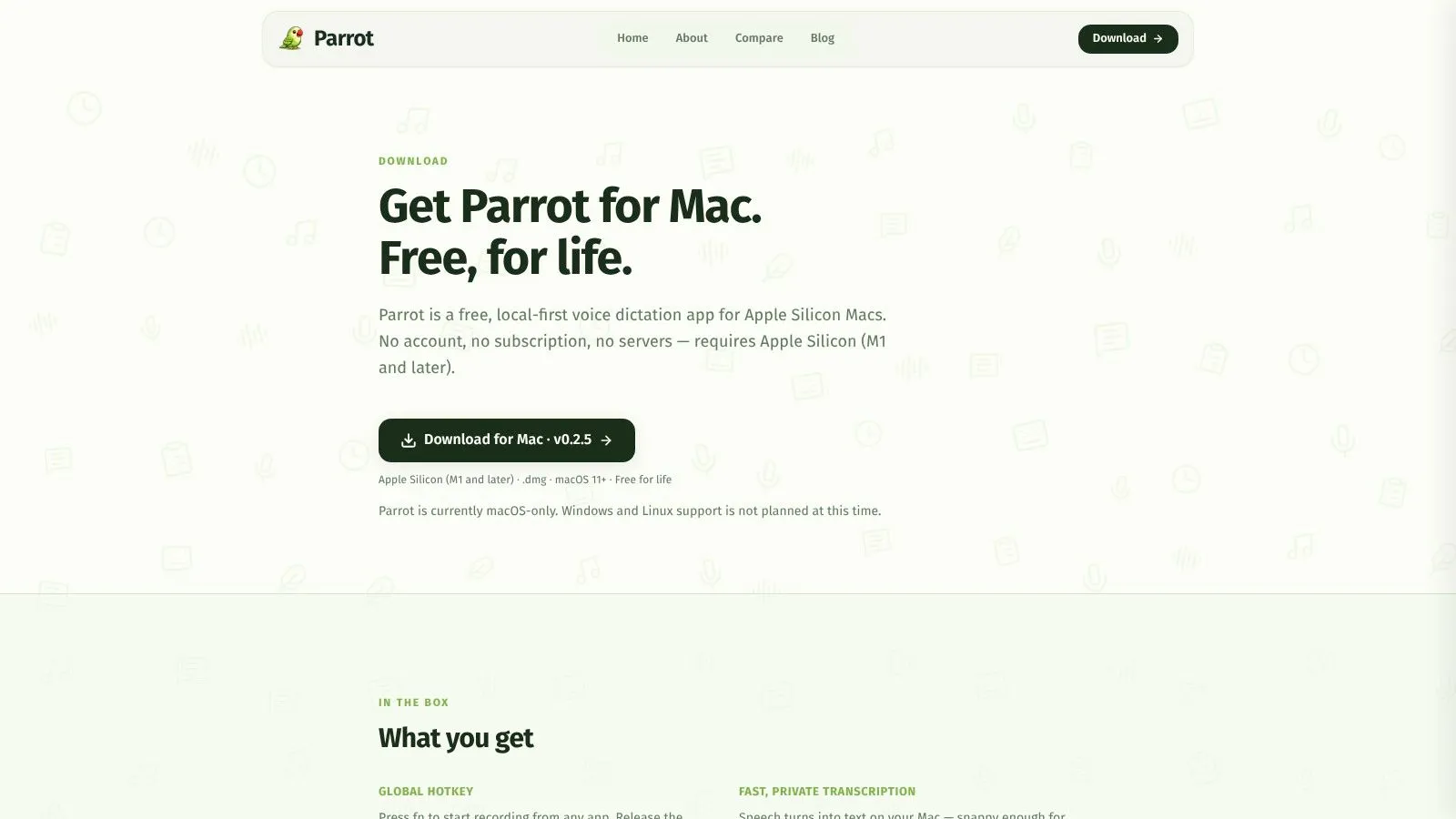
Parrot is the bare-bones local-first option in this group, and that restraint is the point. It is a free, Apple Silicon-only menu bar app that lets you press a hotkey, dictate into whatever app is open, and keep searchable history on-device. If you want a lightweight native app with no account and no subscription, Parrot is one of the clearest answers. Parrot
Simple by design
Parrot's strength is that it does not try to become a full suite. It focuses on local transcription, a global hotkey, and pasting at the cursor, which is enough for users who want dependable voice entry without cloud complexity. The searchable local history is useful when you need to recover something you said a minute ago without leaving your current app. For a closer look at practical workflows, see creative uses of Parrot AI voice.
The main limitation is clear. It is Apple Silicon only, and it does not extend to other platforms. If you work across Windows or Linux, or if you need team deployment, Parrot will not fit that setup. It is a personal, local tool, and that is where it stays.
A good local dictation app should stay out of the way. Parrot does that well because it does not ask you to manage much beyond the hotkey.
For solo Mac users who care about privacy and want a no-cost entry point, Parrot is one of the easiest tools to recommend.
8. Notta Desktop
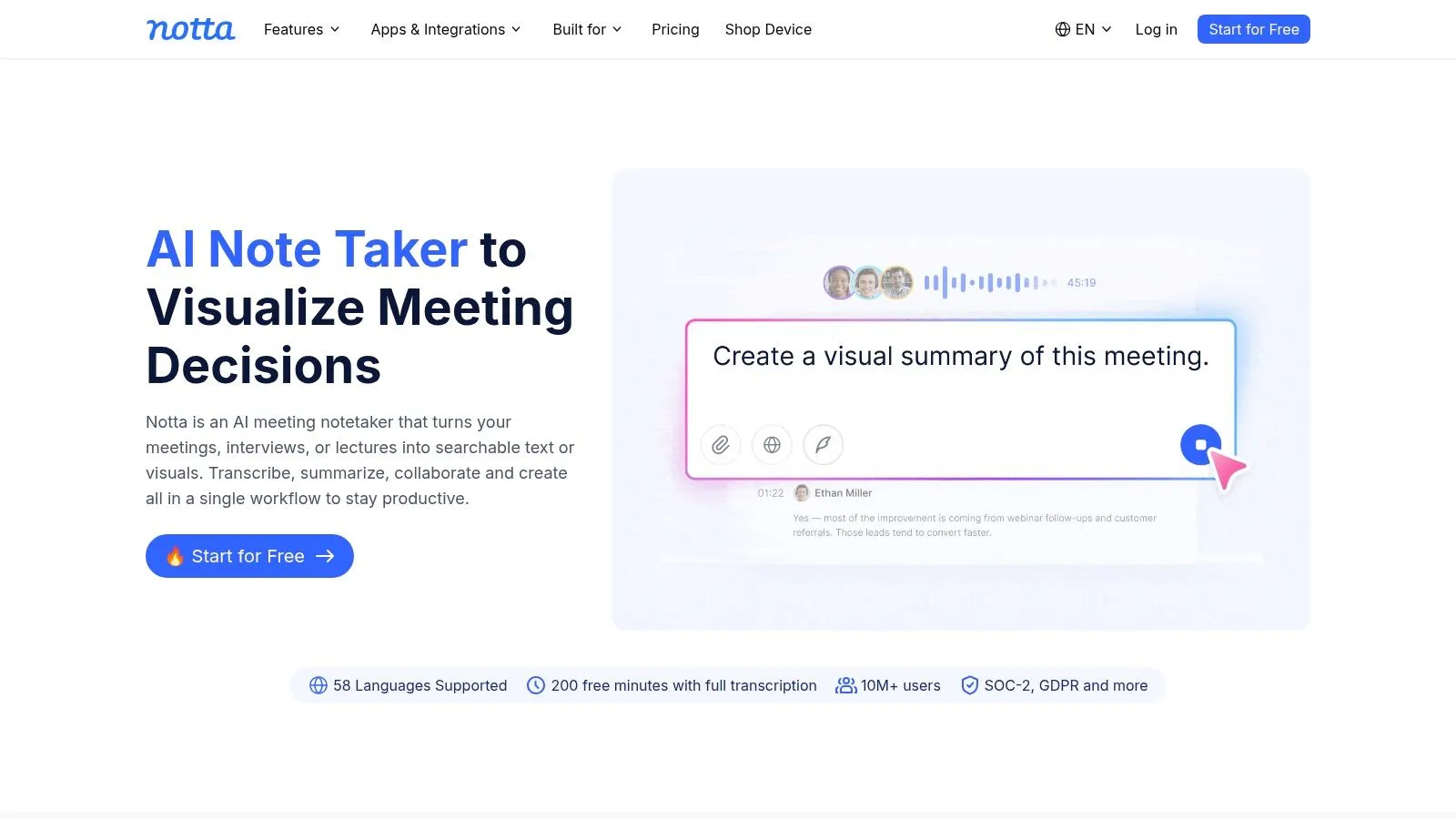
Notta Desktop is built around meetings, not raw dictate-anywhere typing. That distinction matters. If your day is full of calls, interviews, and searchable meeting notes, Notta's Mac app gives you live transcription, recording, archives, and cross-platform access. That fits a meeting-heavy day better than dictating into a blank text field. Notta
Better for capture than composition
The strength of Notta is searchability and organization. You get a desktop app for live transcription and recording, plus web and mobile access, which makes it easier to retrieve and reuse notes later. Templates help standardize the output, especially when meetings follow a repeatable structure.
The limitation is just as clear. Notta is optimized for meeting capture, so it's not the first choice if you want to dictate directly into Documents, Terminal, or a chat app all day. Cloud processing and free-plan limits also mean it belongs in the "meeting system" bucket rather than the "personal offline dictation" bucket.
If your job is full of calls and you want searchable transcripts more than conversational voice typing, Notta fits well. If your main need is typing faster into whatever app is open, it's the wrong shape.
9. Otter
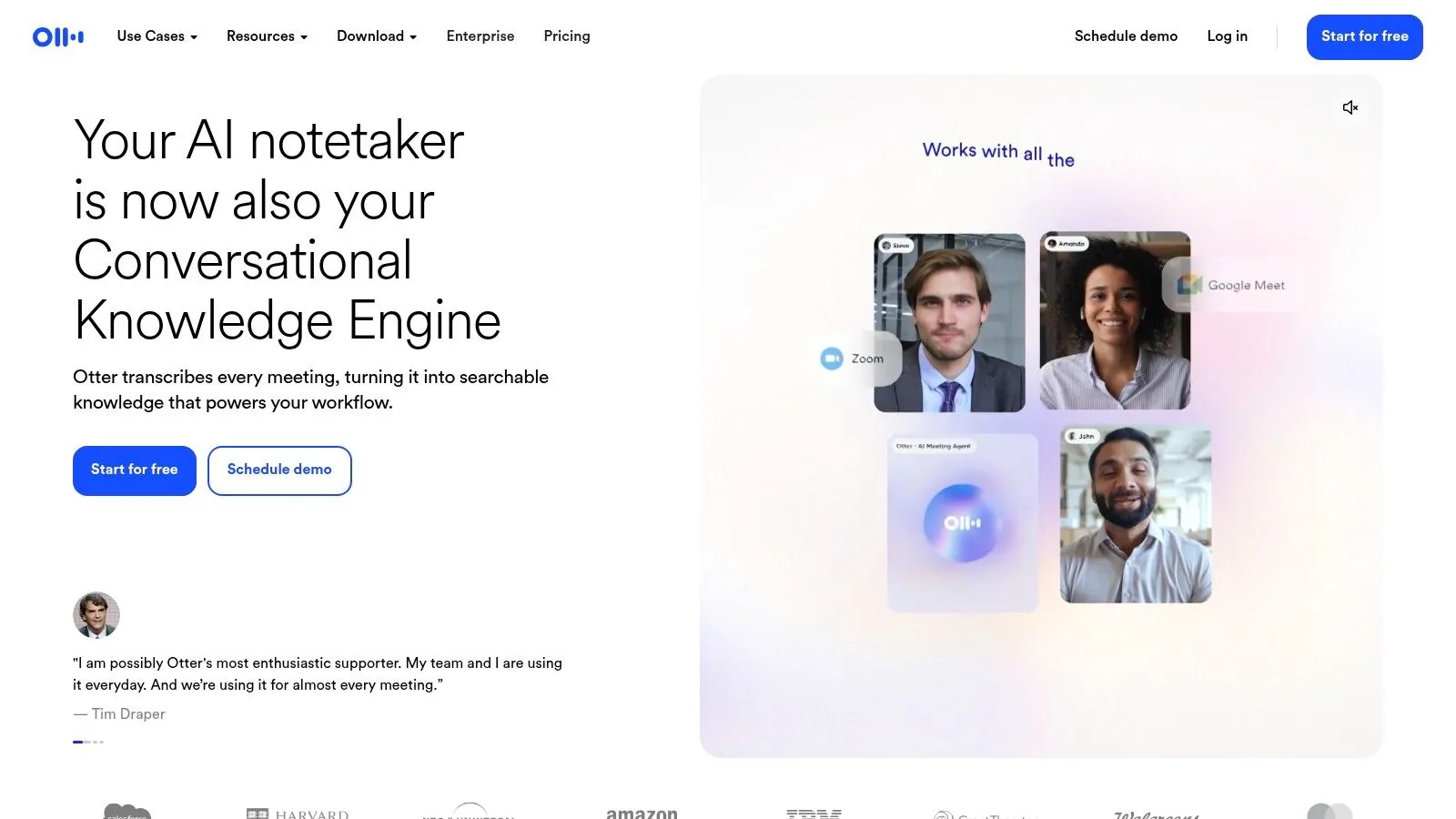
Otter is another meeting-first platform, and it remains one of the most recognizable names in that category. The Mac desktop app focuses on live transcription, speaker identification, AI summaries, action items, and integrations with Zoom, Teams, and Google Meet. That makes it a strong fit for collaborative notes, sales calls, internal meetings, and anything where the transcript needs to be shared after the fact. Otter
Not a raw dictation tool
Otter's biggest advantage is maturity. It's well known, with integrations and automation that make sense when several people need access to the same meeting record. If your team lives in shared notes, follow-ups, and summaries, Otter solves that problem better than a classic dictation app does.
The trade-off is architectural. It's built for meetings, not for typing into any text field. That means it isn't the best fit for quick drafting, code comments, or terminal work, and the cloud-plus-subscription model will matter to people with stricter policies. It's useful, just not universal.
For managers, interviewers, and teams that need structured meeting output, Otter is still one of the most practical choices. For personal dictation, it's overbuilt in the wrong direction.
10. Talkatoo
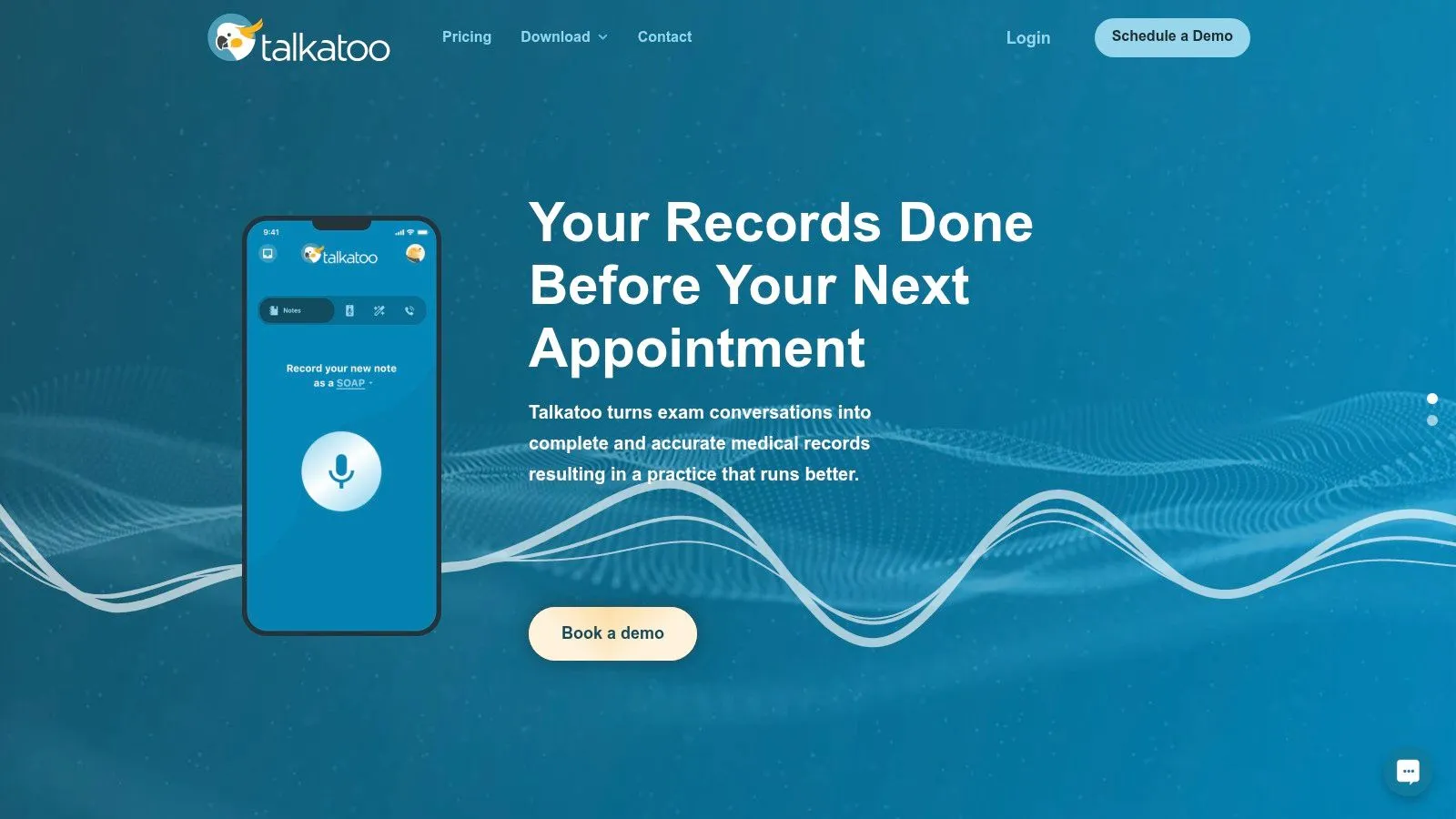
Talkatoo is the specialist in the list, and that's what makes it valuable. It's built for veterinary clinics, with dictation into any program where you can type, plus terminology and templates built for clinic documentation. If you work in veterinary care, a general-purpose dictation app often fails where Talkatoo is designed to help. Talkatoo
Purpose-built for clinic work
The app's value is the fit for clinic work. Veterinary terminology, SOAP-style records, mobile pairing, and AI scribe features make it much more than a generic voice-to-text layer. For clinics, that specialization can matter more than broad platform coverage or a flashy interface.
The downside is equally clear. Talkatoo is not trying to be the best dictation app for everyone, it's trying to be the best dictation and scribe tool for veterinary teams. That focus means the subscription can feel steep for individuals, and the product only makes sense if your work matches that niche.
If your documentation work is clinical and veterinary-specific, Talkatoo belongs on the shortlist. If you're a general knowledge worker, it's probably too specialized.
Top 10 Mac dictation apps, feature comparison
| Product | Core features | Quality & privacy | Unique strengths | Target audience & price |
|---|---|---|---|---|
| Vibe Typer | Cross-platform (Linux Wayland/X11, Win, macOS, iOS), hotkeys, Magic Formatter, 99 langs, per-app insertion | ★★★★★, in-memory audio, no server transcripts, private on-device history | Native Linux support, visible diff view, system auto-mute, synced prefs | Linux users & pros (doctors, engineers), teams. Free (2,000 w/mo) → Pro $8/mo (annual) / $10 mo-to-mo; seat-based Business |
| Apple Dictation & Voice Control | System-wide dictation & voice-driven OS control, offline on supported Macs | ★★★, on-device when supported; variable accuracy by macOS/version | Built-in, zero install, offline on newer hardware | General Mac users. Free (bundled with macOS) |
| MacWhisper | On-device dictation & file transcription, 100+ langs, export options | ★★★★, fully local, privacy-first | Batch transcription, one-time Pro unlock, CLI/watch folders | Mac users needing offline transcription. One-time Pro license (paid) |
| Wispr Flow | Real-time cross-app dictation, team vocabulary, templates, meeting capture | ★★★, polished UX but cloud processing by default | Team/admin controls, org templates, meeting capture | Teams & orgs. Subscription (student/business plans) |
| Aqua Voice | Real-time dictation into any app, custom dictionary, voice commands | ★★★★, accuracy-focused but cloud processing | Strong formatting/accuracy, clear onboarding & docs | Professionals wanting higher accuracy. Subscription |
| VoiceInk | On-device local models, app-specific modes, low-latency on Apple Silicon | ★★★★★, offline by default, BYO cloud options | Buy-once lifetime license, Apple Silicon optimized | Apple Silicon users valuing privacy. One-time purchase (no required subscription) |
| Parrot (tryparrot.app) | Global hotkey, on-device transcription, searchable local history | ★★★★★, fully on-device, privacy-first | Free forever, ultra-light menu-bar app (no account) | Apple Silicon users wanting simple privacy tool. Free |
| Notta Desktop | Meeting recorder & live transcription, searchable archives, templates | ★★★, strong meeting UX but cloud processing | Searchable archives & meeting templates | Meeting-heavy users & note-takers. Freemium → subscription for advanced features |
| Otter (Mac app) | Live transcription, speaker ID, AI summaries, Zoom/Meet integrations | ★★★★, mature feature set; cloud-based | Rich meeting automation, integrations, collaboration | Teams & meeting-driven workflows. Subscription with tiered minutes/features |
| Talkatoo | Desktop dictation + mobile pairing, veterinary templates & AI scribe | ★★★★, clinical focus, cloud features | Vet-specific templates (SOAP), clinical onboarding/support | Veterinary clinics & clinicians. Subscription (clinic pricing; higher for individuals) |
Picking the right dictation setup for your Mac
The right choice depends less on feature count and more on how you work. If you want zero setup and occasional use, Apple Dictation is the obvious default because it's built in and works across apps. If you're an Apple Silicon owner who wants a privacy-first, local setup, VoiceInk or Parrot make the most sense, with Parrot leaning simpler and VoiceInk leaning more configurable. If you want polished cloud cleanup and strong cross-app behavior, Aqua Voice or Wispr Flow are the clearest cloud-first picks. If your day revolves around meetings, Otter or Notta fit better than a general dictation app. If you're documenting clinical work in a veterinary setting, Talkatoo is the specialist. And if you move between Linux, Windows, macOS, and mobile, Vibe Typer is the most interesting cross-platform option because it combines app-agnostic insertion, in-memory audio processing, and a privacy model that avoids server-side transcript retention.
A good setup still starts with the basics. Check your microphone before you blame the app. Confirm microphone permission in System Settings. Grant Accessibility or Input Monitoring permissions when a tool needs them. Spend time learning the hotkey so you can start dictation without hunting through menus. Then keep a one-week accuracy log for names, technical terms, and punctuation errors, because your own notes will tell you more than any marketing page.
If you're trying to make Mac dictation useful from day one, clean up your input environment too. Background noise and bad mic placement will hurt every app in this list, so read this guide on how to remove background noise on Mac before you compare software again.
If you want dictation that lands directly into the app you're already using, with privacy-first processing and cleanup that's visible instead of hidden, take a closer look at Vibe Typer. It runs on the Mac and on Linux, Windows and iOS, and it does not treat your audio as training data.
Try Vibe Typer free
Voice typing that works in every app on Linux, Windows, and macOS. Free to download: 2,000 words a month, no card.
Download free