Dragon NaturallySpeaking on Linux: Alternatives That Actually Run

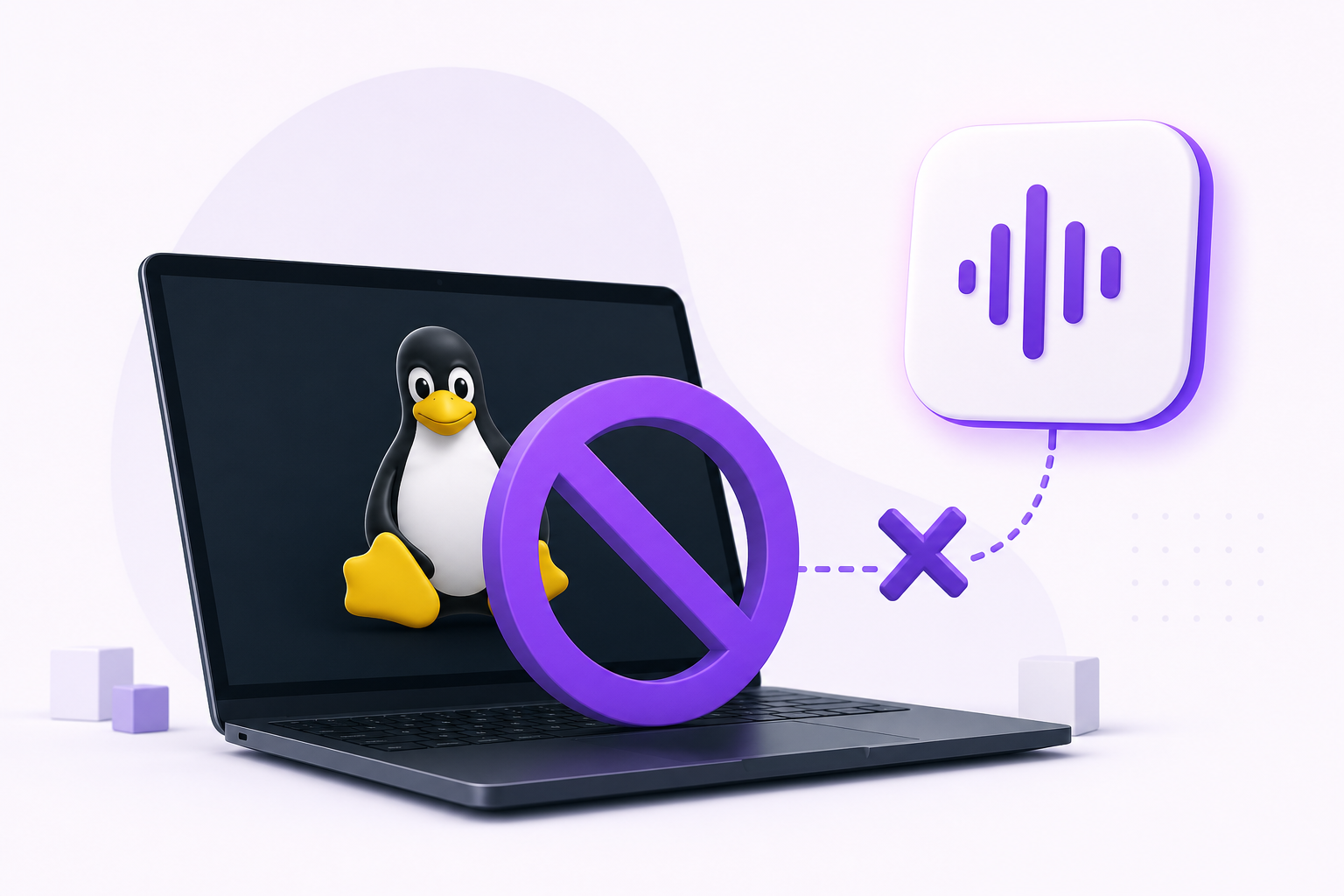
Dragon Professional runs on Windows. Nuance's page lists Windows 11 optimisation with Windows 10 compatibility and nothing else (Dragon Professional), and Nuance's own support documentation states that running Dragon under Wine, VMware or Virtual PC is not supported (Nuance on virtualised environments).
If you are moving to Linux and Dragon was the thing keeping you on Windows, this is the honest version of your options, including the ones that are not us.
First, a distinction that decides which half of this page you need. Dragon does two different jobs:
- Dictation: speak, text appears.
- Voice control: "click Save", "scroll down", "switch window", navigating the machine hands-free.
Most tools called "Dragon alternatives" only do the first. If you need the second, the answer on Linux is not Vibe Typer, and that section is further down.
Can you run Dragon on Linux with Wine or a VM?
People do, and it is worse than it sounds.
Wine. Older releases, around Dragon NaturallySpeaking 12, could be coaxed into running under PlayOnLinux, and there are blog write-ups from the Ubuntu 12.04 days to prove it. Reports from people who tried it for real work land on the same conclusion: not stable enough to depend on. Modern Dragon Professional versions are worse candidates, not better.
A Windows VM. This works, in the sense that Dragon runs. What breaks is the bridge. The LinuxNaturallySpeaking project exists precisely because you need a server on the Windows side forwarding keystrokes to a client on the Linux side. The project's own README is candid about the consequence: Dragon has no idea what is on your Linux screen, so it cannot see cursor position, cannot see the words already typed, and gets capitalisation and spacing wrong as a result. Dragon's accuracy depends heavily on context, and a VM bridge is exactly where that context goes missing.
Add the resource cost, a Windows VM with 8GB of RAM and Dragon's large temporary files, and you are running a whole second operating system to type.
What actually works on Linux
| Runs on Linux | Dictation | Voice control | Offline | Cost | |
|---|---|---|---|---|---|
| Dragon Professional v16 | No (Wine/VM unsupported) | Yes | Yes | Yes | $699 one-time, Windows |
| Vibe Typer | Yes (AppImage, Wayland + X11) | Yes | No | No | Free tier, $8/mo Pro |
| Talon Voice | Yes | Yes | Yes | Yes | Free, paid beta access |
| nerd-dictation | Yes (X11-first) | Yes | Basic | Yes | Free |
| Handy | Yes | Yes | No | Yes | Free |
What Dragon costs, and what the alternatives cost
Price is usually the second reason people search for a Dragon alternative, so here it is plainly. Dragon Professional v16 is a $699 perpetual licence for Windows (Staples listing), and Dragon Legal costs more again. Dragon Professional Anywhere, the cloud version, is a per-user subscription sold through resellers rather than a list price. Dragon for Mac was discontinued in 2018.
Every Linux option in the table above is free, with one exception: Vibe Typer's free plan covers 2,000 words and 20 AI operations a month, and Pro is $8 a month billed annually or $10 month to month. Over three years that is $288 against $699, and the licence follows you across Linux, Windows, macOS and iPhone rather than being tied to one Windows install.
If you are not on Linux and just want something cheaper than Dragon, the same maths applies on Windows and macOS, and the full competitor comparison puts Dragon next to Wispr Flow and Superwhisper.
If you need voice control, not just dictation
If you came to Dragon for hands-free computing because RSI, a mobility impairment, or an injury makes the keyboard the problem, then dictation alone does not replace it, and you should look at Talon Voice before anything else here.
Talon is the serious Linux answer for full voice control: commands, mouse control via eye tracking or noise, a scriptable grammar, and an active community with mature command sets for editors and IDEs. It has a real learning curve. It is also the only thing in this list that does what Dragon does.
Vibe Typer is a dictation tool. It will type what you say into any app, and that is all it does. If typing is the bottleneck, that is enough. If operating the computer is the bottleneck, it is not, and we would rather say so than sell you the wrong thing.
For the middle ground, where you type fine but want to type less to protect your hands, see preventing RSI with voice typing and voice typing for RSI recovery.
If you need dictation, and you want it to just work
This is where Vibe Typer fits. One portable AppImage, no repository to add, no dependencies to chase:
chmod +x VibeTyper.AppImage
./VibeTyper.AppImage
It runs natively on Wayland and X11. That is worth stressing, because most Linux dictation tooling is X11-only and silently stops working when a distro flips its default session. Why most voice typing tools break on Wayland covers why.
Press a hotkey, talk, and clean text lands wherever your cursor is: terminals, editors, browsers, chat, email. Magic Formatter strips the ums and self-corrections on the way through. Select text and say "rewrite this more formally" instead of retyping it.
The same AppImage works on Ubuntu, Fedora, Debian, Arch and Linux Mint. Free plan is 2,000 words and 20 AI operations a month.
Where Vibe Typer does not match Dragon
Three honest gaps, because Dragon users notice all of them:
Offline. Dragon transcribes on your machine. Vibe Typer is cloud-based and has no local model. Audio is processed in memory and discarded, the backend keeps no server-side transcript cache, and nothing trains on your voice. But it is not offline. If your work is under a rule that says audio cannot leave the machine, say clinical notes or privileged legal material, that is disqualifying, and nerd-dictation or Handy are the right call.
Voice commands. Covered above. Talon.
Deep custom vocabulary. Dragon's medical and legal editions ship specialist vocabularies and learn your corrections over time. Vibe Typer has a custom dictionary for names, jargon and product terms, which handles most professional writing, but it is not a trained specialist model.
What you get in exchange: no per-user training session, no GPU requirement, 99 languages with no model downloads, and a licence that costs $8/month rather than several hundred dollars up front.
Installing Vibe Typer on Linux
- Download the AppImage from the downloads page.
chmod +x VibeTyper.AppImage- Run it and grant microphone access.
- Set a global hotkey.
- Click into any app where you can type, press the hotkey, and talk.
If a specific terminal handles inserted text oddly, the text insertion and paste preferences doc covers the per-app settings.
Verdict
Dragon does not run on Linux, and the Wine and VM routes cost you the context Dragon needs to be accurate in the first place. Pick by what you actually need:
- Hands-free control of the machine → Talon Voice.
- Offline dictation, no exceptions → nerd-dictation or Handy.
- Dictation that works everywhere with no setup → Vibe Typer.
More context in voice typing for Linux and the full Linux tool roundup.
FAQ
Does Dragon NaturallySpeaking work on Linux?
No. Dragon Professional is Windows-only, and Nuance's support documentation explicitly states that Wine, VMware and Virtual PC are not supported environments.
Can I run Dragon under Wine on Ubuntu?
Older versions could sometimes be made to run via PlayOnLinux, but reports consistently describe it as too unstable for daily work, and it is unsupported by Nuance. Current Dragon Professional releases are poor Wine candidates.
Can I run Dragon in a Windows VM and type into Linux?
Technically yes, using a bridge such as LinuxNaturallySpeaking. In practice Dragon cannot see your Linux screen, so it loses cursor position and surrounding text, which breaks capitalisation, spacing and the context its accuracy depends on.
What is the best Dragon alternative for Linux?
It depends what you used Dragon for. Talon Voice for hands-free voice control, nerd-dictation or Handy for offline dictation, Vibe Typer for system-wide dictation that works out of the box on Wayland and X11.
Is there a Dragon alternative for Linux that works offline?
Yes: nerd-dictation, Handy and Speech Note all run entirely locally. Vibe Typer does not; it is cloud-based.
What is the cheapest alternative to Dragon NaturallySpeaking?
Talon Voice, nerd-dictation, Handy and Speech Note are free. Vibe Typer is free for 2,000 words and 20 AI operations a month, then $8 a month billed annually. Dragon Professional v16 is a $699 one-time Windows licence, and Dragon Professional Anywhere is sold as a per-user subscription through resellers.
Is there a cheaper Dragon alternative for Windows or Mac?
Yes. Vibe Typer runs on Windows, macOS and iPhone as well as Linux, at $8 a month or free. Dragon for Mac was discontinued in 2018, so Mac users have no current Dragon at all. See the full competitor comparison for how it stacks up against Wispr Flow and Superwhisper on those platforms.
Is Vibe Typer suitable for accessibility or RSI use?
For reducing typing load, yes: a global hotkey and system-wide dictation cut keystrokes. For full hands-free operation of the computer, Talon Voice is the more appropriate tool.
Try Vibe Typer free
Voice typing that works in every app on Linux, Windows, and macOS. Free to download: 2,000 words a month, no card.
Download free