Windows dictation vs Dragon: 7 PC dictation tools compared

Written by Futsy, founder at Vibe Typer
You're a Windows user trying to choose a dictation tool, but "voice typing" can mean very different things. You might need a quick sentence in Word, hands-free control of the entire PC, text inserted into a terminal or chat window, processing that stays in memory, or a managed workflow for a legal, clinical, or distributed team. Those needs don't point to the same product.
This comparison evaluates seven approaches to dictation software for Windows through three practical lenses: where text can be inserted, how speech and transcripts are handled, and how pricing scales. It also separates built-in Windows tools, Microsoft 365 dictation, desktop applications, and managed transcription platforms. The global speech-to-text market is projected to grow from USD 3.87 billion in 2026 to USD 16.4 billion by 2035, a projected 17.4% CAGR (market and Windows dictation analysis). Verify current pricing and capabilities with each provider, because plans can vary by subscription, reseller, partner, device, or locale. For a broader transcription perspective, compare these options with the YouTubeToText transcription recommendations.
Table of contents
- 1. Vibe Typer
- 2. Nuance Dragon Professional v16
- 3. Nuance Dragon Professional Anywhere
- 4. Windows 11 Voice Access
- 5. Microsoft 365 Dictation
- 6. Philips SpeechLive
- 7. Braina Pro
- Top 7 Windows dictation software comparison
- Windows dictation vs Dragon
- Choose by workflow, privacy, and budget
1. Vibe Typer
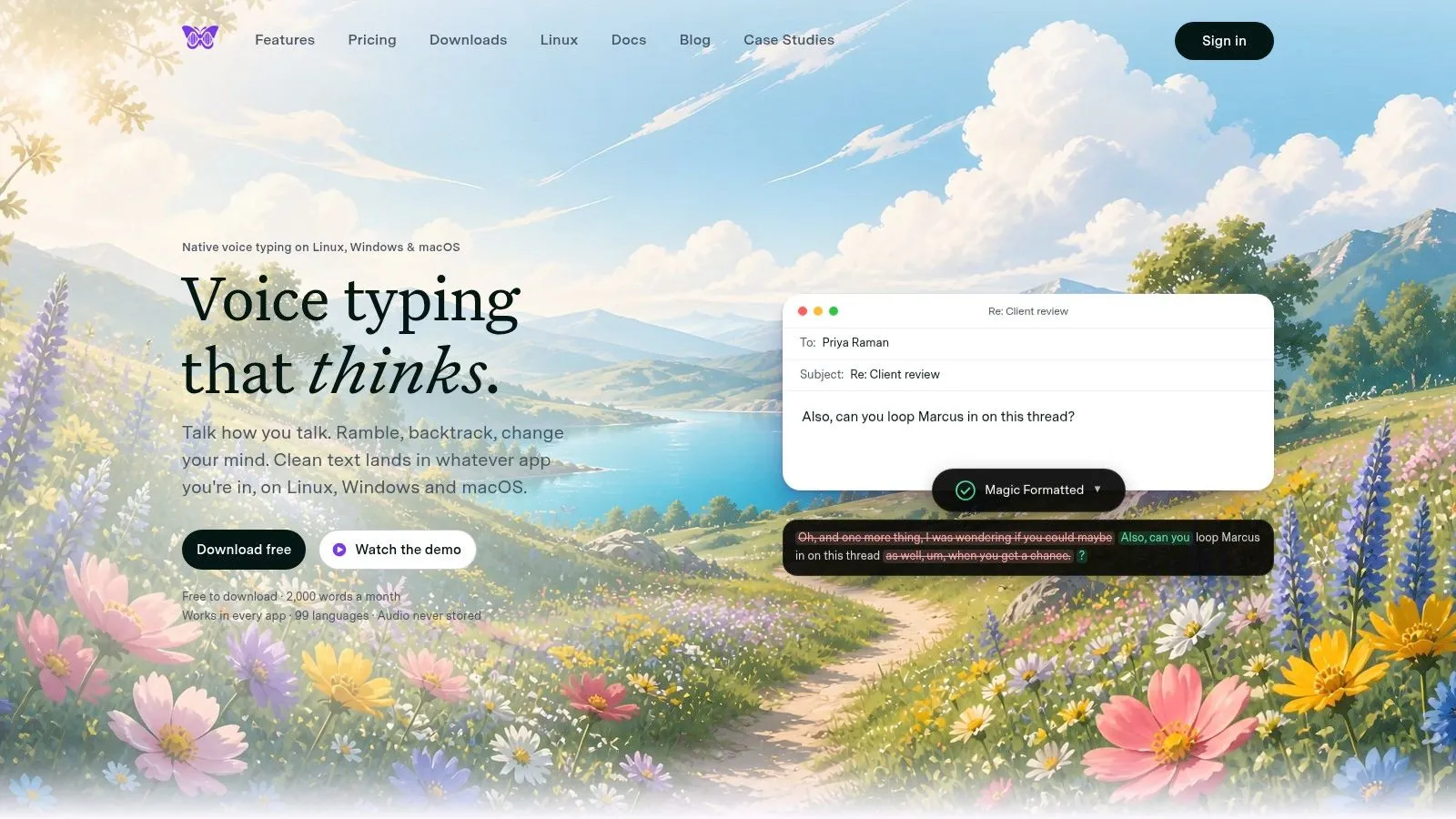
Vibe Typer is the strongest fit when dictation needs to work wherever the cursor is, in any app. On Windows, you trigger recording with a hotkey, speak, and receive cleaned text in the active application. That can include editors, terminals, chat windows, and other text fields without a special plugin or per-app workflow.
The distinction matters because raw transcription often creates a second task, editing the transcript into something usable. Vibe Typer's Magic Formatter, our own model built in-house just for cleaning up dictation, removes filler words, handles self-corrections, and sets punctuation, paragraphs and lists, without adding a word. Its diff view shows what changed, so you can check every edit.
Where it fits and how it handles speech
Vibe Typer supports Windows, macOS, and Linux, including native Linux support across Wayland and X11. That matters because Wayland support remains fragmented, with Linux-first tools distinguishing native compositor support from older X11 approaches that depend on utilities such as xdotool (Wayland compatibility details). For developers, the ability to insert plain text into terminals and code editors is more useful than a tool limited to a document window.
Its privacy model is explicit. Audio is processed in memory, with no recordings or transcripts on our servers, and the app keeps a private dictation history on your device. Preferences can sync across machines. The app also mutes system sounds during recording, so notifications and playback stay out of the capture.
Vibe Typer supports 99 languages, optional automatic language detection, a custom dictionary, and AI voice commands to rewrite text or draft replies.
Practical rule. Choose Vibe Typer when the destination app matters as much as recognition quality, especially if you move between Windows, Linux, terminals, editors, and chat.
Pricing and best-fit audience
The Free plan costs $0 a month, needs no card and includes Magic Formatter. Pro costs $8 per month when billed annually, or $10 billed monthly, and provides unlimited voice typing and AI operations. Business plans use seat-based pricing for teams and centralized deployment.
The Free plan includes every feature, so you can judge the whole workflow before you pay. Vibe Typer is best for Windows and macOS knowledge workers, Linux users on Wayland or X11, clinicians and professionals creating notes, developers working in terminals, and organizations that want a seat-based desktop deployment.
Pros: Cross-platform support, app-aware insertion, Magic Formatter, transparent diffs, in-memory audio with no recordings or transcripts on our servers, auto-mute, 99-language support.
For a broader competitive comparison, see Vibe Typer versus other dictation tools.
2. Nuance Dragon Professional v16
Nuance Dragon Professional v16 is the Windows power-user option. It's designed for people who want custom words, Auto-Texts, voice macros and transcription of recorded audio.
Where it fits and how it handles speech
Dragon Professional works across Windows applications, so its value increases when your day includes documents, email, specialist software, and other desktop environments. Custom vocabularies help users teach the system names, terminology, and domain language. Auto-Texts can expand spoken shortcuts into reusable passages, while voice macros can automate repeated commands.
The product also supports transcription of recorded audio and includes an Auto Transcribe Folder Agent for batch jobs. That makes it a different category from quick voice typing. A user can dictate live into an application, but an organization can also create a workflow around incoming audio files.
The major trade-off is the deployment model. Dragon Professional is associated with on-device Windows speech recognition, which can appeal to users who don't want a cloud-first workflow, but buyers should confirm the current licensing and data-handling terms with the reseller or provider. Current coverage also notes that Dragon's emphasis has shifted toward online services in some offerings, so "Dragon" isn't a sufficient privacy description by itself (Windows dictation privacy discussion).
Pricing and best-fit audience
Dragon Professional commonly involves a high up-front purchase and is often sold through resellers, so pricing is less transparent than a monthly subscription. Enterprise deployment and central-management options may justify that procurement process for larger organizations, but individual buyers should request a current quote and check whether support, upgrades, and deployment rights are included.
Dragon is built for Windows professionals who need advanced command-and-control, specialized vocabulary, batch audio transcription, and deep customization. It's less attractive if you want a cross-platform hotkey workflow with polished text insertion and minimal configuration.
Pros: Strong customization, system-wide operation, Auto-Texts, macros, batch transcription, enterprise management.
Cons: Windows-only, higher setup burden, and reseller-based pricing can be opaque.
3. Nuance Dragon Professional Anywhere
Nuance Dragon Professional Anywhere takes the Dragon workflow into a cloud-hosted deployment model. A lightweight Windows client streams recognition to the service, while the provider manages engine updates and organizations can use centralized administration.
Where it fits and how it handles speech
The small client and cloud architecture reduce local installation and maintenance work. That's useful for teams that need to roll out dictation across managed Windows devices without maintaining a full local speech engine on every computer. Dragon's command and vocabulary model remains aimed at professional users, while the service keeps the recognition engine current through its hosted model.
The cost of that convenience is connectivity. Because recognition streams to the cloud, a reliable internet connection becomes part of the dictation workflow.
Dragon Professional Anywhere also includes the Dragon Anywhere mobile companion for iOS and Android. That gives field workers a way to capture dictation away from their Windows workstation, although mobile and desktop workflows should be tested together before an organization standardizes on them.
Cloud deployment simplifies maintenance, but it makes the network and data-processing relationship part of the product decision.
Pricing and best-fit audience
Professional Anywhere uses a subscription model, which can make budgeting more predictable than a large perpetual-style purchase. Exact pricing comes from Nuance's sales team and can vary by agreement, region, support package, and deployment requirements. Request the current commercial terms directly, since third-party list prices may not apply to you.
It's built for organizations that want Dragon capabilities with centralized management, technical support, continuous updates, and a smaller local IT footprint. It's a weaker fit for users who require offline operation or want the simplest low-cost way to dictate into occasional text fields.
Pros: Lightweight Windows client, centralized management, hosted updates, subscription budgeting, mobile companion.
Cons: Requires reliable internet access, cloud-dependent recognition, and partner-sold pricing can vary.
4. Windows 11 Voice Access
Windows 11 Voice Access is the built-in choice for users who want both dictation and hands-free PC control. Microsoft states that Voice Access replaced Windows Speech Recognition for Windows 11 version 22H2 and later in September 2024 (Microsoft support documentation).
Where it fits and how it handles speech
Voice Access can dictate text and control the Windows desktop with spoken commands, including mouse-grid interaction. That makes it more suitable than a basic dictation box for accessibility workflows, users with limited keyboard or mouse access, and anyone who needs to move through Windows without touching the controls.
It can run offline after the one-time speech-model download. That separates it from Windows voice typing, which is opened with Win+H and uses a cloud-based path on Windows 10 and Windows 11 (Windows dictation setup guide). The two features are easy to confuse because both convert speech to text, but their operating models and control capabilities differ.
Voice Access includes dictionary support and the ability to add words. Some advanced features, including Fluid dictation, depend on compatible devices and locales. Users should also confirm their Windows build before planning an accessibility workflow around it.
Pricing and best-fit audience
Voice Access is included with compatible Windows 11 installations, so there's no separate dictation subscription or application purchase. Its focus is hands-free PC control and navigation, and its AI cleanup, Fluid dictation, needs a Copilot+ PC and an English locale.
It won't replace a specialized desktop dictation platform for every professional workflow. Its limits are Windows 11 compatibility, device-specific features, and how much formatting or cleanup you still have to do. Vibe Typer types into any app on Windows, with Magic Formatter cleanup on every plan.
Pros: Included with Windows 11, supports dictation and PC control, offers mouse-grid commands, can work offline after model download.
Cons: Requires a compatible Windows 11 build, and advanced features vary by device and locale.
For accessibility-focused workflows, this voice typing accessibility guide provides useful context on evaluating hands-free input.
5. Microsoft 365 Dictation
Microsoft 365 Dictation is the narrowest option in this comparison. It puts a dictation control inside Word, Outlook, PowerPoint, and OneNote, and it works only inside those apps.
Where it fits and how it handles speech
The main advantage is proximity to the document. Open a Word file or Outlook message, select Dictate, and speak into the same interface where the final text will live. Automatic punctuation and profanity filters support routine composing, while the feature is available in desktop and web versions of Microsoft 365 apps.
That convenience comes with a clear boundary. Microsoft 365 Dictation isn't a system-wide tool, so it won't provide the same direct insertion experience in a terminal, third-party editor, chat client, or unrelated browser field. If employees move between Office, web applications, support tools, and specialist software, they need a second dictation path.
Because the service is powered by Microsoft's Azure Speech Services, organizations should review their Microsoft 365 configuration, applicable data-processing terms, and internal policies before using it for sensitive material. The feature's cloud-powered design makes connectivity and enterprise governance relevant even when the user experiences it as a simple button in Word.
Pricing and best-fit audience
Dictation is available to Microsoft 365 subscribers, so its effective cost sits inside the organization's existing Microsoft 365 plan. Confirm the exact app, account, and license requirements with Microsoft, especially for web versus desktop use.
It's built for workflows centered on Office: drafting Word documents, Outlook messages, PowerPoint content, and OneNote entries. When text must also reach other applications, a system-wide tool such as Vibe Typer covers both.
Pros: Office integration, desktop and web availability, automatic punctuation, no separate dictation installation.
Cons: Requires Microsoft 365, is limited to Microsoft 365 applications, and uses a cloud-powered speech service.
The Outlook voice dictation guide is useful if email is your main use case.
6. Philips SpeechLive
Philips SpeechLive is a managed dictation and transcription platform for organizations that need more than text insertion. Its Windows desktop application supports cursor-level dictation in any program, while its broader platform adds mobile and web recording, task assignment, delegation, tracking, and optional human transcription.
Where it fits and how it handles speech
SpeechLive's strongest distinction is workflow management. A clinic, law firm, or professional-services team may need a recording captured by one person, routed to another, assigned for transcription, reviewed, and tracked. A basic voice-typing app can place text at the cursor, but it usually doesn't provide that operational chain.
The platform also offers AI speech recognition with sector and domain terminology, including legal-oriented options, plus sector-specific recognition add-ons. Optional human transcription gives teams another quality-control path when automated output isn't sufficient for the document's purpose.
Privacy and handling need careful review because the service can involve cloud recognition, mobile or web recording, team routing, and optional transcription services. Whether the product "supports dictation" is the wrong question. Ask where recordings go, who can access them, how long outputs remain available, and which add-ons apply to the selected plan.
For managed teams. Evaluate the entire route from recording to final document, along with the accuracy of live cursor dictation.
Pricing and best-fit audience
SpeechLive uses subscription plans, and fully featured workflows may require add-ons. Exact capabilities and pricing vary by plan, sector option, deployment requirements, and transcription service, so organizations should obtain a current provider quote.
It's built for clinics, law firms, and teams that need deployment guidance, role-based routing, task tracking, mobile capture, web access, and optional human transcription. It's likely excessive for an individual who only wants quick text in email or a browser.
Pros: Managed team workflows, Windows MSI deployment, sector terminology, mobile and web recording, optional human transcription.
Cons: Subscription and add-on complexity, and capabilities vary by plan.
7. Braina Pro
Braina Pro combines Windows dictation with an AI assistant and voice-command layer. It can insert speech into software and browser fields, support custom commands and macros, and use an Android or iOS app as a wireless microphone.
Where it fits and how it handles speech
Braina Pro is appealing when dictation is only one part of the desired workflow. A user might want to enter text into different applications, trigger a custom command, automate a repeated action, or use assistant functions from the same interface. Its system-wide orientation makes it broader than Microsoft 365 Dictation, while its macro support gives technically inclined users room to configure behavior.
The product also offers offline transcription of audio files on higher tiers. That matters for users who need to process recordings without making every task cloud-dependent, but buyers should verify which tier provides the capability and how live dictation differs from file transcription.
The trade-off is polish and setup. Braina can require troubleshooting to make dictation behave correctly in other applications, and its interface may feel less refined than enterprise-focused products. That can become friction for a team that needs a uniform, low-support deployment.
Pricing and best-fit audience
Braina uses tiered plans, with higher levels providing additional capabilities such as offline audio transcription. Current pricing should be checked on the provider's site because the available features and plan boundaries can change.
Braina Pro is a lower-cost combination of dictation, macros, assistant functions, and cross-application control, built for individual Windows users who value breadth and customization more than a polished enterprise experience. It's less suitable when compliance review, centralized administration, or turnkey deployment is the deciding factor.
Pros: System-wide text entry, custom commands, macros, assistant features, mobile microphone option, higher-tier offline audio transcription.
Cons: More setup and troubleshooting, less polished interface, and feature access varies by tier.
Top 7 Windows dictation software comparison
| Tool | Implementation complexity | Resource requirements | Expected outcomes | Ideal use cases | Key advantages |
|---|---|---|---|---|---|
| Vibe Typer | Low, simple install, native cross-platform setup, hotkey workflow | Cloud processing, light on CPU and RAM; audio in memory, no recordings or transcripts on our servers | Cleaned, style-consistent transcripts; diff view shows what changed | Desktop-first dictation (Linux/Wayland/X11), developers, clinicians, knowledge workers | Native Linux support, Magic Formatter, in-memory audio, app-aware insertion |
| Nuance Dragon Professional v16 | High, Windows install, voice training & deep customization | High upfront license cost; Windows workstation required; IT deployment for teams | Command control and batch transcription | Windows users who need macros and voice commands, often in legal and medical work | Custom vocabularies and macros |
| Nuance Dragon Professional Anywhere | Moderate, lightweight client + cloud subscription and admin setup | Cloud subscription per seat; reliable internet required; mobile companion available | Consistent, centrally updated recognition; easy enterprise rollout | Enterprises wanting centralized management and mobile field access | Minimal local IT footprint, continuous engine updates, centralized management |
| Windows 11 Voice Access | Low, built into Windows 11, no extra install | Minimal local resources; requires compatible Windows 11 build | Baseline dictation plus full PC control; built for accessibility workflows | Accessibility users, hands-free PC control, casual dictation on Windows 11 | Free and integrated; accessibility-focused full PC control |
| Microsoft 365 Dictation | Low, integrated in Office apps (one-click) | Microsoft 365 subscription; cloud/Azure processing | In-app dictation with auto-punctuation; fast drafting inside Office | Users who primarily dictate in Word, Outlook, PowerPoint or OneNote | Native Office integration, works across desktop and web apps |
| Philips SpeechLive | Moderate, desktop MSI + workflow configuration for teams | Subscription with add-ons; optional human transcription increases cost | Reliable team workflows and sector tuning; suitable for legal/health transcription | Clinics, law firms, teams needing capture, routing and transcription workflows | Team management, domain-specific models, optional human transcription |
| Braina Pro | Low-Moderate, Windows install; may require setup for app insertion | Budget-friendly tiers; optional offline transcription and mobile mic apps | Dictation plus automation; accuracy varies against enterprise tools | Budget-sensitive users wanting macros, assistant features, wireless mic | Low-cost toolkit, custom commands/macros, mobile microphone support |
Windows dictation vs Dragon
Windows dictation is the voice typing built into Windows: press Win+H and speak into the focused text field. On Windows 11 version 22H2 and later, Voice Access replaced Windows Speech Recognition and adds commands for controlling the PC. Dragon Professional v16 is a paid Windows program, now priced on request, built around custom vocabularies, voice macros, and batch transcription of recorded audio.
| Windows dictation (Win+H) | Dragon Professional v16 | Vibe Typer | |
|---|---|---|---|
| Cost | Included with Windows | Price on request | Free plan, Pro $8 a month billed annually |
| Where it types | Supported text fields | Windows applications | Any app, terminals included |
| Cleanup | Spoken or automatic punctuation | Voice formatting commands and Auto-Texts | Magic Formatter removes filler words and self-corrections |
| Platforms | Windows | Windows | Windows, Mac, Linux, iPhone, Android |
The difference is the work after you speak. Win+H puts words in a box, and Dragon rewards the time you spend training vocabularies and macros. Vibe Typer is the pick when you want text that comes out clean in any app without commands to learn: Magic Formatter handles "um", "scratch that" and "actually, make it Thursday" before the text lands.
Choose by workflow, privacy, and budget
Start with the destination. For most Windows users, text has to land in lots of apps: email, chat, documents, editors, and terminals. That makes Vibe Typer the pick. It types into any app, comes out polished, runs the same way on macOS and Linux, including Wayland and X11, and processes audio in memory, with no recordings or transcripts on our servers. Magic Formatter, the best model for cleaning up dictation, comes on every plan, along with the diff view, a self-learning dictionary, and AI rewrite and reply by voice.
The others are built for other jobs. Windows 11 Voice Access adds hands-free control of the PC, and Microsoft 365 Dictation works inside Word, Outlook, PowerPoint, and OneNote. Dragon Professional v16 centers on Windows customization, voice macros, and batch audio transcription, and Dragon Professional Anywhere moves that to a managed cloud service. Philips SpeechLive adds team routing, task tracking, and optional human transcription, and Braina Pro pairs dictation with assistant functions and custom macros.
Use this checklist before committing:
- Identify destinations. List every application where dictation must work, including Word, browsers, terminals, editors, and specialist software.
- Review speech handling. Confirm where audio and transcripts are processed, whether they're retained, and who can access them.
- Check commands and languages. Verify required languages, accents, vocabulary, formatting commands, macros, and accessibility controls.
- Compare the commercial model. Review the applicable subscription, free plan, perpetual purchase, seat plan, add-ons, or reseller quote.
- Pilot the workflow. Test representative names, technical terms, background conditions, target applications, and the amount of editing required.
The best dictation software for Windows is the one that reduces work after you speak. A transcript on its own isn't enough.
Quick answers
Is Windows dictation as good as Dragon? They do different jobs. Windows dictation, opened with Win+H, types what you say into the focused text field, with spoken or automatic punctuation. Dragon Professional v16 is a paid Windows program, priced on request, with custom vocabularies, voice macros and batch transcription of recordings. Vibe Typer is the pick for most people: it types into any app, terminals included, and Magic Formatter cleans up filler words and self-corrections before the text lands. Free to start, no card.
What is the best dictation software for Windows? Vibe Typer, for most people. Press a global hotkey and speak, and clean text lands in any app, terminals included. Magic Formatter is on every plan, a self-learning dictionary keeps names and jargon right, it covers 99 languages, and audio is processed in memory, with no recordings or transcripts on our servers. Free to start, no card.
Does Vibe Typer work in every Windows app? Yes, in any app with a text cursor, including Word, Outlook, browsers, chat apps, code editors and terminals. Smart per-app paste keeps terminals safe.
Vibe Typer offers Windows voice typing that inserts cleaned, formatted text directly into the app where your cursor is active, with Magic Formatter, built in-house just for cleaning up dictation, and audio processed in memory, with no recordings or transcripts on our servers. If that cross-app workflow fits how you work, visit Vibe Typer and try the Free plan before deciding whether Pro is right for your usage.
Try Vibe Typer free
Voice typing that works in every app on Linux, Windows, Mac, iPhone and Android. Free to start, no card needed.
Download free