10 Best Voice Recorder for iPhone Apps in 2026

Written by Futsy, founder at Vibe Typer
You need a recording, but the right voice recorder for iPhone depends on what happens after you tap Record. A spontaneous dictation needs speed and minimal friction. A long lecture needs dependable capture, bookmarks, and manageable files. An interview needs clear speech, transcription you can review, and a consent-aware workflow. A field recording or podcast needs better microphones, monitoring, editing, and export control.
This comparison evaluates ten iPhone recording resources by those real jobs instead of treating every app as interchangeable. The criteria are recording quality, transcription, privacy, iCloud or file sync, editing depth, launch speed, and workflow fit. The most important distinction is between an audio recorder, a transcription workspace, an external microphone, and a dictation tool.
Vibe Typer belongs in the last category. It's relevant when you want speech converted into clean text and inserted into the active app where your cursor is placed, rather than when you need a conventional stored-audio recorder. If your workflow includes editing and syncing audio, choose a tool that preserves the original recording and gives you practical control over the resulting files.
Table of Contents
- 1. Apple Voice Memos
- 2. Just Press Record
- 3. Ferrite Recording Studio
- 4. Dolby On
- 5. Voice Record Pro
- 6. Otter
- 7. Notta
- 8. AudioShare
- 9. Shure MV88+ Stereo USB Microphone and MOTIV App
- 10. RØDE VideoMic Me-C+
- Top 10 iPhone Voice Recorders: Feature Comparison
- Choose the Workflow You Will Actually Use
1. Apple Voice Memos
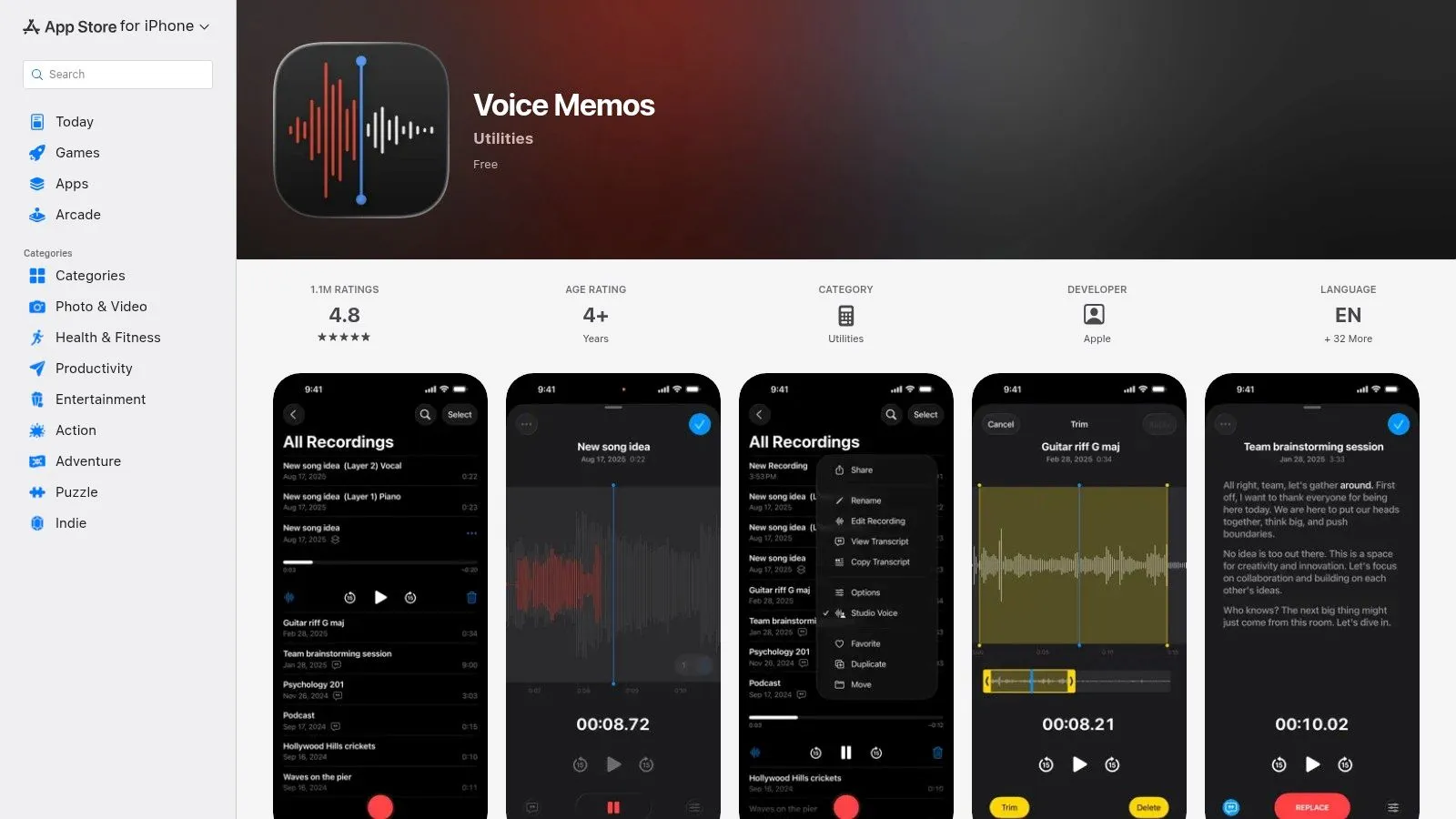
Apple Voice Memos remains the sensible first stop for a straightforward recording. It's built into the iPhone, requires no installation, and offers a simple path from capture to trimming, sharing, and searching. Apple also supports built-in audio recording and transcription in Notes on iOS 18, where users can record inside a note and view the transcript from that same note, according to Apple's iPhone recording and transcription guide.
That native position matters. Apple reported an installed base of more than 1.46 billion active iPhones globally by early 2024, as referenced in coverage of Apple's reported installed base. Built-in recording and transcription therefore reach a mainstream mobile audience without asking users to learn a specialist interface.
Voice Memos is best for quick notes, personal reminders, lectures, and basic interviews where you mainly need a dependable audio file. It supports long recordings while storage permits, basic trimming and enhancements, stereo capture on supported iPhones, system sharing, and iCloud synchronization across Apple devices.
Best fit: Use Voice Memos when the recording itself is the deliverable, or when you want the lowest-friction Apple workflow.
Its weaknesses appear when projects become complex. Tagging and organization are limited, there's no multitrack timeline, and advanced production work belongs elsewhere. Apple's Voice Memos transcription is also device and region dependent. Apple documents availability on iPhone 12 or later and lists 10 language groups, while noting that the feature isn't available in every country or region, as summarized in Apple's Voice Memos transcription language coverage.
For text-first work, compare it with voice-to-text apps for iPhone before assuming an audio archive is the best endpoint.
2. Just Press Record
Just Press Record earns its place through launch speed. You can begin from the app, Lock Screen, Control Center, or Apple Watch, which makes it a strong choice for ideas that disappear if recording takes too many taps. The app combines the audio file with on-device transcription, allowing you to move between text and the corresponding point in the recording.
That changes the workflow from “record now, sort it out later” to “record and search later.” A journalist can capture a thought, a manager can save a spoken reminder, and a student can create a searchable reference without depending on a separate cloud transcription service. Its Apple Watch support is especially useful when reaching for the iPhone would interrupt the moment.
The privacy model is a major advantage. The app is designed for on-device transcription, doesn't require an account, and synchronizes through iCloud across iPhone, iPad, Mac, and Apple Watch. That combination makes it more attractive than a cloud meeting platform for private personal notes, although users should still review the app's current permissions and policies before recording sensitive material.
Where it stops short
Just Press Record isn't a production environment. It lacks the multitrack editing, extensive effects, and detailed audio manipulation expected from a studio-oriented app. You can capture, review, transcribe, and sync efficiently, but you won't get the same editing depth as Ferrite or the same microphone control as a dedicated recording setup.
Choose it for fast private notes with searchable text, not for a finished podcast, multitrack interview edit, or elaborate archive.
3. Ferrite Recording Studio
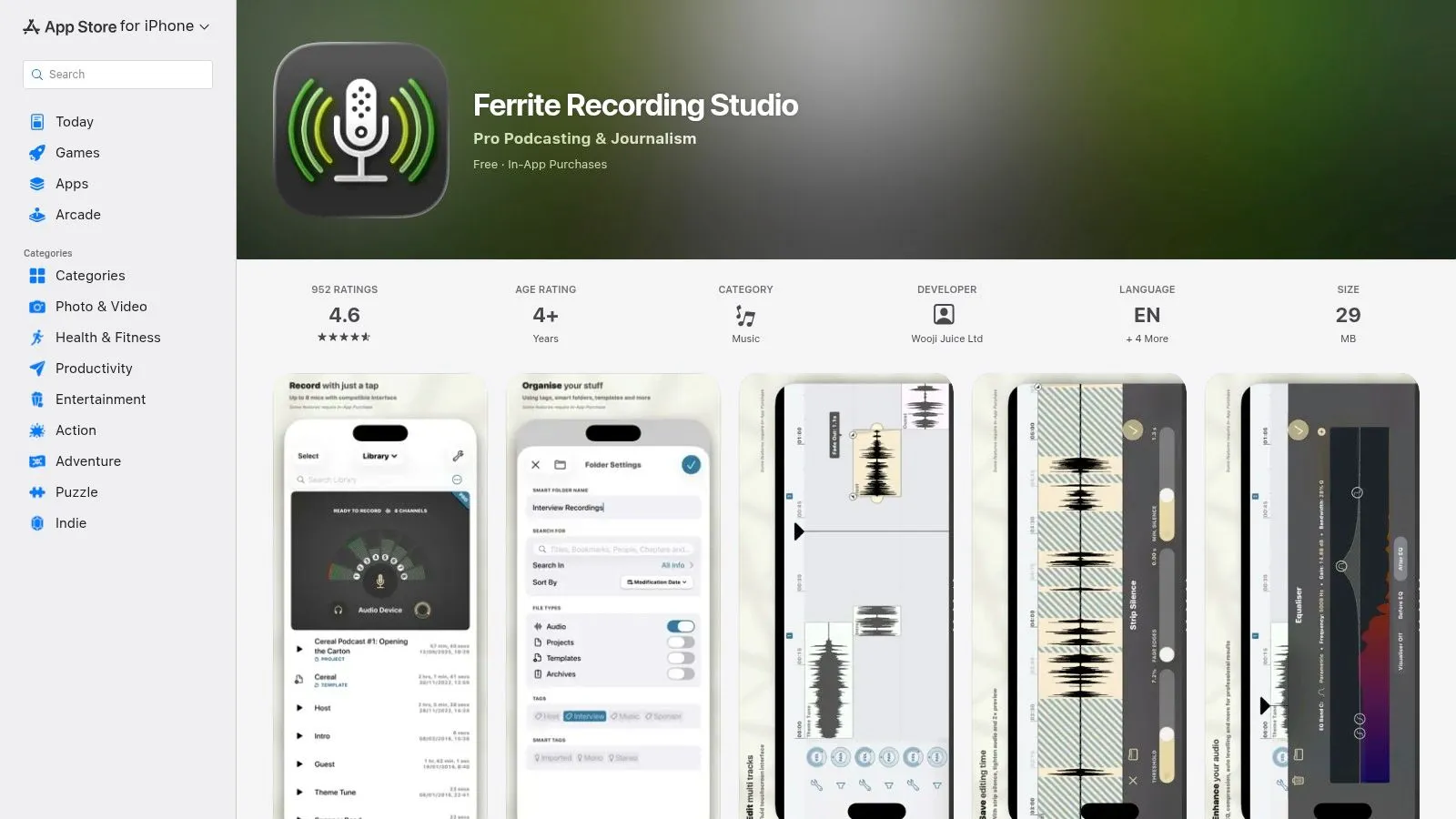
Ferrite Recording Studio is the strongest option here when recording is only the first stage of the job. It combines memo-style capture with multitrack editing, automation, ducking, effects, and professional export controls. That makes it suitable for podcasters, journalists, lecturers preparing audio lessons, and anyone who needs to turn several recordings into one coherent production.
The app can handle hours-long sessions, which is useful for interviews and lectures where stopping and restarting creates its own risk. Afterward, the touch-friendly editor gives you more control than a basic recorder. You can arrange clips, adjust levels, apply effects, and manage a project without moving immediately to a desktop workstation.
Its file-management capabilities also matter. Production work often fails at the handoff stage, not the recording stage. Ferrite's export tools are designed for workflows where source audio, edited segments, and final files need to remain distinguishable.
The trade-off is complexity
Ferrite's power creates a learning curve. A user who only wants to save a short spoken reminder may find the interface more involved than Voice Memos or Just Press Record. Some professional features also require in-app purchases, so the app is better judged as an editing environment than as a universally simple recorder.
Ferrite is the practical choice when “record” really means “capture, edit, mix, and export.”
For a simple dictation workflow, its production depth may be unnecessary. For a long interview that needs cuts, level changes, and a controlled export, that same depth is the reason to choose it.
4. Dolby On
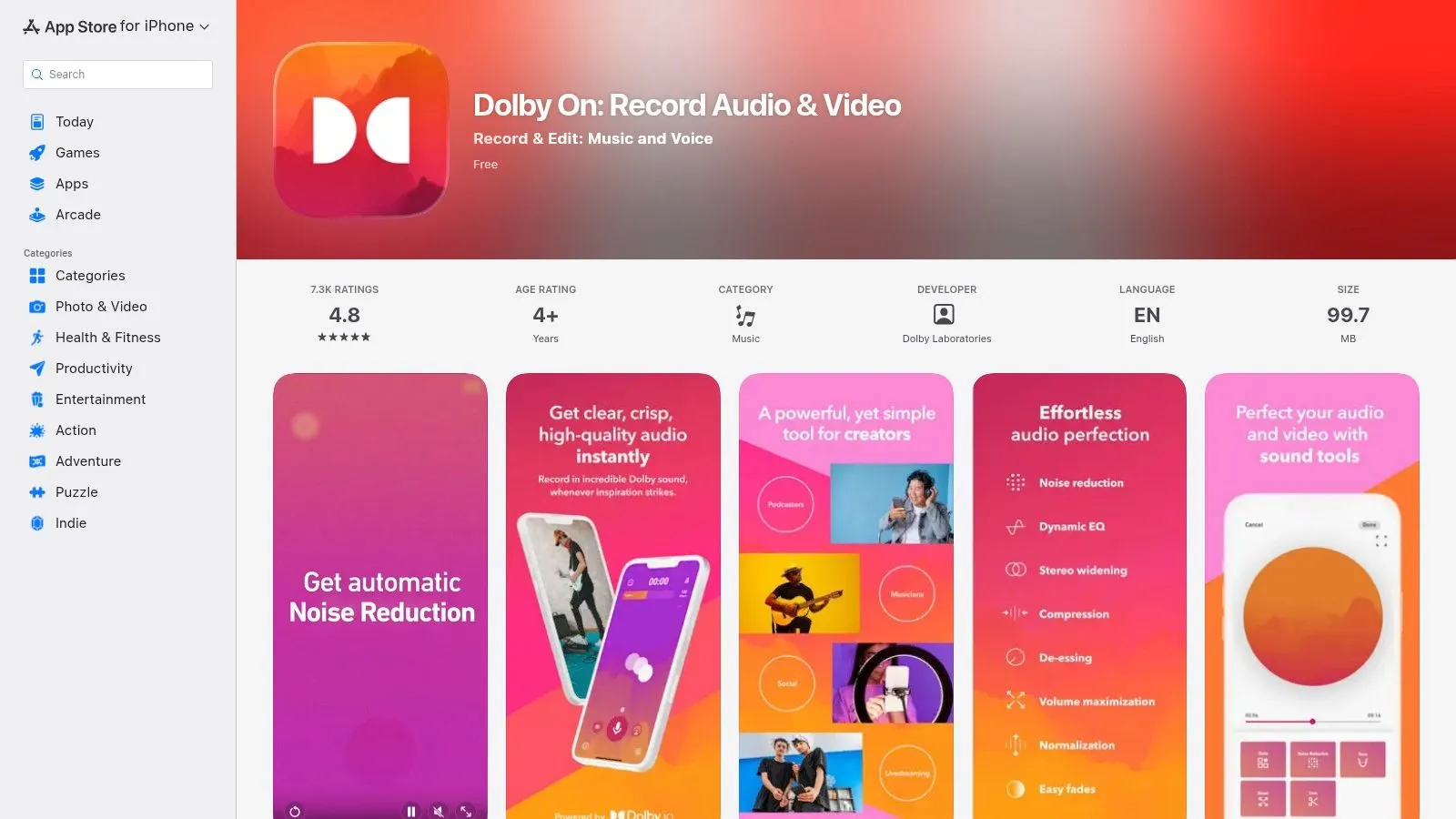
Dolby On approaches iPhone recording as a sound-improvement problem. Instead of presenting a large editing suite, it applies processing intended to make raw captures sound more polished. Its tools include noise reduction, de-essing, EQ, compression, and limiting, with automatic treatment designed for users who don't want to tune every parameter manually.
That makes it useful for field notes, spoken content, music sketches, and casual interviews recorded in less-than-ideal environments. A noisy room won't become a studio, but processing can make a voice easier to follow. The important distinction is that Dolby On changes the character of the sound. Some listeners will prefer the result, while audio purists may want an untouched file for later processing.
The app also includes lossless recording and export options, plus in-app transcription in recent releases. Those features give it a broader workflow than a recorder that only saves a processed audio file, but transcription still needs realistic expectations. Independent discussions of Whisper-style systems report word error rates ranging from 2% to 3% on clean read speech, around 7% on mixed English benchmarks, and about 16% in meeting-room conditions, as discussed in recent transcription accuracy analysis. The figures describe specific test conditions, not a guarantee for Dolby On or any other app.
Pick it for speed, not surgical control
Dolby On is free and approachable, but it doesn't provide a full multitrack production environment. Processing can also color a recording in ways that don't suit archival or engineering work.
Use it when you want a cleaner-sounding capture without manual audio engineering. Keep another option in mind when preserving an unprocessed master matters.
5. Voice Record Pro
Voice Record Pro is aimed at users who care about what happens to the audio file after recording. It supports WAV, MP3, and M4A, with configurable sample rates and bitrates, plus bookmarks, trimming, basic effects, and stereo recording where the device supports it. Those controls are useful for lectures, interviews, structured research, and archiving workflows where one large file needs navigable points.
Its export range is the bigger differentiator. You can move files through iCloud, Google Drive, Dropbox, OneDrive, S3, FTP, or a Wi-Fi server. That's a more flexible handoff model than an app built around a single storage ecosystem. A production assistant can choose a destination based on the team's existing infrastructure instead of converting the entire workflow around the recorder.
A practical choice for file-heavy work
Voice Record Pro's interface is utilitarian rather than minimalist. That may slow a first-time user, but the dense approach exposes controls that simpler apps hide. The free version includes ads, and removing them requires an in-app purchase, so the app's value depends on whether its format and export flexibility solve a real problem.
A lecture recorder may benefit from bookmarks. An interviewer may want a lossless source file before editing. An archivist may need a predictable file format and multiple transfer routes. Those are concrete reasons to choose Voice Record Pro over an attractive but restrictive interface.
The app is less compelling if you only dictate short reminders and never move audio outside the iPhone.
6. Otter
Otter is a meeting-centered recorder rather than a general-purpose audio notebook. It captures audio while generating real-time transcripts, searchable text, speaker labels, summaries, outlines, keywords, and action items. That makes it a natural fit for interviews, team meetings, and knowledge-work sessions where the transcript is more valuable than the original audio alone.
Collaboration changes the recommendation. Otter supports sharing and calendar integration, so a meeting can become a resource for people who weren't in the room. A journalist reviewing an interview can search the transcript before returning to the audio. A team can distribute notes without asking every participant to listen to the entire recording.
The cost is a cloud-processing trade-off. Audio and transcripts move through a service designed for cross-platform access and collaboration, which may be unacceptable for confidential conversations, protected information, or workplaces with strict data-governance requirements. Review the service terms, retention controls, account permissions, and organizational policy before recording other people.
Privacy checkpoint: Searchable collaboration is useful only when every participant and policy permits the processing model.
Otter also isn't the best fit for a spontaneous private memo. Its strengths appear when several people need to review, search, and share meeting content. The most capable features require a paid subscription, so the right comparison is not only app versus app. It's private local capture versus collaborative cloud transcription.
If you're evaluating transcription from audio to text, separate searchable meeting records from text inserted directly into another app. For additional meeting-oriented options, you can also try RepurposeYourContent's tool picks.
7. Notta
Notta makes sense for users whose recordings cross language boundaries. It supports real-time and imported-file transcription, translation, AI summaries, proofreading, and speaker labeling. Device synchronization and Apple Watch support extend the workflow beyond a single iPhone capture, while the platform's enterprise positioning gives organizations more administrative considerations than a basic memo app.
The strongest use case is a multilingual interview, meeting, lecture, or imported archive where transcription and translation belong in the same workflow. A user can record first, process an existing file, and then work with a text representation rather than manually moving the audio through separate services.
That convenience doesn't remove the privacy decision. Notta uses cloud processing, so users should assess what they're recording, who can access the resulting workspace, how long material is retained, and whether their employer or clients permit the service. Enterprise attestations such as SOC 2 and ISO 27001 can inform that assessment, but they don't automatically make every use case appropriate.
Language breadth is not the same as accuracy
A long language list doesn't guarantee reliable results for every accent, room, speaker, or specialist vocabulary. Difficult audio conditions can degrade transcription performance, and medical, legal, or technical terms deserve human review before anyone treats the transcript as authoritative.
Choose Notta when multilingual processing and shared transcripts outweigh the desire for local-only handling. Choose a local or text-insertion workflow when cloud retention conflicts with the subject matter.
8. AudioShare
AudioShare is for people who treat audio as a file-management problem. It records from the microphone or compatible audio apps through Audiobus or IAA, then supports trimming, fades, normalization, conversion, import, export, and organization. It can move material through Wi-Fi Drive, iCloud, Dropbox, and the File Provider extension.
That makes it valuable in a mobile production chain. You might capture audio in one app, normalize or trim it in AudioShare, then send the file to another editor or computer. The app is compact and fast, with a feature set aimed at audio users who understand formats and handoffs.
It's also a privacy-conscious choice in the narrow sense that the developer declares data not collected in its App Store listing. That declaration doesn't mean every connected storage destination has identical privacy characteristics, so the complete workflow still includes the policies of Dropbox, iCloud, a computer, or any other destination you use.
What AudioShare doesn't try to do
AudioShare has no AI transcription and no multitrack editing. It won't turn a meeting into speaker-labeled notes or replace Ferrite as a production studio. Its value lies in organizing and transferring audio cleanly.
Use it when you need control over audio documents, not when the primary deliverable is a transcript.
9. Shure MV88+ Stereo USB Microphone and MOTIV App
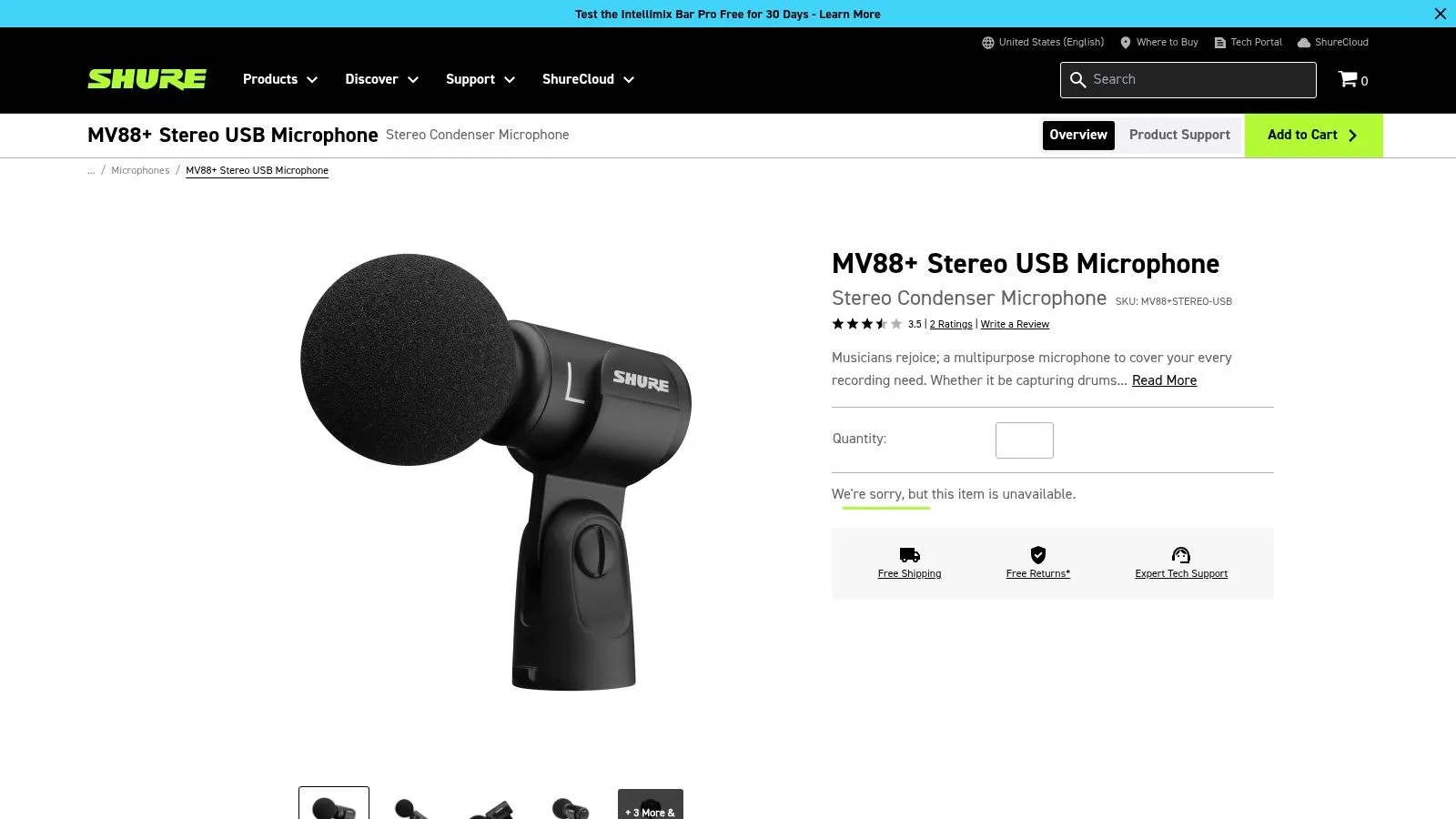
The Shure MV88+ changes the recording equation by improving the input rather than adding another transcription layer. It connects to iPhone through USB-C or Lightning with the appropriate adapters and works with Shure's MOTIV apps. Selectable pickup patterns include mono, stereo, bidirectional, and Mid-Side, giving you more control over interviews, lectures, ambient sound, and location work.
Monitoring is a practical advantage. The microphone includes a headphone jack for real-time listening, which lets you catch placement, handling noise, or an unsuitable pickup pattern before finishing a long session. That matters more than adding another button to a recording app. A better recording can reduce the correction burden in editing and transcription, although no microphone can remove the need for a quiet, well-positioned setup.
The kit works with iOS, Android, macOS, and Windows, which helps users who move recordings between mobile and desktop production. The drawback is workflow dependence on Shure's changing app ecosystem, including MOTIV, MOTIV Mix, and Video. Some users also encounter firmware or compatibility friction, so test the complete setup before an important interview.
Match the pattern to the room
A directional or stereo choice should reflect the subject and environment. A single interviewee, a two-person conversation, and an ambient field recording don't need the same capture pattern.
Shure MV88+ Stereo USB Microphone and MOTIV
For a dictation setup, compare microphones for dictation with the demands of your room and app. The MV88+ is a hardware upgrade, not a standalone recorder, so you'll still need a compatible recording destination.
10. RØDE VideoMic Me-C+
RØDE VideoMic Me-C+ is a compact directional microphone for USB-C iPhones, including iPhone 15 and newer. Its cardioid pickup pattern focuses on the speaker, while the included windshield helps with outdoor use. A 3.5 mm headphone jack supports monitoring, and the microphone works with Apple's Camera app and RØDE's Reporter and Capture apps.
This is a strong fit for field notes, vlogging, and interviews where portability matters more than stereo ambience. It plugs directly into the phone, requires no battery, and keeps the setup simple. Compared with an iPhone's built-in microphone, a directional external microphone can give the speaker clearer priority when the phone is positioned appropriately.
The limitation is important. The Me-C+ is not a standalone recorder, and it requires a recording app. Your workflow therefore depends on the app you select, the iPhone model and connector, and the physical placement of the microphone. Older Me-C models had iOS compatibility caveats, while the Me-C+ addresses compatibility for its intended USB-C workflow.
A focused field setup
The Me-C+ is better for one subject than for capturing a broad room. If you need a balanced conversation around a table or natural environmental sound, a stereo microphone such as the Shure MV88+ may be a better match.
Choose it when you want plug-and-record directional capture in a small kit, not when you need a complete recording application or multitrack editor.
Top 10 iPhone Voice Recorders: Feature Comparison
| Product | Core features ✨ | UX / Quality ★ | Privacy & Value 💰 | Target audience 👥 | Unique selling points 🏆 |
|---|---|---|---|---|---|
| Apple Voice Memos (built‑in) | Built‑in recorder, trimming, iCloud sync, Siri integration | ★★★★ simple & seamless | 💰 Free; local recordings + iCloud sync | 👥 Casual users, Apple ecosystem | 🏆 Preinstalled, tight system integration |
| Just Press Record | One‑tap record, on‑device transcription, Watch + Lock Screen launch | ★★★★ instant capture | 💰 Paid (one‑time); on‑device transcription, private by default | 👥 Quick‑capture users, Apple Watch owners | 🏆 Fast launch & text–audio navigation |
| Ferrite Recording Studio | One‑tap long recording, multitrack editing, automation & effects | ★★★★★ pro editing experience | 💰 Freemium (IAP for pro tools); on‑device processing | 👥 Podcasters, journalists, editors | 🏆 Multitrack + pro touch interface |
| Dolby On | Auto noise reduction, EQ, compression, lossless export, in‑app transcription | ★★★★ polished raw audio | 💰 Free; powerful on‑device processing (check transcription T&Cs) | 👥 Musicians, noisy field recordings | 🏆 Automatic Dolby processing for clarity |
| Voice Record Pro | Custom formats/bitrates, bookmarks, silence detection, wide exports | ★★★★ feature‑rich but utilitarian | 💰 Free w/ ads; IAP to remove ads; local file control | 👥 Power users, lectures, archiving | 🏆 Deep capture & export flexibility |
| Otter (Otter.ai) | Live transcription, speaker labels, AI summaries, collaboration & calendar | ★★★★★ meeting‑grade transcription | 💰 Freemium → subscription for full features; cloud processing | 👥 Teams, knowledge workers, meeting capture | 🏆 Robust collaboration & AI summaries |
| Notta | Real‑time + file transcription, translation, summaries, speaker labels | ★★★★ strong multilingual support | 💰 Freemium/subscription; cloud with enterprise compliance options | 👥 Multilingual users, enterprises | 🏆 Translation + compliance attestations |
| AudioShare | In‑app recording, trimming/conversion, Wi‑Fi drive & export | ★★★ fast, focused on files | 💰 Paid (one‑time); local audio management | 👥 Audio tinkerers, file‑shuttle workflows | 🏆 Excellent audio organization & transfer |
| Shure MV88+ + MOTIV | Stereo USB mic, selectable pickup patterns, headphone monitoring | ★★★★★ hardware audio excellence | 💰 Paid hardware; requires MOTIV app | 👥 Interviewers, field recordists, podcasters | 🏆 Noticeable mic quality upgrade & monitoring |
| RØDE VideoMic Me‑C+ | Directional USB‑C cardioid mic, headphone jack, windshield included | ★★★★ portable voice isolation | 💰 Paid hardware; plug‑and‑record simplicity | 👥 Vloggers, field notes, interviews | 🏆 Plug‑and‑play cardioid mic with windshield |
Choose the Workflow You Will Actually Use
The best voice recorder for iPhone isn't the app with the longest feature list. It's the one that matches the next action you'll take after recording. If you only need a quick audio note, an elaborate transcription workspace adds friction. If you need a searchable meeting record, a basic memo app leaves too much manual work. If the problem is unclear speech, changing the microphone may help more than changing the recorder.
Choose Apple Voice Memos for straightforward Apple capture, basic trimming, system sharing, and iCloud-oriented use. It's the natural starting point for personal notes and ordinary recordings, especially when you don't want another account or a specialist interface. For built-in transcription, check your iPhone model, language, region, and settings rather than assuming every device offers the same capability.
Choose Just Press Record for fast private notes with on-device transcription. Its launch options and Apple Watch support suit spontaneous capture, while text-audio navigation makes later review easier. Choose Ferrite when the recording must become an edited production, particularly for interviews, podcasts, journalism, or long-form audio.
Choose Dolby On when sound improvement is the priority and you want automatic processing. Choose the Shure MV88+ or RØDE VideoMic Me-C+ when the input itself needs an upgrade. The Shure offers selectable pickup patterns and monitoring for more flexible location work. The RØDE is the simpler directional option for compatible USB-C iPhones, field notes, and one-person interviews.
Practical rule: Fix microphone placement before blaming transcription. A clean, well-positioned recording gives every downstream tool a better starting point.
Choose Voice Record Pro or AudioShare for file control. Voice Record Pro is the better fit when you need configurable formats, bookmarks, and many export destinations. AudioShare is more focused on organizing, converting, trimming, and moving audio between tools, without pretending to be a transcription or multitrack production platform.
Choose Otter or Notta when searchable cloud transcription, speaker labeling, summaries, translation, and collaboration fit your privacy requirements. Cloud convenience brings governance questions. Apple's Siri and Dictation privacy documentation says transcripts may be stored and reviewed in part, associated with a rotating random device-generated identifier, and retained for up to two years to improve related language features, as described in Apple's Siri and Dictation privacy documentation. Apple also provides an Improve Siri & Dictation choice under Privacy & Security, Analytics & Improvements, as explained in Apple's dictation privacy settings guidance.
Before an interview, clinical intake, workplace call, or evidence-gathering session, address consent. U.S. federal law provides a one-party-consent baseline, but nine states require all-party consent, and rules can differ between in-person and telephone recording. Guidance from New Zealand also shows that privacy-law concerns can depend on purpose and context, as outlined in recording-law guidance for calls and conversations. A recorder's technical ability doesn't establish legal permission.
Use Vibe Typer when the desired result is clean speech-to-text directly in the active iPhone app. It isn't a conventional stored-audio recorder. Its publisher describes in-memory audio processing, no server-side transcript storage, support for 99 languages, automatic text insertion, custom vocabulary, and formatting tools, so it addresses a different endpoint from Voice Memos, Ferrite, Otter, or Notta.
Before committing to any tool, run this implementation checklist:
- Microphone placement: Keep the microphone oriented toward the speaker and reduce handling, wind, and room noise.
- Short test recording: Record a brief sample, listen to it, and confirm that the chosen app receives the expected microphone input.
- Transcription review: Check names, numbers, accents, specialist vocabulary, and speaker changes before sharing text.
- Consent for interviews: Tell participants what you're recording, why you're recording it, and how the file or transcript will be used.
- Storage expectations: Decide whether the original audio belongs on the iPhone, in iCloud, in a file service, or in a managed team workspace.
- Privacy settings: Review account permissions, cloud processing, retention controls, and Apple's Siri and Dictation choices before capturing sensitive speech.
For a broader recording workflow, you can also review the call recorder feature, but treat any call-recording solution as a legal and privacy decision as well as a technical one.
Vibe Typer converts speech into clean text and inserts it into the active iPhone app, supporting 99 languages while processing audio in memory without retaining transcripts on servers. If your goal is to dictate directly into messages, documents, terminals, or other apps instead of managing stored recordings, visit Vibe Typer to explore the workflow.
Try Vibe Typer free
Voice typing that works in every app on Linux, Windows, and macOS. Free to download: 2,000 words a month, no card.
Download free