Speech to Text Linux


You've got a long reply to write in Thunderbird, your microphone works in the desktop settings, and GNOME even shows a voice-related control. You start talking, then nothing appears in the message. The problem usually isn't the microphone. It's the missing connection between audio capture, speech recognition, and text insertion.
That's the practical reality of speech to text on Linux. A working setup has to capture clean audio, send it to a recognition engine, and place the resulting text into the application that currently has focus. Wayland and X11 handle that final step differently, and terminals, browsers, Electron applications, and native desktop apps can each react in their own way.
Table of Contents
- Why Linux Still Needs Third-Party Dictation
- Choosing Your Speech to Text Linux Stack
- Installing and Configuring on Wayland or X11
- Hotkeys, Per-App Insertion, and System Mute
- Tuning Accuracy Across Languages and Accents
- Privacy Trade-offs You Should Verify Before Talking
- Troubleshooting and a Daily Dictation Workflow
Why Linux Still Needs Third-Party Dictation
Your microphone can work perfectly while dictation fails in the application you are using. A browser may accept pasted text, a terminal may reject synthetic keystrokes, and a Wayland session may block an insertion helper that worked under X11. Linux speech recognition has a long history, yet the desktop experience remains fragmented. IBM announced in April 1999 that ViaVoice was available for the Linux operating environment and described it as the first commercial speech-recognition technology ported to Linux. By the early 2000s, several Linux speech-recognition packages already existed, showing how the ecosystem grew from one commercial port into multiple options within a few years. (Linux speech-recognition software history)
The current gap is system integration. Linux desktops still lack a built-in, system-wide dictation layer comparable to Windows voice typing or macOS Dictation, a limitation discussed in a 2026 analysis of Linux speech-to-text gaps. Users therefore assemble a working path from audio capture through recognition to text insertion, then adjust it for each display server and application.
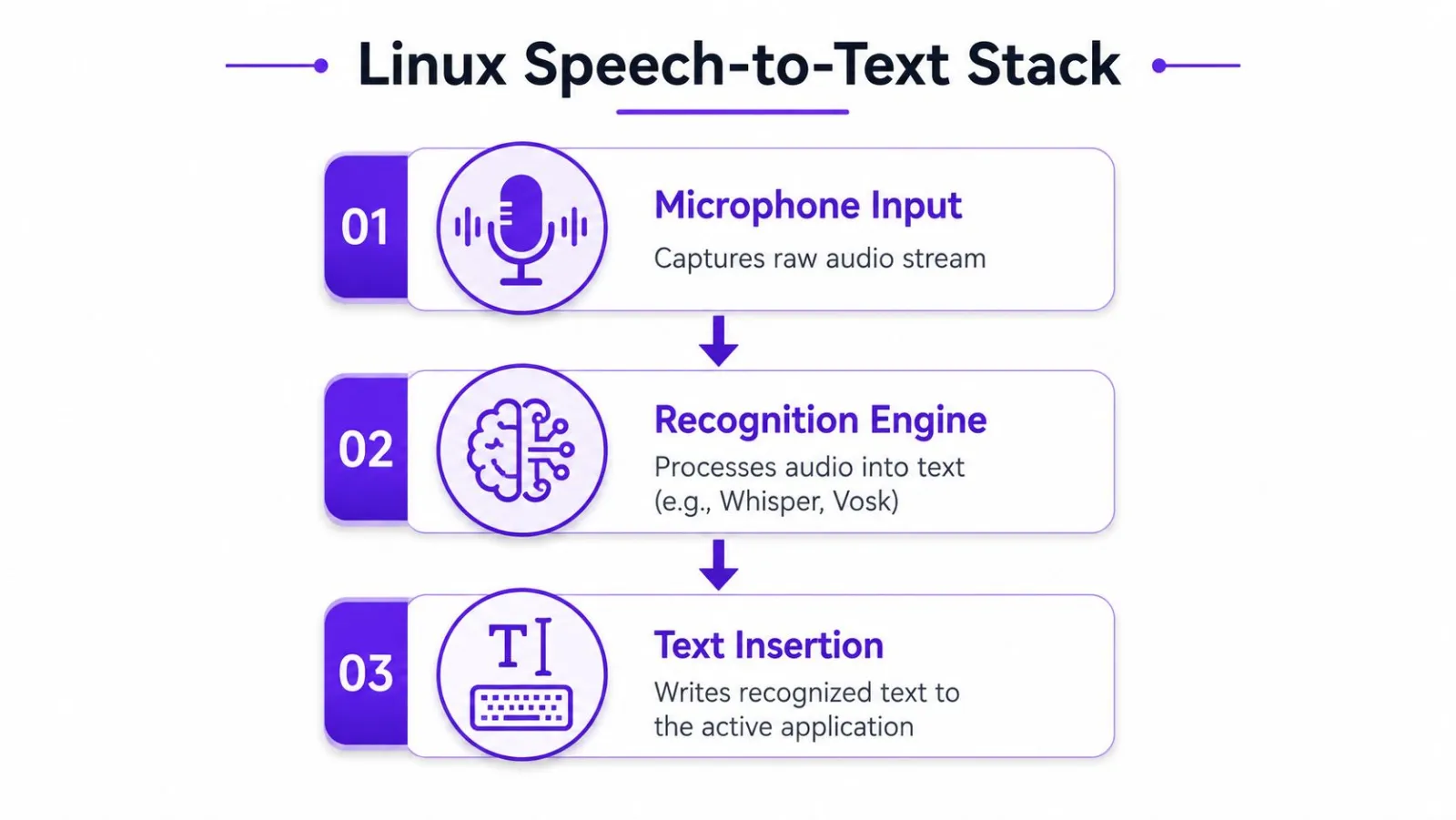
The three links that determine whether dictation works
A dependable setup has three parts:
- Microphone input: PipeWire or PulseAudio exposes the source. The headset, gain level, and noise handling determine the audio sent to recognition.
- Recognition engine: Vosk, Whisper, a desktop integration, or a cloud API converts speech into text.
- Text insertion: Clipboard pasting,
xdotool,wtype,dotool, or another input bridge places text in the focused field.
The display server controls the final step. X11 commonly permits tools such as xdotool to synthesize keyboard input. Wayland restricts synthetic input more aggressively, so a compositor-supported helper or virtual-keyboard path may be required. (Linux speech-to-text input methods)
Treat dictation as a pipeline during troubleshooting. If recognition produces text but the terminal remains empty, the engine probably works and insertion fails. If pasted text works while simulated typing does not, the helper may be incompatible with that application.
Privacy belongs in the same decision. Some services describe in-memory processing, immediate audio deletion, and local transcript history rather than server retention. (In-memory speech processing and privacy) Choose between offline recognition, transient cloud processing, or a combination based on what audio may leave the machine.
Choosing Your Speech to Text Linux Stack
The right Linux dictation stack depends on where text must appear, not only on recognition accuracy. Native desktop integration reduces setup, local engines keep audio on the machine, and cloud APIs reduce maintenance. Each option also behaves differently across Wayland, X11, terminals, browsers, Electron apps, and protected fields.
| Category | Examples | Accuracy | Privacy | Setup Effort | Offline |
|---|---|---|---|---|---|
| Native desktop integration | GNOME Voice Typing, KDE accessibility paths | Depends on the upstream service | Depends on the service | Low to moderate | Depends on backend |
| Local recognition | Vosk, whisper.cpp, Coqui STT |
Varies by model, microphone, and hardware | Audio stays on the device when configured locally | Moderate to high | Yes |
| Cloud API | OpenAI Whisper API, Google, Azure | Often strong across accents and difficult audio | Audio leaves the device | Moderate | No |
Native options
Native shell integrations can inherit desktop permissions, shortcuts, and accessibility settings. That convenience depends on the desktop protocol and the recognition service behind the control. A microphone toggle may expose audio capture without providing reliable transcription or text insertion. Test the complete path in the applications you use.
Local engines
Vosk suits lightweight offline workflows. whisper.cpp provides a local Whisper runtime for a daemon that captures microphone audio, transcribes segments, and inserts the results. Coqui STT remains another local option, though model availability, packaging, and maintenance deserve review before adoption.
Local processing keeps speech on the device, while shifting responsibility to your hardware and administration. Model downloads, CPU or GPU load, memory pressure, startup latency, and daemon supervision all affect daily use. OpenAI's Whisper model was trained on 680,000 hours of multilingual audio data, a useful reference point for understanding why model choice affects language and accent coverage. Actual results still depend on model size, runtime, hardware, microphone quality, and speaking conditions.
Wayland and X11 also change the practical choice. X11 generally offers more mature synthetic-input paths, while Wayland may require compositor-approved helpers or virtual-keyboard support. A local recognizer can be accurate yet unusable if its insertion method fails in the target application.
Cloud APIs
Cloud APIs fit users who prioritize recognition quality and minimal local maintenance over offline operation. They can handle demanding audio without running a large model on the desktop, but verify retention, training, data residency, and account controls before sending sensitive speech.
For a custom transcription pipeline, the Beam WhisperX tutorial provides a technical reference for WhisperX workflows and alignment. For a product-focused comparison of available tools, review Linux dictation software options. Choose native integration for convenience, local recognition for device-side control, and cloud processing when simpler maintenance matters most. Then test microphone capture, recognition, and insertion together rather than judging an engine in isolation.
Installing and Configuring on Wayland or X11
Start by identifying the display server, because the recognition engine won't fix a broken insertion path.
echo "$XDG_SESSION_TYPE"
The result normally identifies wayland or x11. You should also verify the audio source before installing a recognizer:
pactl list sources short
That command works through the PulseAudio compatibility layer commonly exposed by PipeWire. It shows the sources available to your session, including physical microphones and monitor sources.
X11 setup
X11 is usually the easier environment for first-time system-wide insertion. Install xdotool through your distribution's package manager, then configure the speech-to-text daemon to type recognized text into the focused window.
A local engine can sit behind that helper. With whisper.cpp, the general pattern is to compile or install the runtime, download a compatible model, capture audio from the selected source, and pass completed segments to a script that invokes xdotool type. With Vosk, a small Python or Rust process can keep the model loaded, read microphone frames, and send finalized recognition results to the same insertion command.
Clipboard fallback still matters. Some Electron applications or protected fields may ignore synthetic typing while accepting clipboard paste. In those cases, use xclip or xsel to place the transcript on the clipboard, then issue a paste action. That isn't as smooth as direct typing, but it gives you a reliable second path.
Wayland setup
Wayland's security model changes the strategy. Tools such as wtype, dotool, and ydotool may be needed, depending on the compositor and its supported protocols. wlroots-based environments such as Sway and Hyprland can expose virtual-keyboard paths, while GNOME and KDE may rely more heavily on their own accessibility bridges.
Install the helper that matches your compositor, then test it independently before connecting the recognizer:
printf 'hello from wayland' | wtype -
If that command doesn't write into a focused text field, your speech daemon isn't the next thing to debug. Fix permissions, compositor support, or the selected helper first. ydotool may require a system-level input component, which adds another permission boundary and can make a user service harder to maintain.
PipeWire configuration deserves equal attention. A default echo-cancellation source may suppress or reshape the microphone stream, especially when playback is active. Inspect sources in pavucontrol, choose the raw microphone source when recognition sounds clipped or silent, and create a dedicated capture profile if your setup needs separate playback and dictation paths.
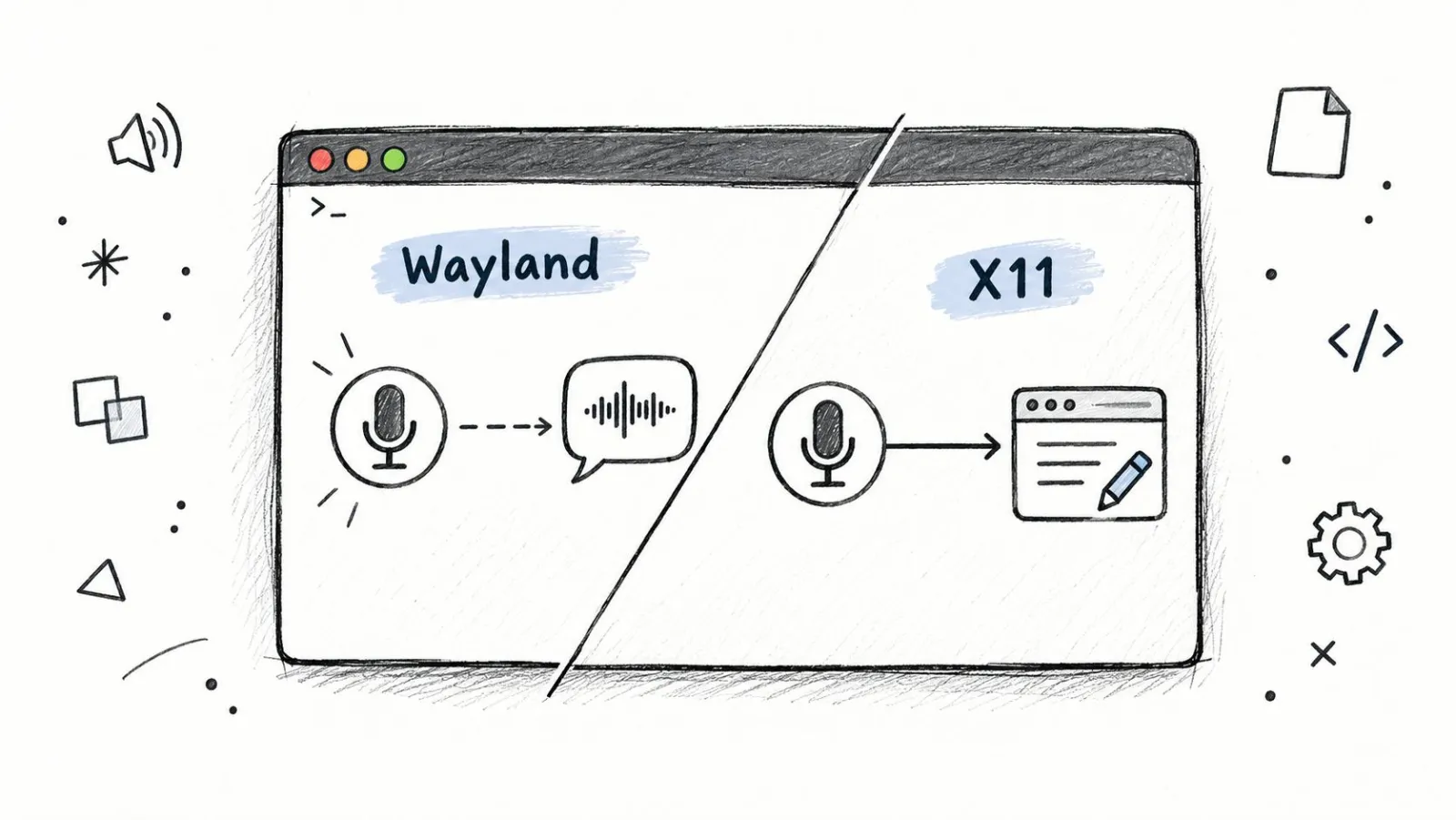
Practical rule: Test audio capture, recognition, and insertion as separate commands before combining them into a daemon.
A reliable service should start after the user session is ready, log failures without storing sensitive transcript content, and expose a clear recording state. Keep the first version deliberately small. Capture one phrase, transcribe it, insert it, then add toggles, formatting, and language switching.
Hotkeys, Per-App Insertion, and System Mute
A dictation shortcut should be easy to hold and difficult to trigger accidentally. A push-to-talk binding such as Super+Space works for many desktops, while a foot pedal can provide a dedicated evdev event for users who dictate frequently. Long-form dictation benefits from a separate toggle mode, but the two modes should have visibly different states.
Test the shortcut under both display servers. xev can show key events on X11, while wev is useful on Wayland. GNOME and KDE may already reserve common Super combinations, so choose an unused binding or change the desktop shortcut rather than forcing two services to compete for the same key.
Match insertion to the focused application
Configure the recognizer to type into the active field instead of always copying to the clipboard. On X11, try xdotool type. On Wayland, test wtype, dotool, or ydotool against the exact compositor you use.
| Display Server | Insertion Tool | Notes |
|---|---|---|
| X11 | xdotool |
Direct typing is generally straightforward |
| X11 | xclip or xsel |
Useful clipboard fallback for Electron or protected fields |
| Wayland | wtype |
Works where the compositor exposes the required virtual-keyboard support |
| Wayland | dotool |
Alternative helper, with compositor and permission requirements |
| Wayland | ydotool |
May require an input service and additional privileges |
Test in a terminal, a browser text box, a native editor, and an Electron application. Terminals often need plain-text insertion to avoid interpreting punctuation or shortcuts. Electron apps may drop synthetic input, so a per-app clipboard override is worth keeping even when direct typing works elsewhere.
You can also review how recording states, hold-to-talk, and toggle shortcuts are commonly configured in recording modes and hotkeys.
Build mute into the recording state
System mute is more than a convenience. Music, notifications, and meeting audio can contaminate recognition, and playback routed through headphones can create feedback or unwanted captured speech.
With PulseAudio or PipeWire's pactl interface, a wrapper script can mute the relevant sink input when recording starts and restore it when recording stops. Keep the dictation source separate from the playback route, and verify the result in pavucontrol. The mute loop should fail safely. If the daemon crashes, it shouldn't leave your microphone or speakers in an unexpected state.
Wayland's stricter key-grab rules also mean a background application may not receive every global shortcut unless it uses the compositor's permitted mechanism. Prefer desktop-supported global shortcut APIs where available, and keep a terminal command for starting and stopping the daemon during testing.
Tuning Accuracy Across Languages and Accents
Recognition quality rarely comes from one setting. It comes from controlling the language model, the microphone signal, the pause detector, and the cleanup stage as a single system.
Start with language selection. Pick the exact language and regional variant your engine provides, such as en-US, en-GB, or en-IN, rather than relying on a generic English choice. Automatic language detection usually chooses from a predefined list, not from unlimited possibilities. One major cloud service describes selecting the best-fit language from alternate languages supplied by the user, and Microsoft notes a single-shot recognition limit of up to four languages. (Language detection constraints in speech-to-text) Keep the candidate list narrow so the recognizer doesn't switch models in the middle of a sentence.
Give the engine the words you actually use
A custom dictionary has more practical value than endless model swapping. Add names, product terms, technical jargon, shell commands, and local abbreviations. Rank entries by how often they occur, then test phrases that combine them with ordinary speech.
Filler handling should happen after the recognizer has captured the intended words. Configure filtering for terms such as “um,” “uh,” and “like” only if those words aren't meaningful in your normal dictation. Auto-punctuation can make long passages easier to review, but it needs sensible pause detection or it will place commas and periods at unnatural boundaries.
Tune the signal before the model
Set the energy threshold and silence timeout using a recorded sample. If the timeout is too short, the engine cuts off phrase endings. If it's too long, every sentence arrives late and requires more editing.
A cardioid headset positioned about 15 to 20 cm from your mouth is a practical starting point for microphone placement. Use a push-to-talk noise gate, keep gain consistent, and apply per-application offsets when a meeting client and your dictation daemon fight over input levels. Review a short sample after each change. Otherwise, you won't know whether an improvement came from the language model, the room, or the microphone profile.
Privacy Trade-offs You Should Verify Before Talking
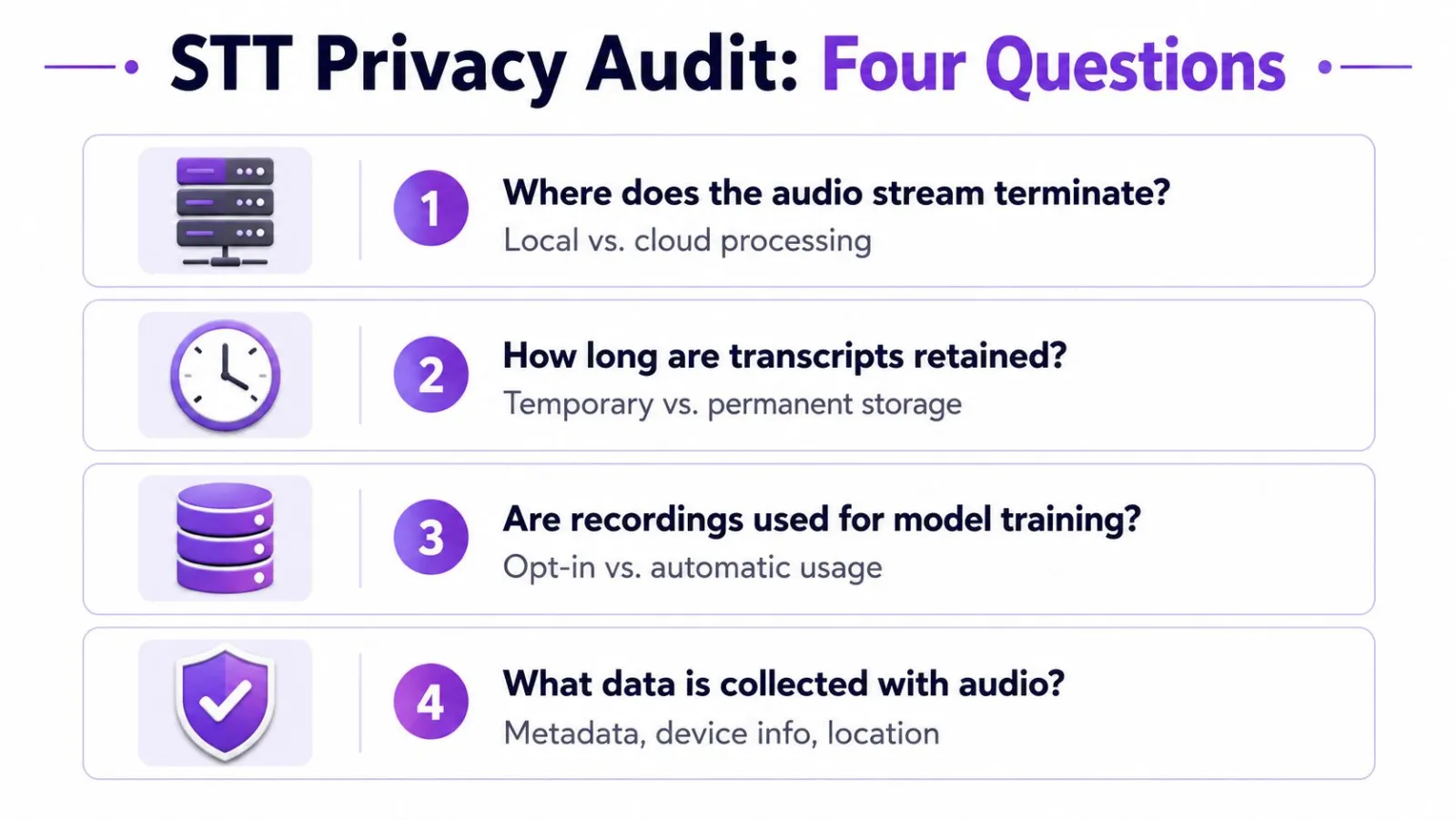
A service can claim privacy while still retaining audio, transcripts, metadata, or account records. Before granting microphone access, ask four direct questions.
- Where does the audio stream terminate? Does recognition happen locally, on a provider's infrastructure, or through a hybrid path?
- How long are transcripts retained? Temporary processing isn't the same as permanent history.
- Are recordings used for model training? Look for an explicit policy, not an implication from marketing language.
- What data travels with the audio? Device information, location, identifiers, and timestamps can change the privacy assessment.
Local engines such as Vosk and whisper.cpp can keep audio inside the local process when configured that way. Cloud APIs offer a different trade-off. They can reduce local resource demands, but you need to inspect retention rules, training use, data residency, subprocessors, deletion controls, and the scope of any compliance audit.
On the desktop, inspect the daemon as carefully as the provider. It should bind only to the local machine where possible, avoid transcript content in logs, rotate diagnostic files, and expose an obvious microphone indicator. Check whether the GNOME or KDE privacy panel changes state when recording starts and stops.
Before granting access: Say a test phrase containing no confidential information, inspect the local logs, verify the microphone indicator, and confirm the provider's deletion and retention terms match your requirements.
Troubleshooting and a Daily Dictation Workflow
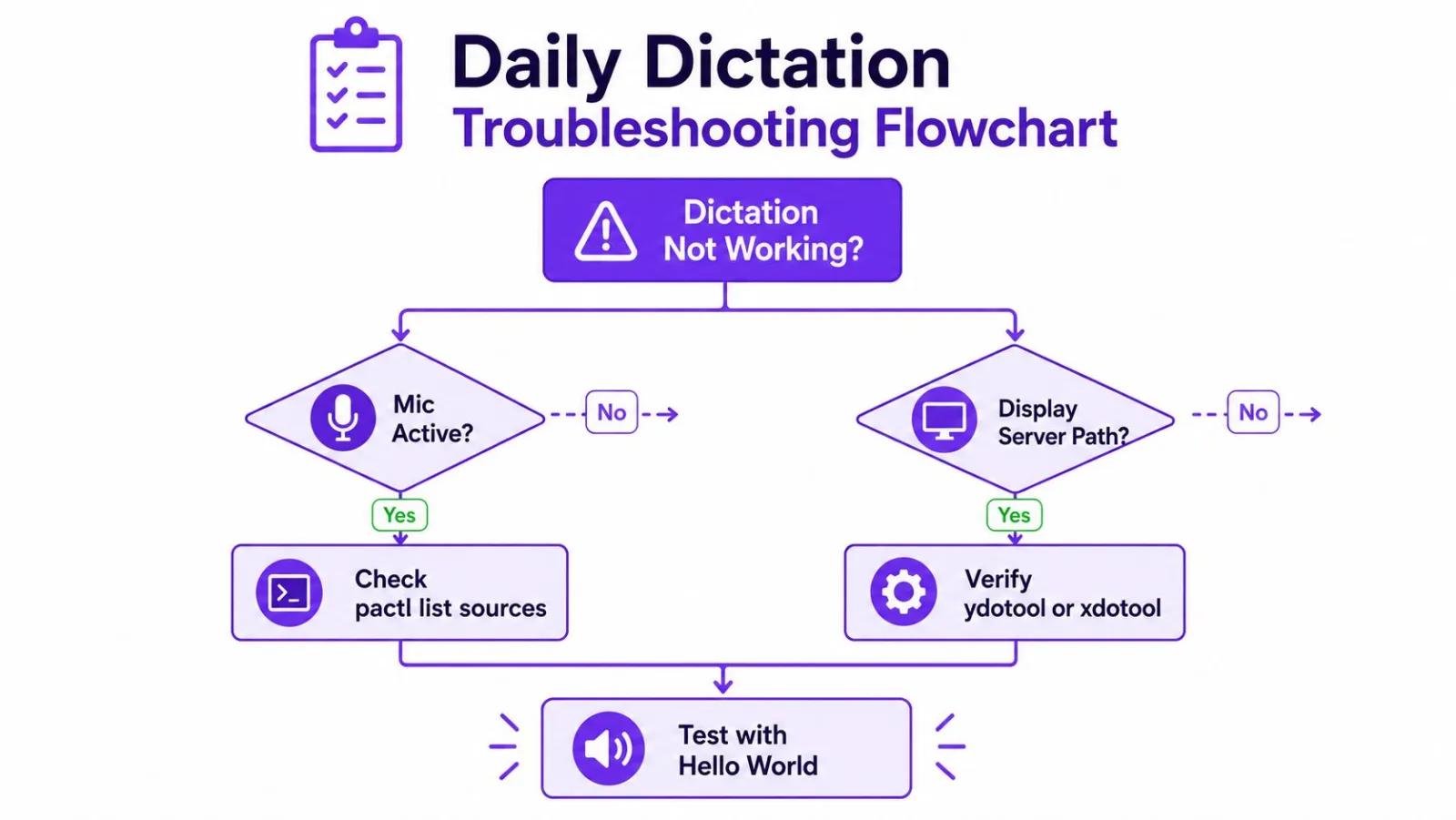
When dictation stops working, don't reinstall everything first. Separate the failure into microphone, recognition, and insertion.
pactl list sources short
echo "$XDG_SESSION_TYPE"
Confirm that the expected source is available and that the display-server path matches the helper you configured. On Wayland, test wtype, ydotool, or clipboard tools. On X11, test xdotool, xsel, or xclip. Then inspect the speech daemon log for audio-device, model-loading, or HTTP errors.
Common repairs include restarting the user-level PipeWire or PulseAudio service, lowering input latency, changing the microphone profile in pavucontrol, and rebuilding the custom dictionary after changing language or accent settings. If a phrase appears in the daemon output but not in the focused application, stop adjusting recognition. The insertion helper is the failing component.
A dependable daily routine is short:
- Start capture: Use the global push-to-talk key or toggle.
- Mute playback: Prevent music and notifications from entering the microphone path.
- Select language: Use a secondary binding if you work across languages.
- Insert text: Send output to the focused field, with a clipboard fallback for incompatible apps.
- Verify offline mode: Confirm that local recognition still works when network access is unavailable.
For a broader diagnostic checklist, use this guide to fix voice typing when it isn't working.
Before you call the setup finished, check microphone gain, shortcut collisions, display-server mismatches, and the behavior of at least one terminal, browser, and Electron app. That small test matrix catches more real failures than changing recognition models at random.
Vibe Typer provides Linux voice typing with native Wayland and X11 support, hotkey-based hold-to-talk or toggle recording, automatic system mute, custom vocabulary, and text insertion into the active application. Visit Vibe Typer to test a pipeline that handles the recognition-to-insertion handoff without requiring you to assemble every desktop integration yourself.
Try Vibe Typer free
Voice typing that works in every app on Linux, Windows, and macOS. Free to download: 2,000 words a month, no card.
Download free