Custom Instructions for Magic Formatter: Teach Vibe Typer Your Style

Written by Futsy, founder at Vibe Typer
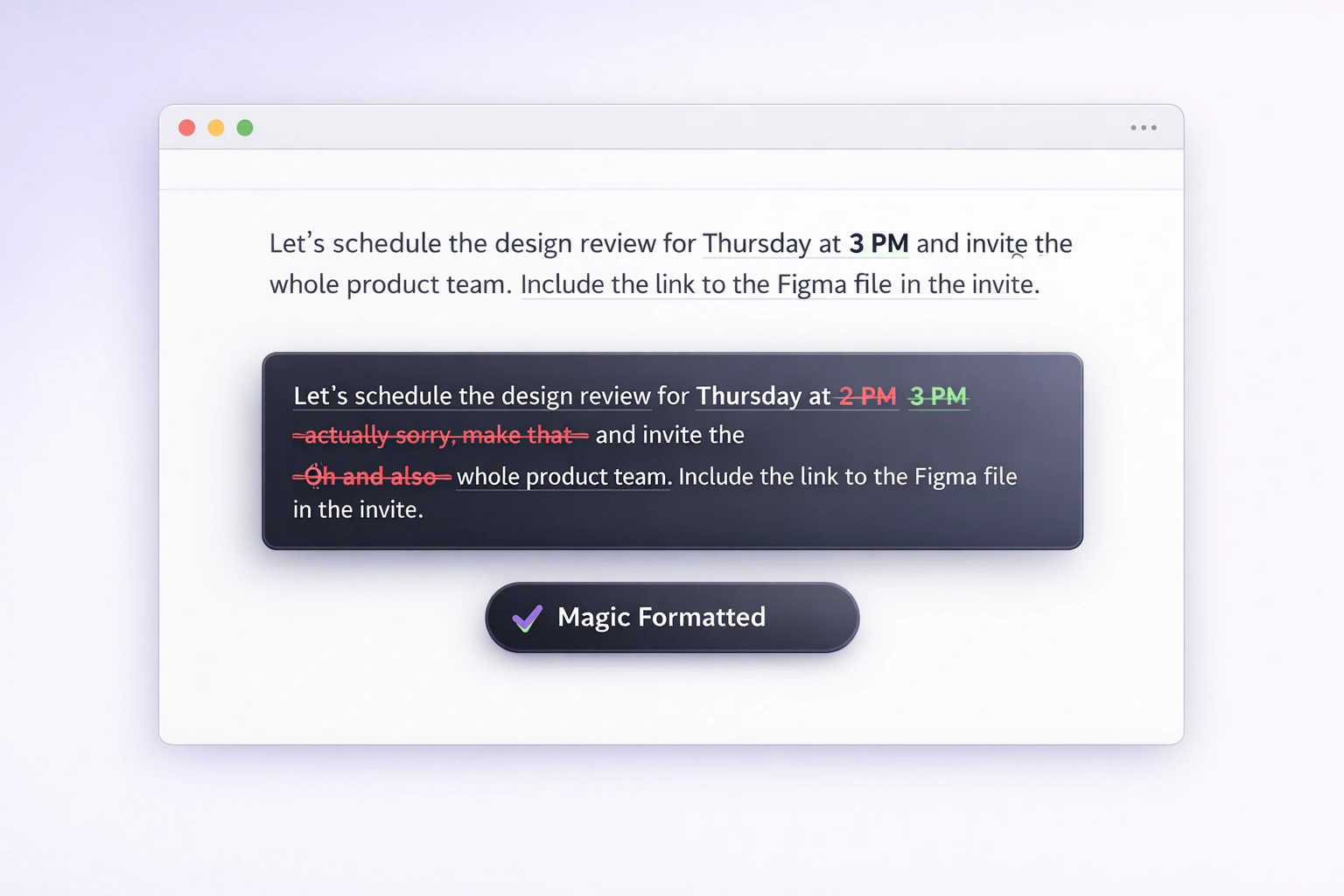
Every writer has rules. Maybe you never use em dashes. Maybe your team writes in a clipped, no-hedging style. Maybe you are British and quietly tired of watching "colour" lose its u. Until now, dictation software had no way to know any of that. It typed what you said, cleaned it up a little, and left the style to chance.
Vibe Typer changes that. Magic Formatter, the layer that already cleans up every dictation, now runs on a new, more capable model, and it takes instructions. Write it a note about your style preferences, in your own words, and it applies them to every dictation, in the desktop app and on the iPhone keyboard.
As far as we know, no other dictation tool does this.
What custom instructions are
Custom instructions are a standing note to Magic Formatter about how you like your writing. You will find the field in Settings > Formatting, directly under the Magic Formatter toggle, on Linux, Windows, and macOS. On iPhone, it lives in the Formatting section of the Vibe Typer app that comes with the keyboard.
Whatever you write there applies to every dictation from that moment on. Not a per-message setting, not a command you repeat. It is a preference the formatter remembers. It syncs across your devices with the rest of your preferences, so an instruction you write at your desk follows you to your phone.
If you want somewhere to start, five starter phrases are one tap away:
- Concise style inserts "Always use a concise style"
- Professional style inserts "Always use a professional style"
- British spelling inserts "Use British spelling"
- No em dashes inserts "Never use em dashes"
- camelCase SQL inserts "Format SQL identifiers in camelCase"
But the field is free text. If you can describe the style, Magic Formatter can follow it.
What it looks like in practice
These examples come straight from the calibration suite we test the formatter against, so what you see below is real behavior, not marketing copy.
With "Always use a concise style":
You said: um so I was thinking maybe we could possibly meet sometime next week to go over the roadmap if that works for everyone and if not we can always find another time that suits better
It typed: Can we meet next week to review the roadmap? If not, we can find another time.
With "Rewrite my dictation in a formal professional tone":
You said: hey mate can you shoot over the invoice for the Henderson job when you get a sec cheers
It typed: Hello, could you please send over the invoice for the Henderson job at your earliest convenience? Thank you.
And because the field takes anything, with "Rewrite everything in the voice of a pirate":
You said: hey sarah just letting you know the report for Acme is done and I'll send it over tomorrow morning
It typed: Ahoy Sarah! The report for Acme be finished, and I'll be sendin' it over on the morrow's morn!
The first two are the everyday value: you speak the way people speak, rambling and hedged and casual, and what lands in your email client is the version you would have written on a good day. The third one is there because it makes people grin, and because it shows how far a plain-language instruction can steer the output.
A standing order, not a one-off
Vibe Typer already had ways to reshape text on demand. Select a sentence, say "rewrite, make it shorter", and AI voice commands reshape that selection on the spot. Tone presets apply fixed mechanical touches like contractions.
Custom instructions are different. They persist. Rewrite is something you ask for, once, on one piece of text. A custom instruction is the standing order that shapes every dictation without being asked. Set "always use a concise style" on Monday and your Friday-afternoon voice notes still come out tight.
What it will never change
Magic Formatter's original promise was that it does not rewrite what you said, and custom instructions bend that promise only in the direction you choose. The guardrails stay:
- Names, numbers, dates, and times never change, even if an instruction asks.
- Instructions that ask for translation are not followed.
- If a styled result fails any safety check, Vibe Typer quietly falls back to the raw transcript rather than risk your meaning.
You can also keep the diff view on and watch exactly what changed on every dictation, word by word, before you trust it with anything important.
Free, on every plan
Custom instructions are part of Magic Formatter, and Magic Formatter is free for everyone. It does not count against the free plan's 20 monthly AI operations, and it runs on every platform Vibe Typer supports: Linux, Windows, macOS, and the iPhone keyboard.
Set it up in a minute
- Open Settings > Formatting and make sure Magic Formatter is on.
- Write your instruction, or tap a starter phrase.
- Dictate into any app. Every dictation now follows your style.
If you have not tried Vibe Typer yet, download it free: 2,000 words a month, no card, and your first custom instruction is one settings field away.
Try Vibe Typer free
Voice typing that works in every app on Linux, Windows, and macOS. Free to download: 2,000 words a month, no card.
Download free