How to Write Faster and Neater: A Practical Guide

Written by Futsy, founder at Vibe Typer
You're staring at a half-finished document, backspacing through the same sentence, and wondering why every paragraph feels harder than it should. The problem usually isn't a lack of effort. You're asking one workflow to solve two different problems: getting ideas onto the page quickly and making the finished text easy to read.
The practical answer to how to write faster and neater is to separate those jobs. Use an efficient input method for drafting, then use deliberate editing passes for clarity. Handwriting technique, keyboard shortcuts, voice typing, and proofreading each help, but they solve different bottlenecks.
Table of Contents
- The Real Reason Your Writing Feels Slow and Messy
- Dictating First Drafts With Voice Typing Workflows
- Cleaning Up Transcripts With Magic Formatter-Style Editing
- Keyboard Hotkeys and Shortcuts That Speed Up Typing
- A Drafting and Revision Workflow for Cleaner Final Text
- Building a 30-Day Practice Plan for Speed and Neatness
The Real Reason Your Writing Feels Slow and Messy
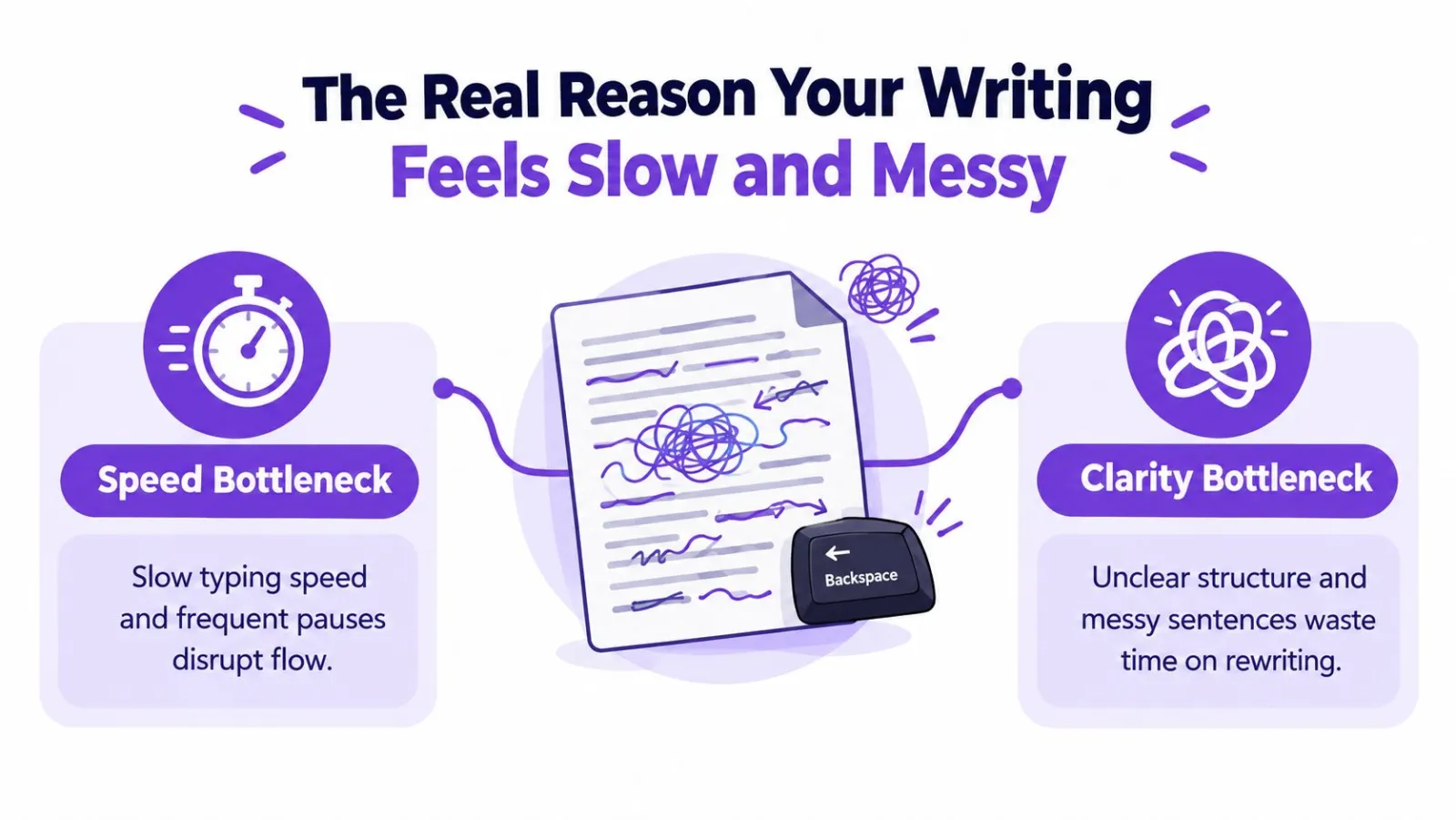
A slow writing session often begins with a small interruption. You type a sentence, notice an awkward phrase, fix it, reread the previous line, and then lose the thought you were trying to develop. A few minutes later, the document contains half-formed ideas, repeated wording, and a cursor that keeps moving backward instead of forward.
That pattern combines two separate bottlenecks. Speed is primarily an input problem. Your fingers, posture, keyboard layout, mouse use, and pauses between thought and keystroke all affect how quickly an idea becomes text. Neatness is primarily a structure and revision problem. Editing while drafting, switching tools mid-sentence, and postponing punctuation decisions can make even a fast draft difficult to clean.
Why speed and neatness reinforce each other
A slow typist may over-correct every word because each sentence feels expensive to produce. That kills momentum. The resulting draft becomes fragmented, which creates more rewriting, and the heavy rewriting makes the next writing session feel slow again.
The same split applies to handwriting. A relaxed grip, sensible posture, consistent letter shapes, and a comfortable pen can improve physical control, but they won't fix a paragraph with poor structure. Conversely, an excellent editing process won't make cramped fingers move faster across a page.
Practical rule: Improve the input method and the cleanup method separately. Don't expect a pen, keyboard, or dictation tool to produce polished prose automatically.
For a useful perspective on the physical side, read this guide on how to stop writing slowly. Then apply a cleaner division of labor: use voice typing or hotkeys to reduce input friction, and reserve dedicated passes for structure, sentences, punctuation, and proofreading.
Assessment work supports this context-specific view. A 2026 handwriting assessment framework separates speed into tasks such as copy-fast, free-writing, and graphic speed, rather than treating speed and neatness as one universal trait (Barnett and colleagues' DASH-2 framework). That distinction matters because the technique that helps copying may not help brainstorming, note-taking, or extended composition.
Dictating First Drafts With Voice Typing Workflows
Voice typing is most useful when you treat it as a drafting mode, not a complete writing system. Speech lets you bypass the physical bottleneck of moving fingers from key to key, but the transcript still needs review. The workflow works best when starting a draft feels easier than staring at a blank document.
Begin with a single hotkey. Bind hold-to-talk or toggle recording to a key you can reach without leaving the application. A push-to-talk shortcut should start dictation almost instantly, so you can capture a thought before you start polishing it mentally.
Dictate into a plain-text scratch buffer rather than the final document. A temporary buffer removes pressure around headings, bold text, links, and layout. You can speak freely, save the raw draft, and move into a separate editing mode once the ideas exist.
Decide what deserves speech input
Use dictation for material where flow matters more than character-level precision:
- Outlines: Speak the main points and supporting ideas before you worry about order.
- Blog posts: Dictate paragraphs conversationally, then tighten them during revision.
- Long emails: Messages over 200 words can benefit from a spoken first pass when the ideas are already clear.
- Brainstorming: Capture alternatives without interrupting yourself to format or reorganize them.
Type when precision matters more than flow:
- Code: Exact symbols, indentation, and syntax make manual input more reliable.
- Short chat replies: A brief response may take longer to correct than to type.
- Commands and identifiers: Product names, file paths, and character-sensitive text deserve a keyboard pass.
A voice-to-text option such as Vibe Typer supports hotkey activation and can insert dictated text into the active application, which fits a scratch-buffer workflow. Its dictation software for writers guidance is relevant if you're designing a repeatable drafting setup across desktop apps.
Speak for a transcript, not a conversation
Say punctuation aloud when your tool supports it. Use phrases such as “comma,” “period,” and “new paragraph,” and pause briefly at genuine paragraph breaks. If you stumble, re-record the sentence instead of saying “um” or narrating the correction. That gives the cleanup pass fewer distractions to remove.
A practical daily sequence looks like this:
- Open a scratch buffer.
- Start recording with the hotkey.
- Dictate a complete draft without revising each sentence.
- Save the file with a timestamp or descriptive filename.
- Switch to manual editing mode.
- Clean the transcript before making structural changes.
Voice input can be much faster than keyboard entry in some contexts. One 2026 comparison reported 143 WPM for voice output versus 56 WPM on a keyboard, a 155% increase (Printable Handwriting's voice typing comparison). Independent coverage of a Stanford study reported 161 words per minute for speech input versus 53 for mobile keyboard typing in that test (EmberType's comparison). Those figures describe specific tests, not a guarantee for every speaker or workflow.
The trade-off is equally important. A peer-reviewed ASR drafting study found that speech recognition reduced drafting time, but orientation and revision time offset the gain, so overall productivity didn't significantly increase (the ASR drafting study). Dictate when it helps you generate, then edit with enough discipline to keep the transcript from becoming a new source of friction.
Cleaning Up Transcripts With Magic Formatter-Style Editing
A raw transcript often preserves the shape of speech rather than the shape of writing. It may contain filler, repeated words, missing commas, inconsistent capitalization, and long sentences joined by pauses that made sense aloud but don't work on the page.
Start with a uniform cleanup pass before reorganizing the draft. The order matters because structural editing is harder when every paragraph has different punctuation and transcript noise.
A practical cleanup sequence
- Remove filler and obvious repetitions. Delete verbal pauses and repeated starts while preserving the intended meaning.
- Repair punctuation and capitalization. Add sentence boundaries, commas, apostrophes, and consistent capitalization.
- Split run-ons at natural breath pauses. A long spoken sentence may become two or three readable sentences.
- Normalize spacing and quotation style. Apply the same rules around quotation marks, parentheses, and em dashes.
- Review tone and meaning manually. Automation can tidy mechanics, but it can't reliably decide whether a phrase sounds like you.
Consider this short raw transcript:
| Raw Dictated Transcript | Cleaned Output |
|---|---|
| um the main point is that writing faster isn't just typing faster because if you stop every few words to fix something you lose the idea and then you end up with a draft that is um technically clean in places but confusing overall | The main point is that writing faster isn't just typing faster. If you stop every few words to fix something, you lose the idea and end up with a draft that's technically clean in places but confusing overall. |
A Magic Formatter-style tool can handle the mechanical pass by removing filler, applying punctuation, processing self-corrections, and following defined style instructions. A human still needs to check whether the wording is accurate, whether the paragraph belongs where it sits, and whether the final tone is appropriate. The Magic Formatter documentation describes the kind of change-by-change cleanup that's useful when you want visibility into automated edits.
Editing boundary: Let automation repair the transcript's surface. Keep judgment over emphasis, structure, factual meaning, and voice.
Run the cleaner across the entire transcript before structural editing. Uniformly tidy text makes it easier to see missing ideas, weak transitions, duplicated points, and paragraphs that need to move. If you edit structure first, you'll repeatedly encounter the same filler and punctuation problems while moving sections around.
Speech entry can also leave a different error profile from keyboarding. Research summarized on spoken journaling reported 153 WPM in English and 123 WPM in Mandarin, compared with 52 WPM and 43 WPM on a touchscreen keyboard, while speech corrected fewer errors during entry but left slightly more errors in the final text (the spoken journaling research summary). That's why transcript cleanup and final proofreading belong in the workflow, even when the first draft arrives quickly.
Keyboard Hotkeys and Shortcuts That Speed Up Typing
The fastest typists don't necessarily produce more characters every minute. They waste fewer movements. Cursor navigation, selection, deletion, duplication, formatting, and clipboard actions often consume more time than the actual keystrokes in a revision-heavy document.
Learn shortcuts by function rather than trying to memorize a random list. Practice one group inside the editor, browser, or terminal you already use, then add another group when the first feels automatic.
Navigation and selection
- Move by word: Use
Ctrl+Arrowon Windows and Linux. On macOS, useOption+Arrow. - Reach line edges:
HomeandEndwork across many Windows and Linux editors. On macOS,Cmd+LeftandCmd+Rightcommonly move to the beginning or end of a line. - Select by word or line: Use
Ctrl+Shift+Arrowon Windows and Linux. On macOS,Option+Shift+Arrowselects by word, whileCmd+Shift+Arrowextends selection to a line boundary. - Select without the mouse: Hold
Shiftwhile using navigation keys. This keeps your hands positioned for the next edit.
Editing and formatting
Ctrl+Backspace deletes the previous word on Windows and Linux, while Option+Backspace fills that role on macOS. In editors that support them, Ctrl+D can duplicate a line or selection, and Ctrl+Shift+K can delete a line. Check the application's own shortcut list because editor behavior varies.
For formatting, Ctrl+B, Ctrl+I, and Ctrl+U commonly apply bold, italic, and underline on Windows and Linux. macOS generally substitutes Cmd for Ctrl. Ctrl+Z or Cmd+Z moves backward through the undo stack, so don't hesitate to reverse a broad edit before making a smaller correction.
Cross-platform hotkey reference
| Action | Windows | macOS | Linux |
|---|---|---|---|
| Move by word | Ctrl+Arrow |
Option+Arrow |
Ctrl+Arrow |
| Select by word | Ctrl+Shift+Arrow |
Option+Shift+Arrow |
Ctrl+Shift+Arrow |
| Select to line edge | Shift+Home/End |
Cmd+Shift+Arrow |
Shift+Home/End |
| Delete previous word | Ctrl+Backspace |
Option+Backspace |
Ctrl+Backspace |
| Bold | Ctrl+B |
Cmd+B |
Ctrl+B |
| Undo | Ctrl+Z |
Cmd+Z |
Ctrl+Z |
Clipboard history is another quiet time-saver. Windows includes Win+V when clipboard history is enabled. On macOS and Linux, a clipboard manager can provide a similar searchable or numbered history behind a custom hotkey. Pair that with voice dictation and you can paste a cleaned phrase, response pattern, or reusable paragraph into the active app without retyping it.
For a deeper look at separating creation from correction, this revision and editing journey provides useful context. The principle is simple: use the keyboard to move, select, and transform text, not just to enter characters.
A Drafting and Revision Workflow for Cleaner Final Text
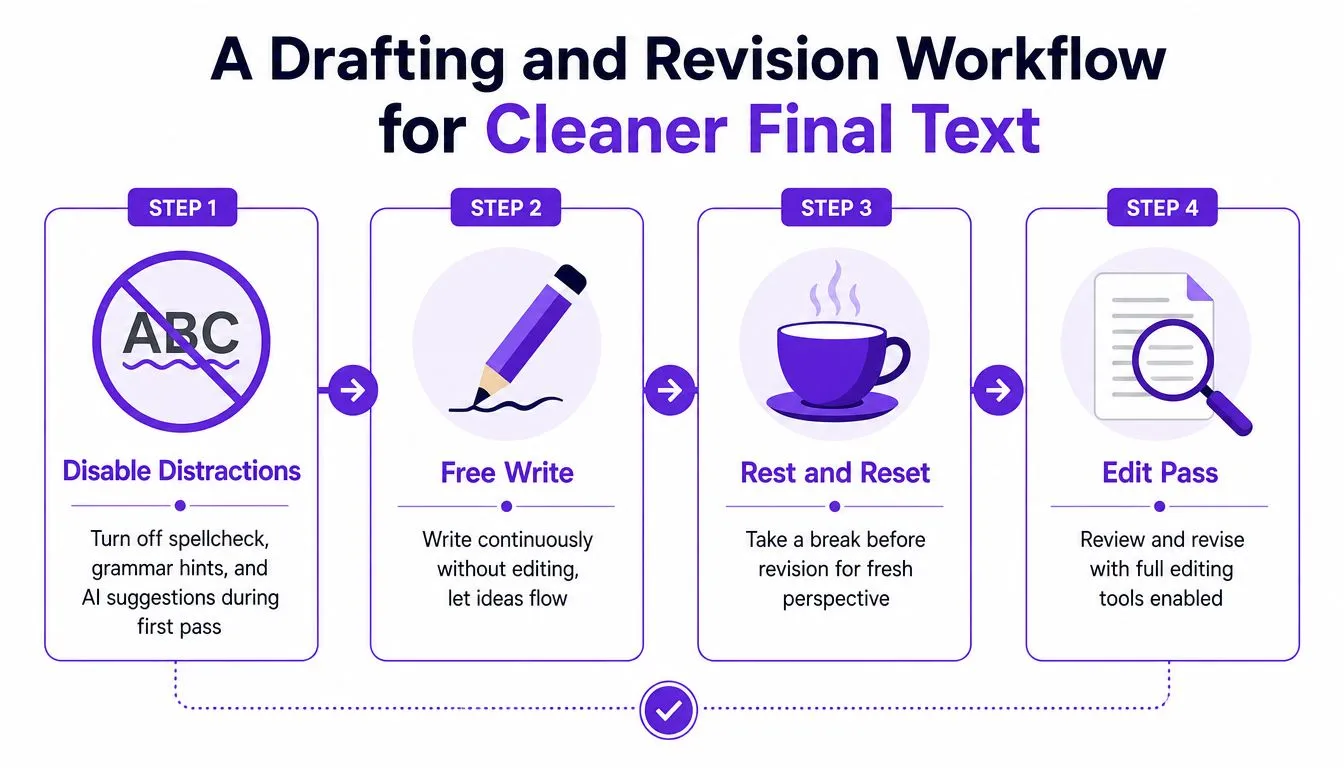
Neat writing comes from controlled passes, not constant correction. The workflow below keeps the first draft moving while giving each later pass one clear responsibility.
Start with a low-friction draft
Disable spellcheck, grammar hints, and AI suggestions during the first pass. These tools can be valuable later, but live prompts encourage you to interrupt a sentence before the idea has finished forming. Write or dictate continuously, and mark uncertainty with a simple tag such as [CHECK] instead of stopping to investigate.
Use one pass for one type of decision
First pass, structure. Read for order, argument, and missing context. Move paragraphs, combine duplicate ideas, and mark possible cuts with one consistent tag rather than deleting material immediately.
Second pass, sentence quality. Fix filler, vague openings, run-ons, unnecessary repetition, and passive constructions. Use a formatter for mechanical cleanup, then rewrite sentences that still sound like spoken notes.
Third pass, consistency. Decide how you'll handle serial commas, smart quotes, em dashes, capitalization, headings, and terminology. Apply the same rules throughout the document instead of making isolated style decisions.
Final pass, proofreading. Read slowly, and read aloud when possible. The UNC Writing Center recommends proofreading after other editing revisions, reading slowly and even aloud, and checking punctuation deliberately by separating text into individual sentences and circling each punctuation mark (UNC's proofreading guidance).
Keep the cursor moving for the right reason
The first draft should feel permissive. The structural pass should feel analytical. The sentence pass should feel precise. Mixing those mental modes is what creates the perfectionism trap, where every new sentence becomes an invitation to revise the previous one.
Read-aloud tools can help when your eyes have become too familiar with the screen. They expose missing words, repetitive rhythm, abrupt transitions, and sentences that look acceptable but sound awkward. Keep the final judgment human, especially for tone, emphasis, and factual meaning.
A writing assistant can fit into this workflow when it's used after drafting rather than during every keystroke. The AI typing assistant guide is relevant for workflows that combine voice input with later rewriting, but the same rule applies: generate first, then evaluate the result in a dedicated pass.
Building a 30-Day Practice Plan for Speed and Neatness
A useful practice plan measures input speed and cleanup quality separately. If you only track words per minute, you may reward fast transcription that creates more revision. Our WPM to keystrokes per hour chart converts between the two. If you only judge neatness, you may spend the entire session polishing a small amount of text.
Days one through seven
Begin with dictated journaling for ten minutes. Don't aim for literary prose. Capture observations, plans, or a problem you're trying to solve, then run a Magic Formatter cleanup pass and record the word count.
Add a short typing drill after dictation. Use keybr.com or Monkeytype to practice controlled keyboard input, but treat the result as a baseline rather than a verdict. Note where errors occur, especially with punctuation, numbers, symbols, or unfamiliar words.
Days eight through fourteen
Shift attention toward keyboard control. Use a timer for freewriting, then spend a separate session editing a short passage. Practice ten new shortcuts during the week, focusing on navigation, selection, deletion, and clipboard actions instead of collecting commands you'll never use.
Track whether the shortcuts reduce mouse movement. That's a more useful signal than remembering the key combinations.
Days fifteen through twenty-one
Return to voice drafting with a blog post or longer message. Dictate without formatting pressure, clean the transcript, and compare the raw version with the revised version. Pay attention to which filler patterns recur and which terms the recognizer gets wrong.
A custom dictionary can help with recurring names, jargon, and product terms. The point isn't to eliminate every correction. It's to identify predictable friction and decide whether a tool, pronunciation change, or manual keyboard edit handles it best.
Days twenty-two through thirty
Use a timed writing session, then complete a full clarity review. Measure the relationship between draft length and editing effort rather than chasing a universal target.
Useful neatness metrics include:
- Edit-to-draft ratio: Compare the amount of text changed with the original draft.
- Punctuation error rate: Count punctuation corrections in a consistent sample.
- Sentences revised per pass: Record how many sentences need another rewrite after the sentence-level edit.
- Cleanup time: Log how long transcript cleanup takes before structural revision.
- Surviving habits: Note which shortcuts, dictation routines, and review steps you still use without prompting.
On the final day, record your baseline speed, average transcript cleanup time, and the habits that survived the month. A sustainable writing improvement system should make your regular work easier, not turn every writing session into a training exercise.
The strongest plan combines modes instead of forcing one tool to do everything. Dictation handles idea generation, keyboard shortcuts handle precise movement and editing, and deliberate proofreading protects the final text.
Vibe Typer offers hotkey-activated voice typing across Linux, Windows, macOS, and iOS, with text inserted at the active cursor and a Magic Formatter for transcript cleanup. Try the workflow with a scratch buffer, a dedicated cleanup pass, and a final proofreading review by visiting Vibe Typer.
Try Vibe Typer free
Voice typing that works in every app on Linux, Windows, and macOS. Free to download: 2,000 words a month, no card.
Download free