Dictation Software for Writers: A Practical Workflow Guide

You're staring at a blank document, hands hovering over the keyboard, while the idea in your head keeps moving. Then you open a microphone, start speaking, and watch a complete paragraph take shape at roughly the pace of your thinking. The difference isn't that dictation magically writes the manuscript for you. It removes one bottleneck, then gives you a new workflow to manage.
Good dictation software for writers is therefore more than a transcription box. The useful pipeline is idea, spoken draft, formatter-cleaned text, diff review, and edited manuscript. Speech recognition has a long path behind it. Thomas Edison's dictation machine arrived in 1879, Bell Labs' Audrey system in 1952, Dragon Dictate in 1990, and NaturallySpeaking 1.0 in 1997, the first continuous dictation product that didn't require pauses between words (speech recognition history).
Voice input is now a practical writing method. Resources such as AI dictation for novelists are useful when you're considering how spoken drafting fits fiction, but the central lesson applies to every format: tune the whole pipeline, because the first transcription pass is only one stage of it.
Table of contents
- Why writers are rebuilding their drafting process around voice
- Setting up your microphone and environment for cleaner drafts
- Building a voice-first drafting workflow that holds up
- Tuning formatter and style settings to match your voice
- Editing dictated drafts with a diff review habit
- When dictation saves time and when it just shifts the work
- Troubleshooting the recognition and insertion issues writers hit most
Why writers are rebuilding their drafting process around voice
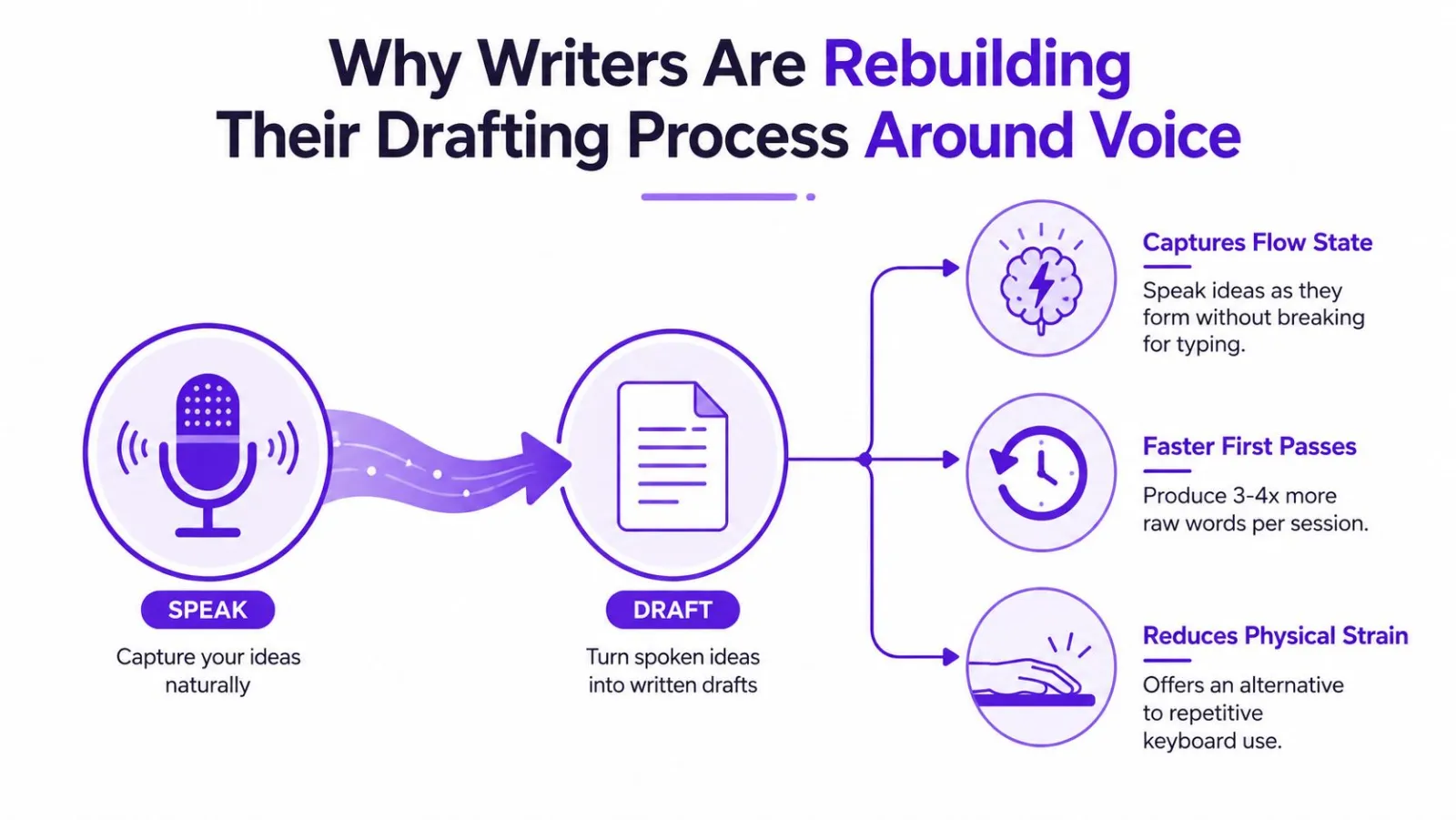
A keyboard is excellent for precision, navigation, and revision. It can also become an annoying gate between a thought and the page. Writers often stop to correct a sentence before they've finished discovering what the sentence is trying to say. Voice input changes that sequence. You can speak through an argument, scene, outline, or rough email before polishing any of it.
The strongest use case is first-draft momentum. The spoken draft can stay loose and visibly unfinished because its job is to get material out of your head. The formatter then removes some friction, while the editor decides what belongs in the manuscript.
Practical rule: Treat dictation as a drafting pipeline, not a typing replacement.
Speech recognition is usable enough for sustained professional work, but usable is not perfect. A 2019 review reported that more than 90% of hospitals planned to expand front-end speech recognition for direct dictation into electronic health records (clinical speech-recognition review). Healthcare documentation is a demanding environment. Its adoption shows that speech input can support high-volume text production when accuracy, correction, and system integration are handled together.
That last condition is the one many writing guides skip. Recognition errors, awkward paragraph breaks, and missing punctuation still create work. The question isn't whether the software can turn speech into words. It's whether the output moves cleanly into the next stage.
A practical voice-first process looks like this:
- Capture: Speak ideas in thought-sized chunks instead of composing every keystroke.
- Format: Apply punctuation, capitalization, filler-word, vocabulary, and style rules.
- Review: Compare the spoken intent with the inserted text and expose meaningful changes.
- Edit: Fix structure, accuracy, rhythm, and publication details manually.
Once you separate those stages, dictation becomes easier to evaluate. A tool that captures raw words may work for brainstorming. A tool with formatting and diff review is more useful when the draft needs to become readable prose.
Setting up your microphone and environment for cleaner drafts
Recognition problems often begin before the software hears a word. A microphone that sits too far away, a fan aimed toward the capsule, or a room with hard reflective surfaces can turn an otherwise clear session into a correction exercise.
You don't need to chase expensive specifications first. Consistency matters more than price. Choose a microphone you can keep at a repeatable distance from your mouth, then test it from the actual chair where you write. A headset keeps the distance stable when you move. A desk microphone can sound good too, but you'll need to avoid leaning toward it during one sentence and away during the next.
Record a short sample in your normal writing position. Listen for fan noise, HVAC hum, keyboard clicks, room echo, and traffic. The sample should include ordinary prose, a proper name, and a sentence with punctuation. A quiet room won't compensate for a microphone that changes position constantly, and a good microphone won't remove every source of environmental interference.
For setup details, use this practical guide to microphones for dictation, then configure the software around how you write.
Choose the trigger before the session
Hold-to-talk is a strong default when you want deliberate control. You press the hotkey while speaking and release it when you stop, which limits accidental capture from conversations, music, or keyboard noise. Toggle mode suits a writer who wants to deliver a longer passage without keeping a finger on a key, but it requires more discipline around pauses.
Pick a shortcut that doesn't collide with your editor, browser, or operating-system commands. Then check that the document has focus. If the cursor is in a search field, chat box, or browser address bar, the transcription may be accurate and still land in the wrong place.
Use this pre-session checklist:
- Mic position: Keep the mouth-to-microphone distance consistent.
- Room sound: Silence fans or move away from obvious noise where possible.
- App focus: Click into the document and confirm the cursor is visible.
- Trigger mode: Select hold-to-talk or toggle mode intentionally.
- Test phrase: Dictate five seconds, including a full stop and a new paragraph.
That tiny test catches insertion and audio problems before they contaminate a long draft.
Building a voice-first drafting workflow that holds up
The recording loop should feel simple enough that you'll repeat it. Start with either hold-to-talk or toggle mode, depending on whether control or continuity matters more to you.
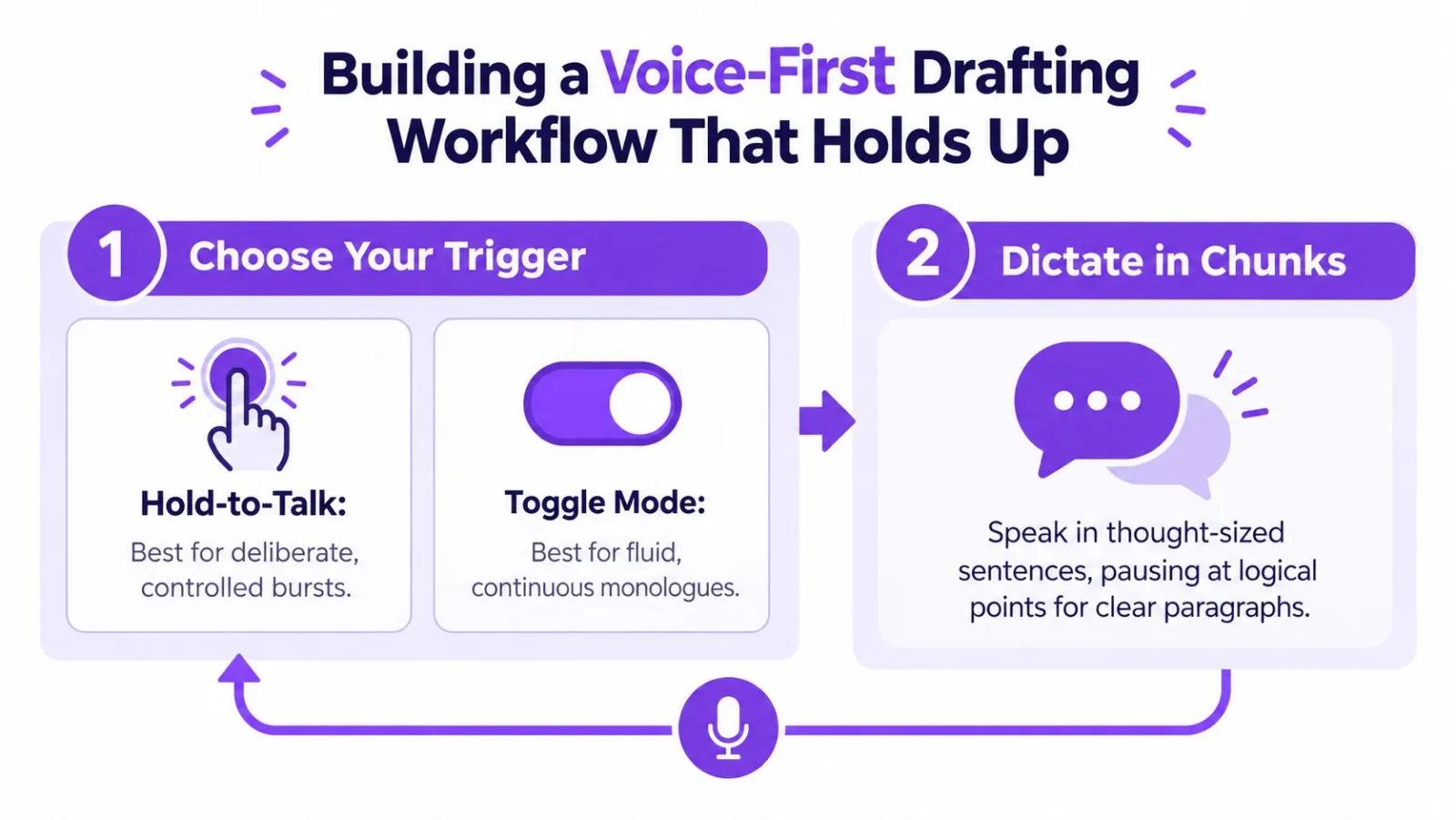
Speak in thought-sized chunks, usually one sentence or a short group of connected sentences. Pause briefly when a paragraph changes. You don't need to narrate every formatting decision, but you do need to give the system enough separation to understand where one idea ends and another begins.
Use ordinary punctuation cues when the software requires them. Saying "period," "comma," or "new line" is less disruptive than stopping to repair punctuation in the middle of a thought. If automatic punctuation works reliably in your chosen tool, let it carry the routine marks and reserve spoken commands for places where the meaning depends on a clear break.
Handle corrections without losing the thread
Self-correction is where new users often destroy their momentum. You start a sentence, dislike the phrase, and spend the next minute trying to delete and replace it by voice. That's usually a poor trade.
Use one of three approaches:
- Immediate correction: Say a clear correction command if the tool supports it, then repeat the clean phrase.
- Clean repetition: Stop, repeat the sentence from the beginning, and mark the earlier version for later removal.
- Forward motion: Leave the mistake in place and continue when correction would interrupt the idea.
The drafting stage isn't the place to perfect every clause. Leave visible seams, repeated phrases, or a spoken note such as "fix this example" for the editing pass. Your aim is a fast raw draft, not publication-ready prose.
A reliable loop looks like this:
- Speak a sentence or connected thought.
- Pause at a natural paragraph boundary.
- Scan the last sentence for an obvious word drop.
- Fix only a clear, local error.
- Continue for a few minutes.
- Stop for a broader review before the next section.
That scan protects the rest of the draft from a missing negation or a badly recognized name without forcing you into line editing while you're still generating ideas. Speech-recognition performance varies by speaker, system, and accent, so a process that includes review is more dependable than a promise of flawless first-pass output. Benchmark literature reports word-error differences of roughly 2% to 12% between General American accents and non-American accents, depending on the recognizer (accent and word-error research).
Tuning formatter and style settings to match your voice
A formatter determines whether dictated text feels like a rough transcript or a usable first draft. Don't treat its defaults as neutral. They encode assumptions about filler, punctuation, capitalization, numbers, and sentence style.
Start with a general configuration, then create project-specific rules. For broad writing, remove obvious verbal fillers, preserve meaningful repetition, apply normal sentence capitalization, and keep the output conservative. Fiction may need dialogue-sensitive paragraphing and a larger character dictionary. Technical writing needs stricter protection for product names, commands, acronyms, and units.
Settings that deserve deliberate choices
Filler-word handling needs more nuance than "delete everything." "Um" and "uh" usually disappear from polished prose, while "like" may be either a verbal tic or an intentional comparison. False starts can be removed automatically, converted into visible markers, or left untouched for the editor.
Self-corrections should remain traceable when meaning could change. If you say, "The meeting is Tuesday, no, Wednesday," the final text must not preserve the wrong date. A formatter should make the intended correction clear, and you should verify important names, numbers, and commitments manually.
Capitalization rules matter for proper nouns you speak but don't type. Add character names, companies, product terms, locations, and recurring technical vocabulary to a custom dictionary. One recurring mishearing can cost more time than the initial setup.
Number formatting deserves its own test. Decide how the system should render currency, dates, ordinals, measurements, and percentages for each project. A business memo, a novel, and a technical guide may use different conventions.
Style instructions can guide sentence tightness, exclamation-mark restraint, or British spelling. These rules should bias the output, not erase the writer's voice. Always compare the formatted result with what you intended to say.
Here's a useful working matrix:
| Setting | Default | Recommended for writers | When to adjust |
|---|---|---|---|
| Filler words | Preserve or remove selectively | Remove obvious tics, review ambiguous words | Change for transcripts, memoir, or dialogue |
| False starts | Keep raw speech | Mark or remove during the first formatting pass | Preserve when hesitation carries meaning |
| Capitalization | General sentence rules | Add names, brands, and specialist terms | Adjust for fiction or technical projects |
| Numbers | General numeric conversion | Set rules for dates, currency, and measurements | Change to match a publication style guide |
| Punctuation | Automatic or spoken commands | Use automatic punctuation with explicit commands for critical breaks | Adjust when paragraphs or dialogue drift |
| Style instructions | Neutral | Prefer concise, consistent project rules | Create separate rules for each genre |
The Magic Formatter documentation is a useful reference for thinking about this layer as a set of visible transformations rather than an invisible cleanup trick.
Calibrate one rule at a time
Dictate a 200-word test passage, then compare the raw output with the formatted version. Change one setting, run the same kind of passage again, and inspect what moved. If you change filler removal, punctuation, capitalization, and style instructions simultaneously, you won't know which rule caused a new problem.
Save separate profiles for general prose, fiction, and technical writing. The best configuration isn't the one that produces the most polished-looking text. It's the one that removes predictable cleanup while protecting facts, names, and the decisions you still want to make as the author.
Editing dictated drafts with a diff review habit
Editing dictated text isn't optional cleanup. It's a defined production stage. The most reliable review compares the spoken outline or script with the inserted text so insertions, deletions, and substitutions become visible instead of blending into fluent-looking prose.
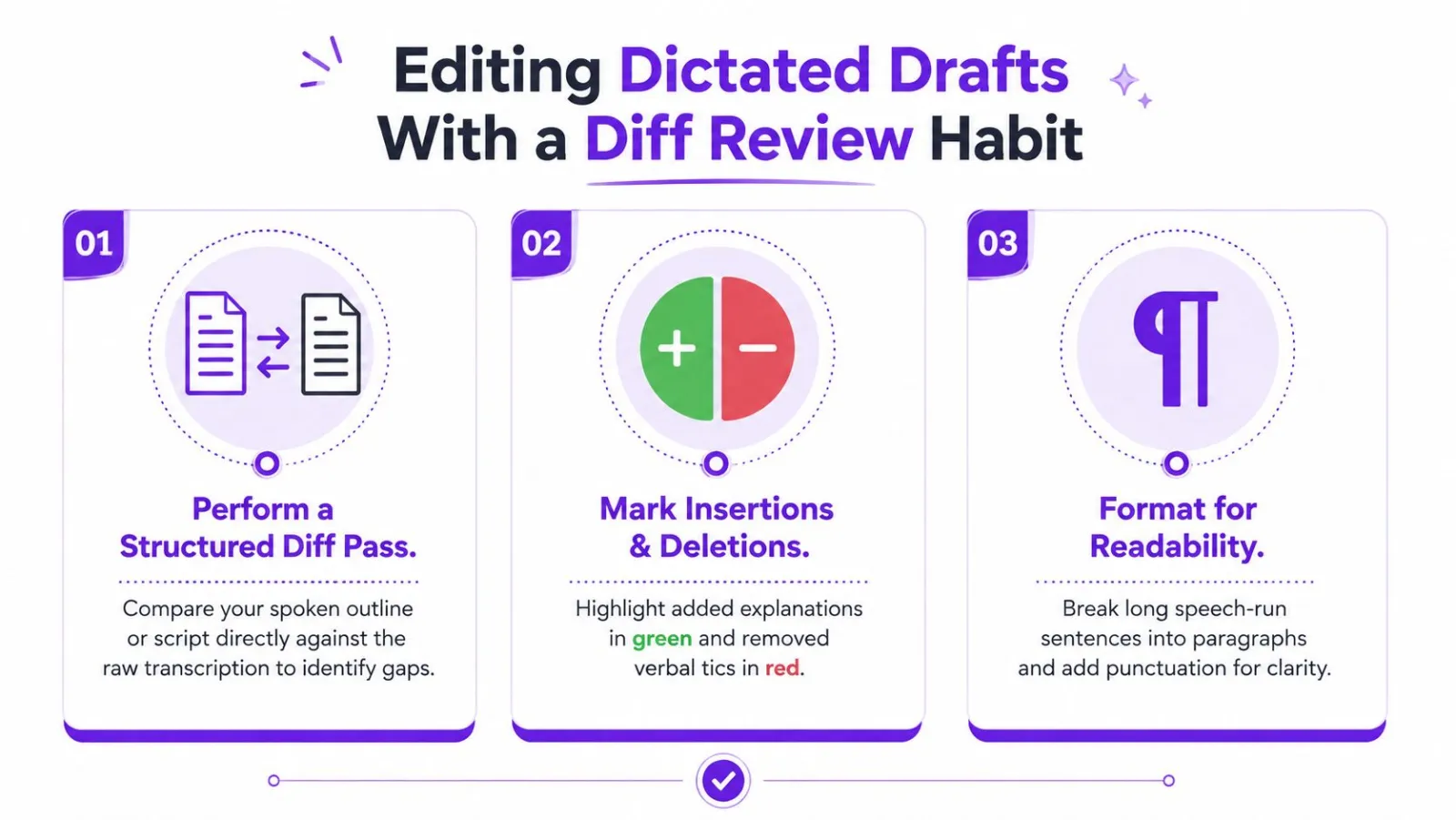
Start with structure. Check whether you skipped a planned point, repeated an explanation, or left a spoken placeholder in the wrong paragraph. A fluent transcript can hide a missing sentence, especially when the surrounding prose still reads smoothly.
Then run a fidelity pass. Look for homophones, dropped negations, incorrect names, missing punctuation, and accidental substitutions. Finally, run a style pass for sentence length, rhythm, paragraphing, and phrases that sound natural aloud but awkward on the page.
Make changes visible
Use track changes when the document will pass to another editor. In a personal draft, a diff view or temporary colour coding can make the review faster:
- Green highlights: Added explanations or inserted words.
- Red highlights: Deleted filler, repeated phrases, or mistaken passages.
- Yellow highlights: Items requiring factual or vocabulary verification.
Keyboard shortcuts should support movement, not replace judgment. Keep find, undo, accept-change, and next-difference commands close at hand. If you're reviewing inside a browser editor, make sure the shortcut doesn't trigger a browser action instead of the document command.
Use this checklist before calling a dictated section usable:
- Read the passage aloud once to compare the written rhythm with your original intent.
- Scan for unusual word combinations that indicate a recognition error.
- Verify speaker tags, headers, footnote markers, names, and numbers.
- Check paragraph breaks around dialogue, lists, and scene changes.
- Remove spoken instructions that were meant for you rather than the reader.
This guide to filler-word cleanup in voice transcription is especially relevant when the formatter removes verbal tics but leaves sentence structure for you to judge.
The review time depends on the speaker, vocabulary, environment, and task. Don't budget dictation as speaking time alone. Reserve a separate editing block, because a fast capture session can still produce a slow total if every sentence needs reconstruction.
Here's a short visual demonstration of how a diff-oriented review can fit into the process:
When dictation saves time and when it just shifts the work
Dictation wins when typing is the bottleneck and the text can tolerate a loose first pass. Exploratory drafts, long narrative sections, high-volume email, meeting notes, and brainstorming are natural candidates. Writers who experience repetitive strain or produce ideas faster than their fingers can type may also find voice input more comfortable.
It loses its advantage when every spoken phrase requires precise formatting or verification. A heavily researched article with many names and citations, a document built around tables, and code-heavy material can turn recognition into a series of manual interventions. Short copy may have the same problem, because the cleanup takes as long as the original typing would have taken.
Research supports that caution. One clinical transcription study reported average recognition accuracy of 84.5% and no overall productivity benefit, with near-zero correlation between recognition accuracy and productivity, r = 0.29 for one group and 0.06 for another (clinical transcription findings). Accurate recognition doesn't make the whole job faster on its own.
A separate review of writing research found that speech-to-text can increase text length and short-term fluency, but those benefits don't always transfer to handwriting or other writing modes. The effect also varies by task and user. Writers who struggle with spelling or have slower baseline output sometimes benefit more. Complex tasks can cut drafting time but add orientation or revision time (research on speech-to-text and writing).
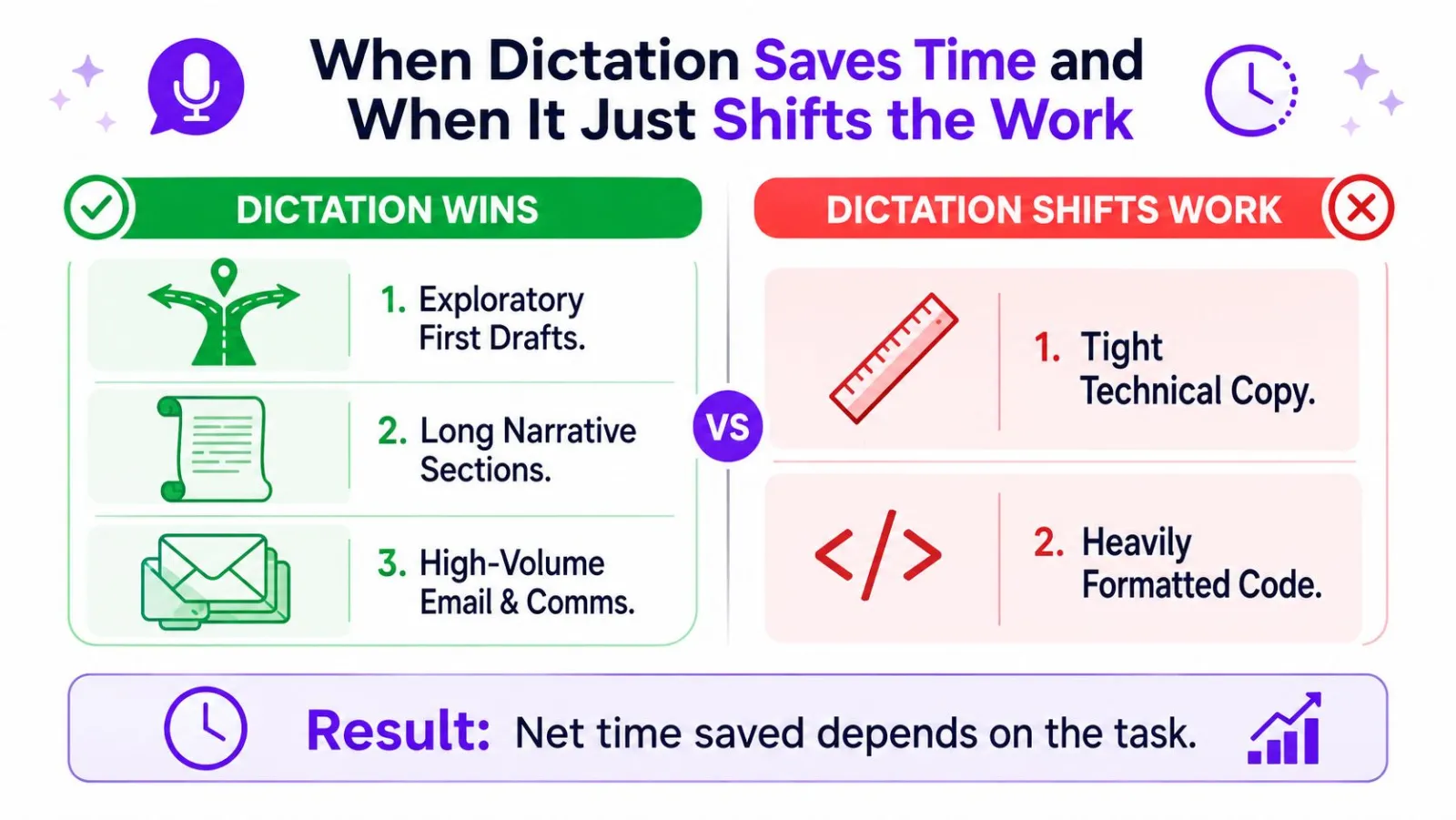
Use a simple decision rule: if more than 20% of a piece needs manual cleanup because of recognition errors, keyboard input may still be faster for that assignment. That threshold is a personal test, not a research standard. Measure the cleanup on a representative passage, then choose the input method that lowers total drafting and editing time.
Troubleshooting the recognition and insertion issues writers hit most
Most failures fall into three categories: the system heard you incorrectly, the formatter changed the output unexpectedly, or the text was inserted into the wrong place.
- Repeated name errors: Add the proper noun, character name, brand, or technical term to the custom dictionary. Test it in a sentence rather than checking the isolated word.
- Missing punctuation: Speak "period," "comma," or "new line" explicitly. If that works, review automatic punctuation settings rather than replacing the microphone.
- Text in the wrong field: Confirm document focus before recording and check app permissions. Browser tabs, search fields, and chat windows can steal the cursor.
- Fan or keyboard noise: Record a short sample with the fan running, then another with it off. If recognition improves immediately, fix the room or microphone position.
- Only one app fails: Test the same phrase in a plain text editor and your target application. A clean plain-text result points to an insertion or app-compatibility issue.
- Every app fails: Check the microphone, input device selection, and room sound before changing vocabulary or style rules.
Privacy also belongs in this diagnosis. Cloud and multimodal voice tools create questions about audio storage, transcript retention, training, and workplace compliance, especially when writers handle client or regulated material. The privacy trade-off should be part of your selection criteria, not an afterthought (privacy and speech-recognition deployment research).
If you use Linux, Wayland adds another insertion concern. Wayland compositors block many synthetic-input methods, so compatible tools may rely on paths such as ydotool, dotool, or wtype rather than X11-only mechanisms (Linux Wayland dictation review). Vibe Typer is one cross-platform option, with hotkey recording, formatter controls, diff review, and cursor-based insertion on Linux, Windows, and macOS.
Vibe Typer offers voice typing that turns speech into cleaned text at the active cursor, with hold-to-talk or toggle recording, custom vocabulary, formatter instructions, and a diff view for reviewing changes. If you want to test the full drafting-to-editing loop rather than raw transcription alone, visit Vibe Typer and try it in the apps where you already write.
Try Vibe Typer free
Voice typing that works in every app on Linux, Windows, and macOS. Free to download: 2,000 words a month, no card.
Download free