Paste Preferences: Why Dictation Breaks in Terminals and IDEs (and How to Fix It)


Most dictation software works fine until you push it.
You dictate a long prompt, a support reply, or a chunk of documentation, and then one of three things happens:
- Nothing appears in the target app.
- The formatting is a mess.
- It works in one part of your IDE, but breaks in another.
This is not your microphone. It is usually the insertion method.
Vibe Typer solves this with Paste Preferences, so you can choose how text is inserted per application.
The real problem: "Works everywhere" is harder than it sounds
On desktop, "inserting text" is not one thing.
Different apps accept text in different ways:
- Some apps expect a normal clipboard paste.
- Some apps strip formatting only when you use a special paste shortcut.
- Some apps block pasting entirely in certain contexts.
- Some apps behave differently depending on which sub-window is focused.
That last point is what makes IDEs tricky.
The mixed-context issue (Cursor, IDEs, and embedded terminals)
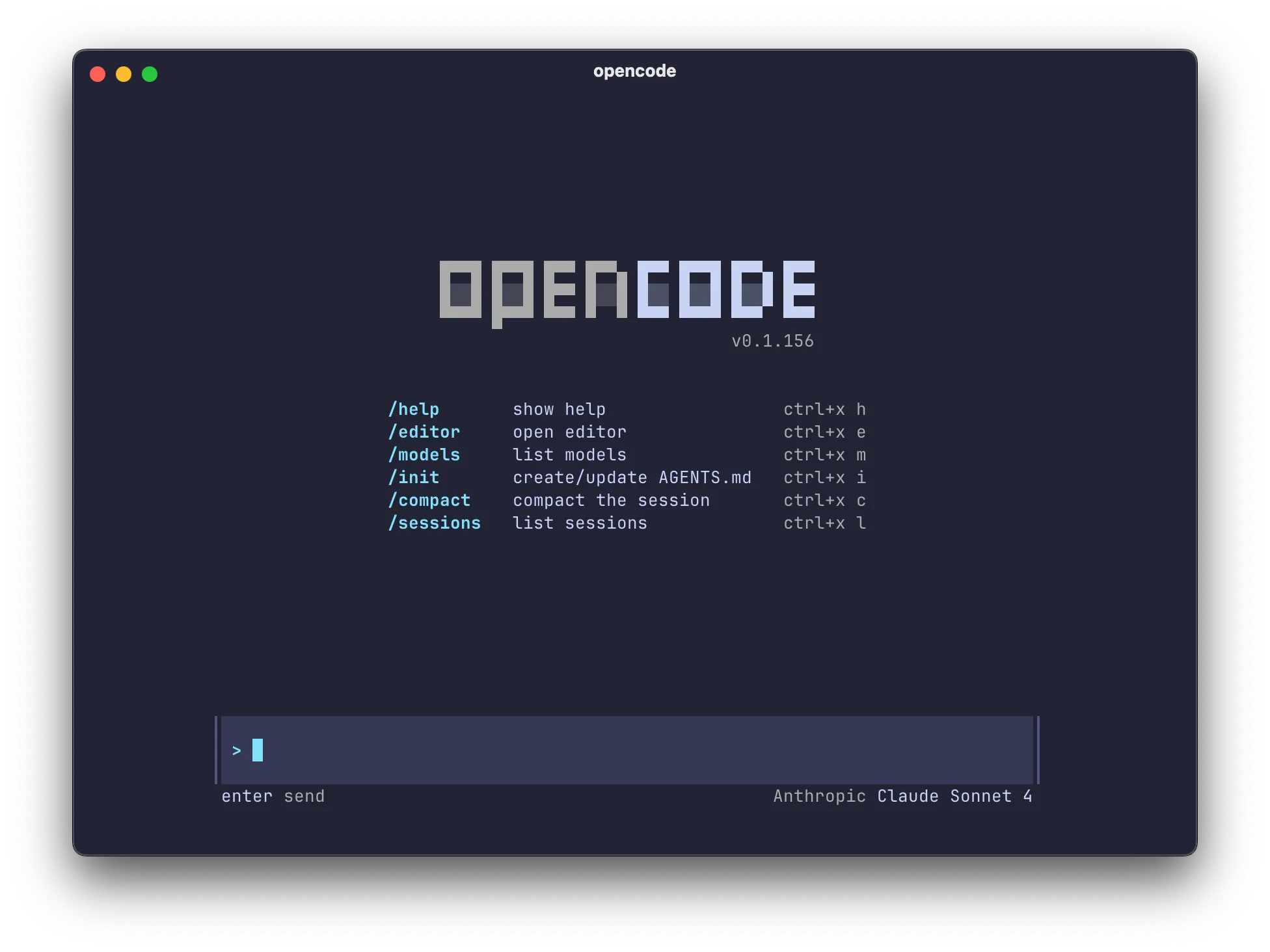
Apps like Cursor often contain multiple surfaces:
- A code editor
- A chat or prompt input
- A markdown file preview or rich editor
- An embedded terminal
Each surface can respond differently to pasting.
A rich text paste can inject odd spacing, bullets, or formatting into a markdown editor. A plain text paste might be perfect there, but the terminal might still behave differently. A typing simulation can be the most consistent across all those surfaces.
That is why a single global "paste mode" is not enough.
The three insertion methods (and when to use each)
Vibe Typer offers three insertion methods. The best one depends on the app you are targeting and what kind of field is focused.
Default insertion mode is platform-specific:
- Windows: Plain text paste (
Ctrl + Shift + V) - Linux Wayland: Typing simulation
- Linux X11: Typing simulation
1) Plain text paste
Use this when you want maximum predictability.
Best for:
- Terminals
- Code editors
- Markdown editors
- Anything where formatting is more harm than help
It pastes without formatting, so your editor does not inherit weird styles or invisible characters.
2) Rich text paste
Use this when formatting is valuable.
Best for:
- Email clients
- Docs editors
- Rich text fields where you want formatting preserved
It keeps rich formatting, which is useful for longer emails or formatted documents.
3) Typing simulation (maximum compatibility)
Use this when paste shortcuts are flaky or blocked.
Best for:
- Apps that do not accept paste reliably
- Mixed-context apps where different panes behave differently
- Remote desktop sessions
- Legacy apps
The tradeoff is speed. It can be slower than a clipboard paste, but it works in far more places.
Recommended presets (copy these and tweak)
If you are not sure where to start, these presets work well for most people.
Terminal-first setup
- Terminal apps: Plain text
- IDEs you use mostly for coding: Plain text
- Email and docs: Rich text
IDE power user setup (Cursor-style)
If you spend all day inside a single IDE that includes a terminal, this is often the easiest:
- Cursor (or your IDE of choice): Typing simulation
It keeps behavior consistent across the editor, chat box, markdown panes, and embedded terminal.
"Just make it work" setup
- Any app that fails to accept paste: Typing simulation
Dictate once, paste correctly everywhere
Once it is configured:
- Set Paste Preferences for your core apps (terminal, IDE, email).
- Use voice typing to produce a rough draft.
- If you are writing in markdown or code, stick to plain text or typing simulation.
- If you are writing an email, switch that app to rich text.
After that, dictation becomes reliable. You stop re-dictating the same text because the paste failed.
Troubleshooting: when text shows in history but not in your app
If Vibe Typer transcribes successfully (you can see the text), but nothing appears where you are typing, try this checklist:
-
Switch the insertion method for that app
- If you are on rich text, try plain text.
- If paste does not work at all, try typing simulation.
-
Click directly into the target field Some apps lose focus easily, especially IDE panes.
-
Test in a different surface of the same app For example, test inside Cursor chat input, then in the editor, then in the terminal.
-
Use typing simulation for mixed panes This is the fastest way to avoid "works here, fails there" behavior.
Why this matters for dictation software
Voice typing is only as good as the last step: getting your words into the tool you are using.
That is why Paste Preferences exist. They are how dictation becomes dependable across terminals, IDEs, and everything else you write in.
Configure it once
If dictation has ever felt unreliable, it is usually not the transcription. It is the insertion method.
Configure Paste Preferences once, match the insertion method to the app, and dictation works across the apps you use, which is what most dictation tools promise.
FAQ
Why does dictation paste weird formatting into markdown?
Markdown editors can interpret formatting from rich text pastes in unexpected ways. Plain text paste avoids that.
Why does dictation fail in terminals?
Many terminals handle paste differently, and formatting or special characters can cause issues. Plain text paste is usually the safest choice.
What is typing simulation, and when should I use it?
Typing simulation inserts text as keystrokes instead of clipboard paste. Use it when paste is blocked, unreliable, or inconsistent across panes in an app.
What is the best setup for Cursor?
If you use Cursor's editor and embedded terminal heavily, typing simulation is often the most consistent. If you mostly use the editor, plain text can be enough.
Can I set different paste methods per app?
Yes. That is the point of Paste Preferences. Configure your IDE, terminal, and email client separately so each one behaves correctly.
Try Vibe Typer free
Voice typing that works in every app on Linux, Windows, and macOS. Free to download: 2,000 words a month, no card.
Download free