Kensington SlimBlade on Linux: Custom Button Mapping & Left-Handed Setup

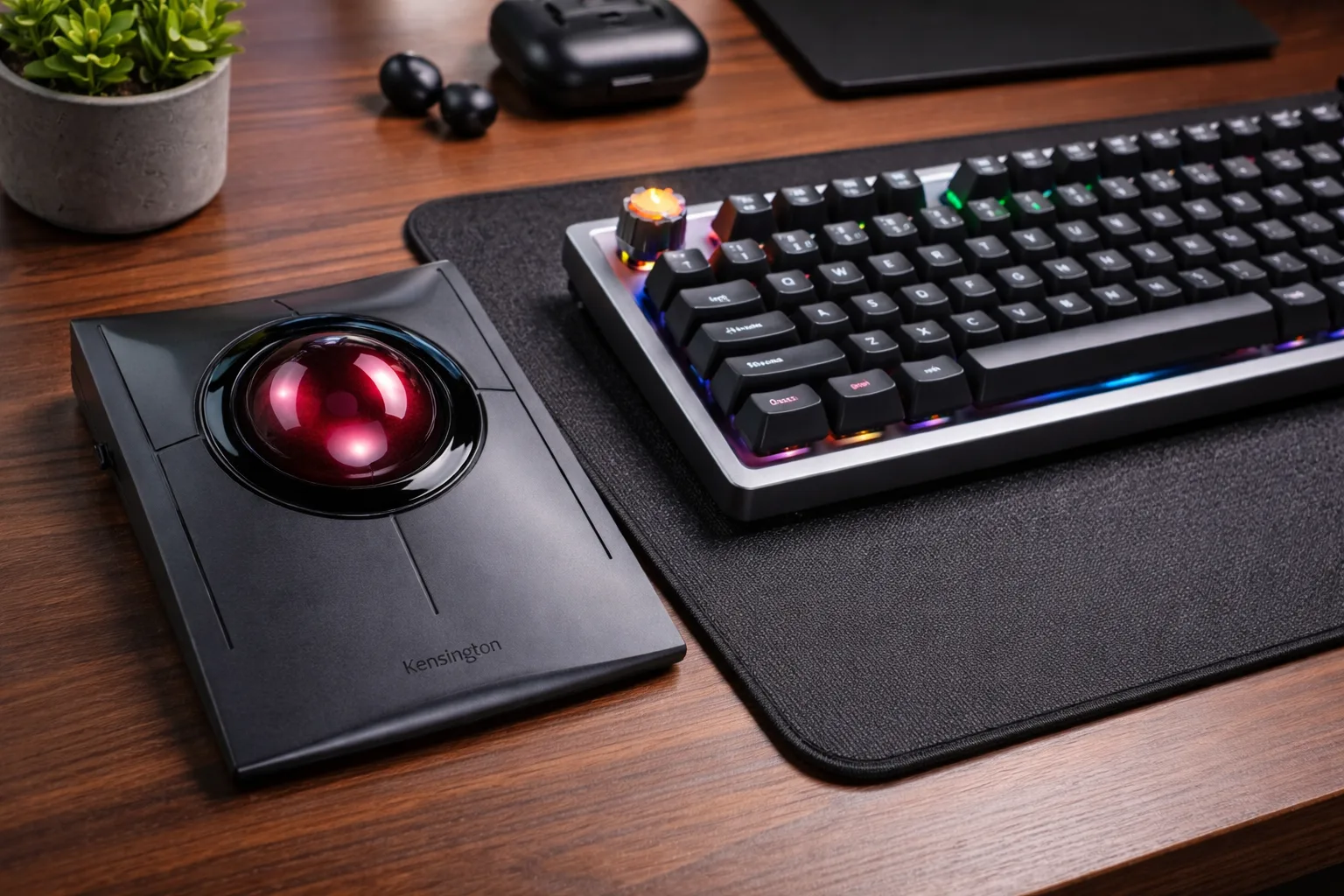
The Kensington SlimBlade and SlimBlade Pro have a 55mm ball and scroll when you twist it. They are also symmetrical, so the default click layout is a compromise, and it probably does not match how you work, especially if you use the device with your left hand.
On Linux X11 you do not need vendor software to change that. xinput and one config file will swap the clicks, move the back and forward buttons, and keep the result after a reboot.
Why remap your SlimBlade?
The SlimBlade has four large buttons around the ball, and Linux maps them in a standard order. The changes people make most often:
- Left-handed use. Swap the primary and secondary click buttons so your thumb handles the main action.
- Navigation. Move Back and Forward to the top buttons.
- Accidental clicks. Disable the button zones you keep hitting by mistake.
Step 1: Identify your device
First, find out how Linux sees your trackball. Open your terminal and run:
xinput list
Look for a line containing "Kensington SlimBlade". Note the name or the ID number. Then, view the current default mapping:
xinput get-button-map <device-id>
You will probably see a sequence like 1 2 3 4 5 6 7 8 9. Each position in this list represents a physical button action.
Step 2: Test a new mapping live
To swap left and right clicks and move the navigation buttons, use this mapping:
xinput set-button-map <device-id> 3 8 1 0 5 0 9 4 9
What that map does:
- Swaps the primary click buttons (Left becomes Right, Right becomes Left).
- Positions the "Back" and "Forward" actions on the upper buttons.
- Cleans up unused button assignments to prevent "ghost" clicks.
Test the device immediately. If the clicks feel reversed or the navigation is wrong, you can revert to the default by running xinput set-button-map <device-id> 1 2 3 4 5 6 7 8 9.
Step 3: Make it permanent
The xinput command only lasts until you log out. To make your custom layout stick after every reboot, you need to create an X11 configuration rule.
Create the following file as root:
/etc/X11/xorg.conf.d/99-kensington-trackball.conf
Add this content:
Section "InputClass"
    Identifier "Kensington SlimBlade"
    MatchProduct "Kensington SlimBlade"
    Driver "libinput"
    Option "ButtonMapping" "3 8 1 0 5 0 9 4 9"
EndSection
If your system uses the older evdev driver instead of libinput, change the Driver line to match.
Tuning your own layout
If the mapping above is not right for your hand size or preference, find your own with xinput test:
- Run
xinput test <device-id>. - Click each physical button on the SlimBlade.
- Watch the terminal output to see which button number is triggered.
- Rearrange those numbers in your
set-button-mapcommand until the behavior matches your intent.
FAQ
Does this work for both the wired and Pro (wireless) versions?
Yes. Using the MatchProduct "Kensington SlimBlade" string in your config file is broad enough to catch both the classic wired model and the newer SlimBlade Pro.
How do I configure this on Wayland?
Wayland handles input remapping differently than X11. Instead of Xorg config files, you may need to use tools like input-remapper or compositor-specific settings (like those found in GNOME or KDE Plasma) to achieve the same result.
Can I remap the "Twist to Scroll" behavior?
The twist action is usually interpreted as a high-speed scroll wheel (buttons 4 and 5). You can remap those numbers, but leave them alone unless you are willing to give up twist scrolling.
Worth doing once
X11 gives you button-level control over the trackball. A few xinput commands and one config file, and the buttons do what your hand expects instead of what the default map decided.
The same goes for optimizing your voice typing setup and the best Linux productivity tools. Set the input up once and stop thinking about it.
If you are remapping hardware to reduce strain, dictation is the other half of the same problem; see preventing RSI with voice typing.
Try Vibe Typer free
Voice typing that works in every app on Linux, Windows, and macOS. Free to download: 2,000 words a month, no card.
Download free